Use a CSV file to move customers and scheduled work into Surehand. The import shows a preview before it creates records.
Import access is intended for an organisation administrator or manager. If you cannot see it, ask the person who manages your Surehand account.
Start with the Surehand template
Using the template is the simplest way to put your data in the format Surehand expects.
Prefer us to do it for you? No problem. If you already have customer or round data in another system, contact Surehand and we can help prepare and import it for you. Tell us which system you are moving from and we will explain the safest way to send your export—please do not email customer data until we have agreed how to receive it.
- Download the blank CSV template.
- Open it in Excel, Numbers, Google Sheets or another spreadsheet app.
- Keep the column headings exactly as they are.
- Add one row for each piece of scheduled work. If a customer has two services, use two rows and repeat their customer details.
- Save or download the completed sheet as a
.csvfile.
Information each row needs
Complete these columns:
customer_name— the customer's full name.address_line1— the first line of the service address.country— useGBfor the United Kingdom.service_name— for example,Window Cleaning.frequency— useone_off,weekly,every_2_weeks,every_4_weeks,every_8_weeks,monthlyorevery_2_months.next_due— the work date for a one-off job or the first date for recurring work.price— enter a number such as15.00, without a pound sign.
The other columns are optional, but adding contact details, postcode, notes and a round name will make the imported records more complete. Only use round_name for recurring work.
If you are bringing across an existing balance, use either opening_amount_owed or opening_credit—not both. Leave both blank if no opening balance is needed.
Check the completed file
Before uploading it:
- Keep the original header row and do not rename or remove columns.
- Make sure each row represents the customer and scheduled work you expect.
- Use one consistent date format.
YYYY-MM-DD, such as2026-08-14, is the safest choice. - Check that addresses and postcodes are complete enough to recognise.
- Keep phone numbers in the phone column and email addresses in the email column.
- Save the file as CSV rather than an Excel
.xlsxfile.
Keep an untouched copy of the original export.
Instructions for your platform
Choose where you’re using Surehand. We’ll remember your selection for the next guide.
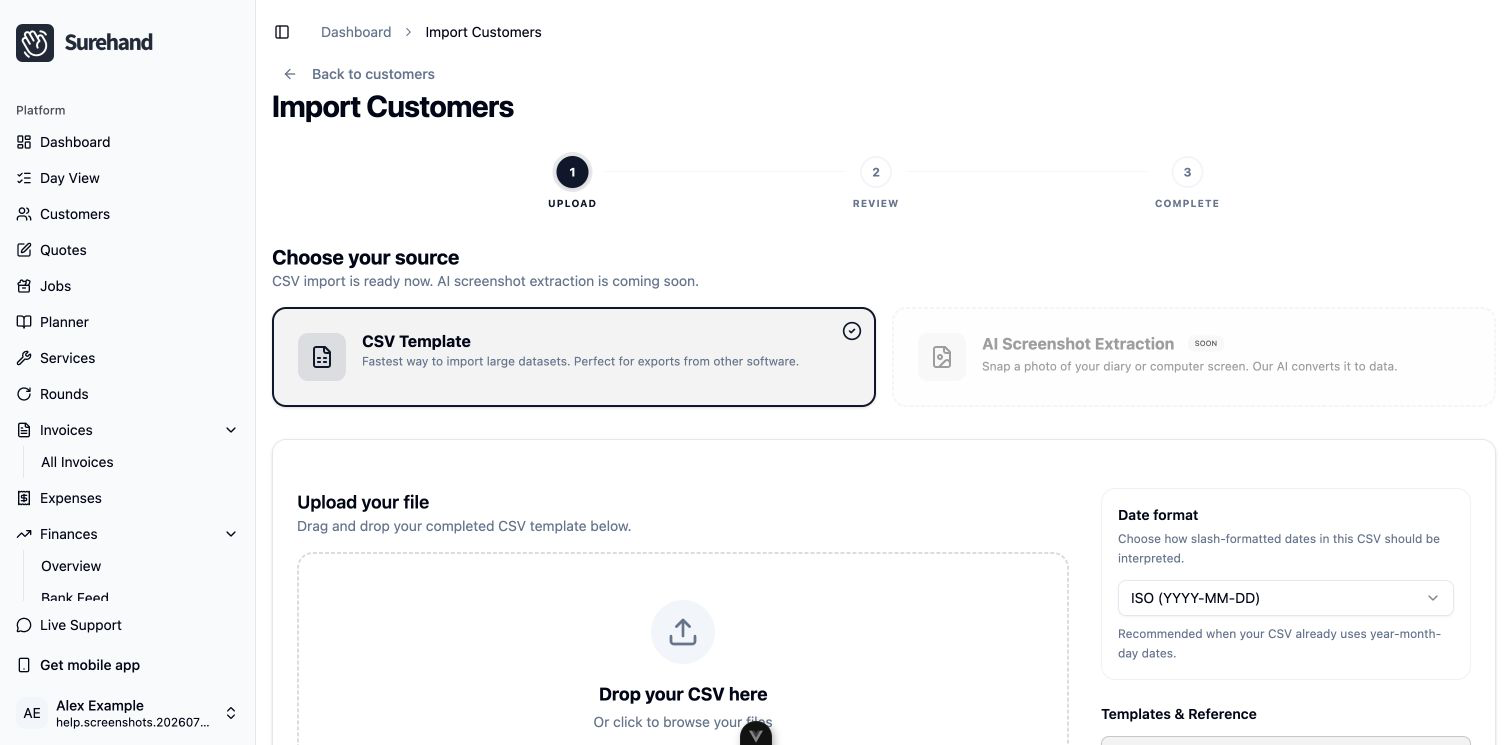
Open the import on the web
- Open Customers.
- Choose Import.
- Keep CSV Template selected.
- Drag your completed CSV into the upload area, or choose Select file.
- Select the correct date format.
- Continue to preview the import.
You can also download the blank template, completed sample and column guide directly from this import screen.
Review and import
Before continuing, check the table Surehand extracted from the file. You can correct cells and remove empty rows.
Pay particular attention to:
- Customer names.
- Address lines and postcodes.
- Service names.
- Prices.
- Frequencies such as weekly, fortnightly or every four weeks.
- The next date that work is due.
Surehand validates the proposed records before import. The preview separates work it can create from issues that need attention.
Review service mapping carefully. Matching an imported service to an existing Surehand service prevents near-duplicate service names.
Do not continue until blocking issues are resolved. If the file cannot be imported safely, use the option to send it to Surehand for help.
Choose the import action once the preview is correct. Wait for the completion summary before leaving the page.
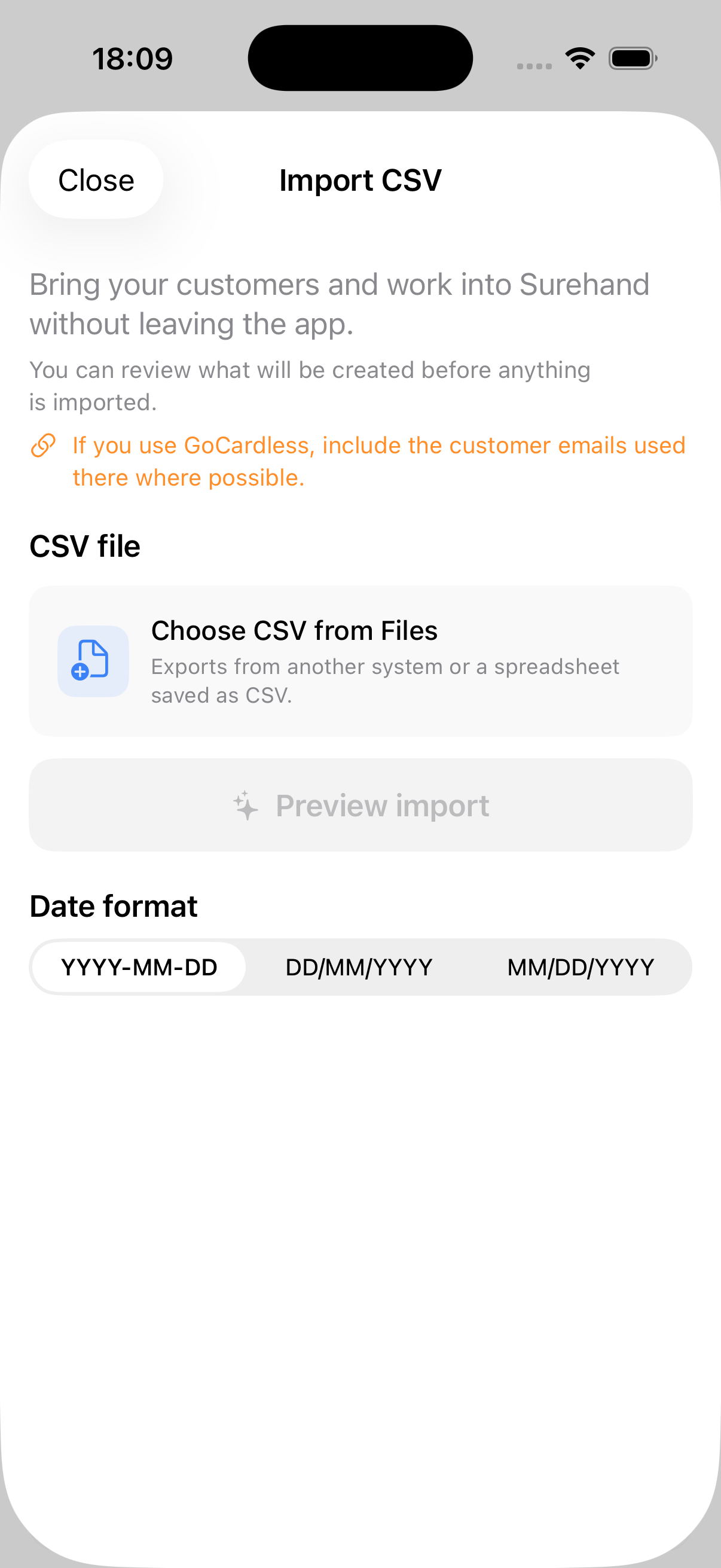
Open the import on iPhone or iPad
- On Home, open Getting Started, then choose Import existing data.
- Choose Choose CSV from Files.
- Select the completed template or another CSV saved in the Files app.
- Choose the date format used in the file.
- Choose Preview import.
Review and import
Check the summary and every reported issue before continuing. Confirm that names, addresses, prices, frequencies and next dates have been interpreted correctly.
Choose Confirm import when the preview is ready. If the app cannot import the file safely, choose Send this file to Surehand instead. Wait for the completion summary before leaving.
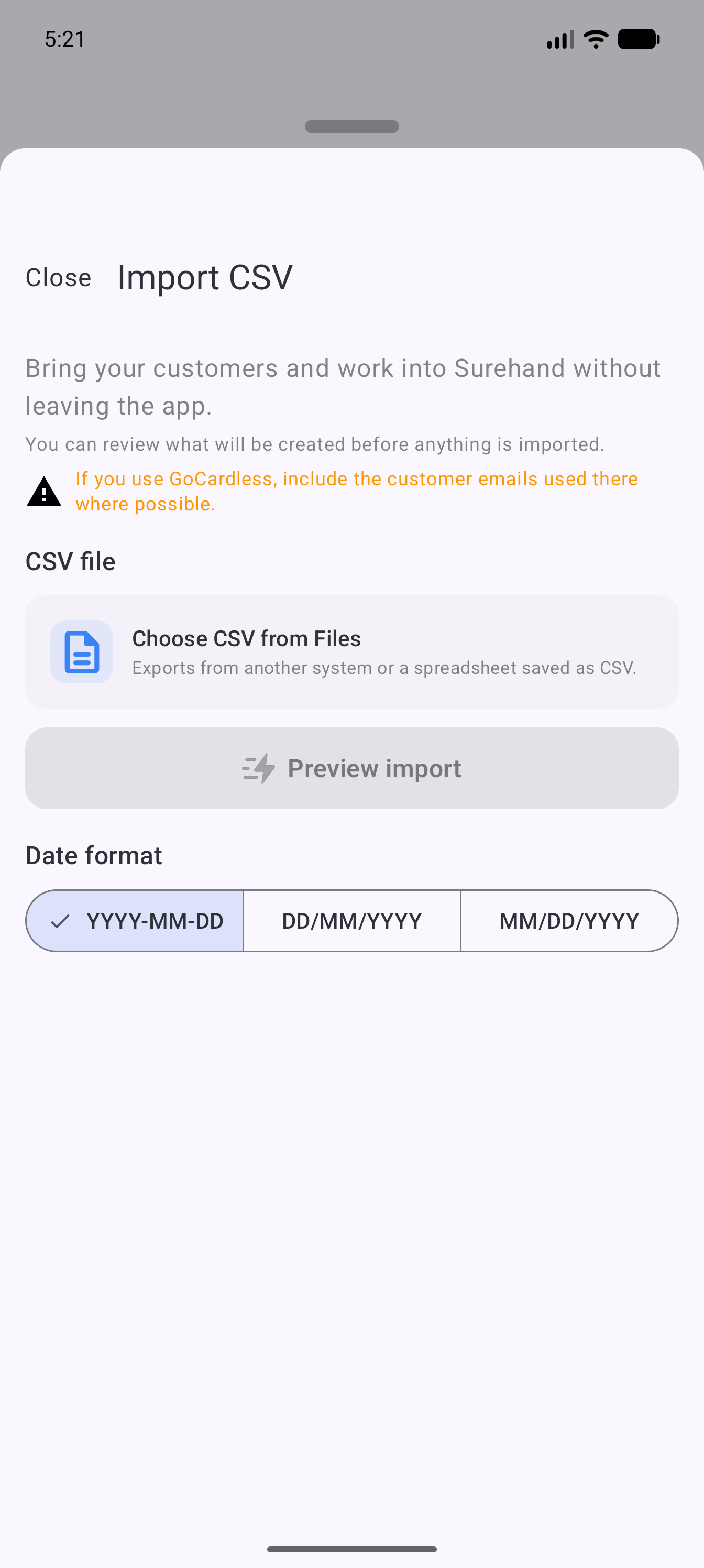
Open the import on Android
- On Home, open Getting Started, then choose Import existing data.
- Choose Choose CSV from Files.
- Select the completed template or another CSV from your device.
- Choose the date format used in the file.
- Choose Preview import.
Review and import
Check the summary and every reported issue before continuing. Confirm that names, addresses, prices, frequencies and next dates have been interpreted correctly.
Choose Confirm import when the preview is ready. If the app cannot import the file safely, choose Send this file to Surehand instead. Wait for the completion summary before leaving.
Check the imported work
After the import:
- Open Customers and spot-check several records.
- Open Planner and check upcoming dates.
- Open Rounds if the import included round assignments.
- Check at least one recurring schedule and its price.
Correct a small problem before relying on the imported schedule for the working day.
Moving from another window-cleaning system
Exports vary between providers. Keep the source export and avoid changing column meanings simply to make the file look cleaner. The preview exists to show how Surehand has interpreted it before records are created.