Surehand works best when you set up the basic parts of your business in a sensible order. You do not need to configure everything before you begin.
Before you begin
It helps to have:
- Your business contact details and logo.
- A short list of the services you normally provide.
- A few customer details.
- An idea of how you currently organise one-off and recurring work.
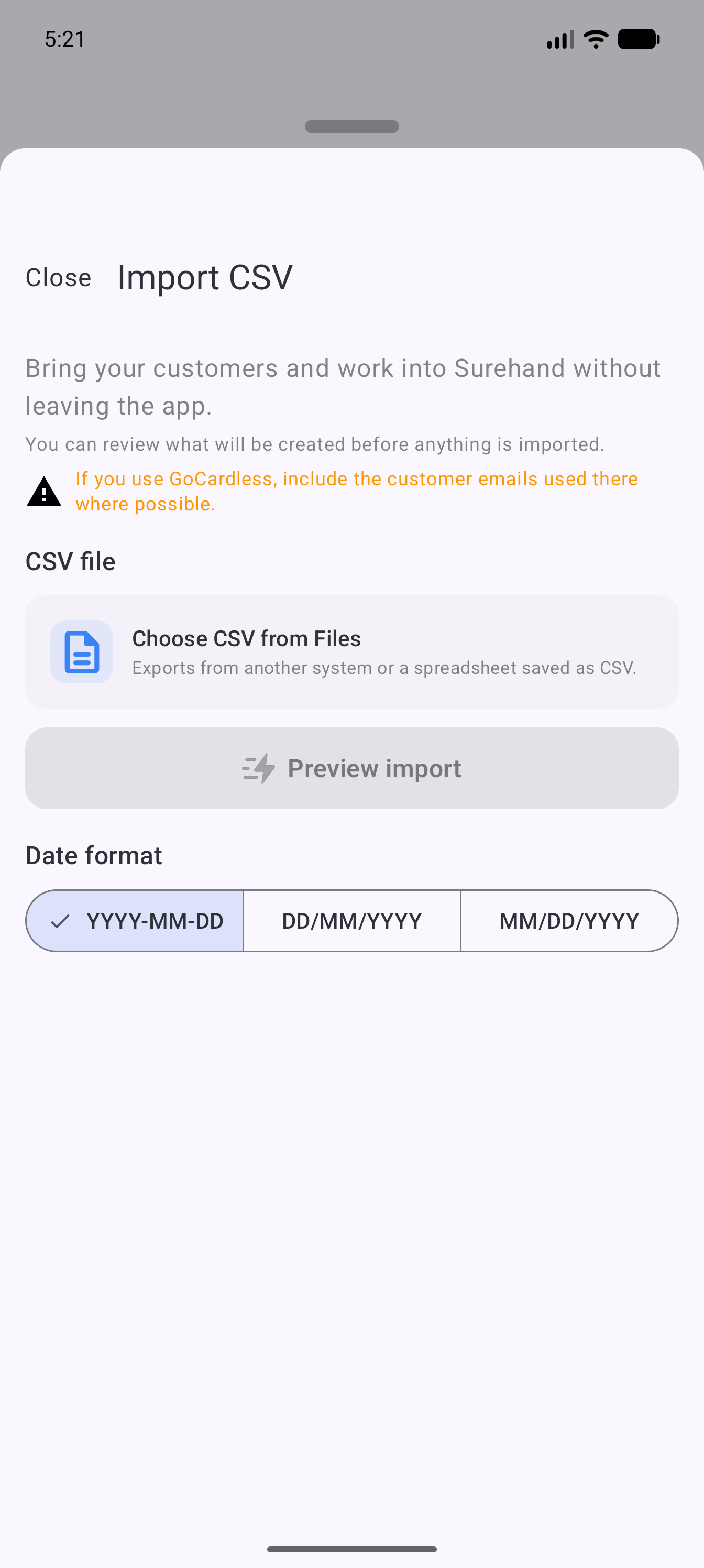
If you already keep customers and scheduled work in a spreadsheet, you can import it rather than adding every record by hand.
Instructions for your platform
Choose where you’re using Surehand. We’ll remember your selection for the next guide.
Set up on the web
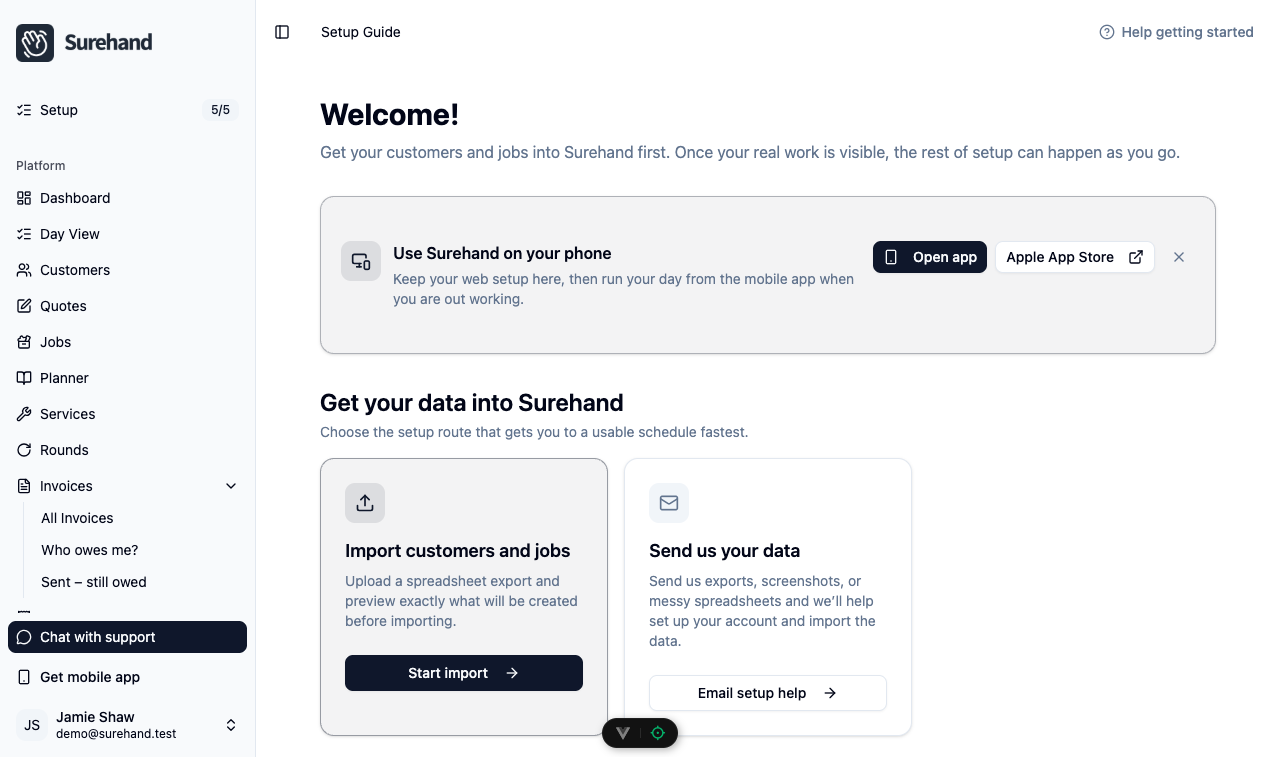
- Open Setup at the top of the sidebar and work through the Setup guide. The badge next to Setup shows how many required steps you have completed.
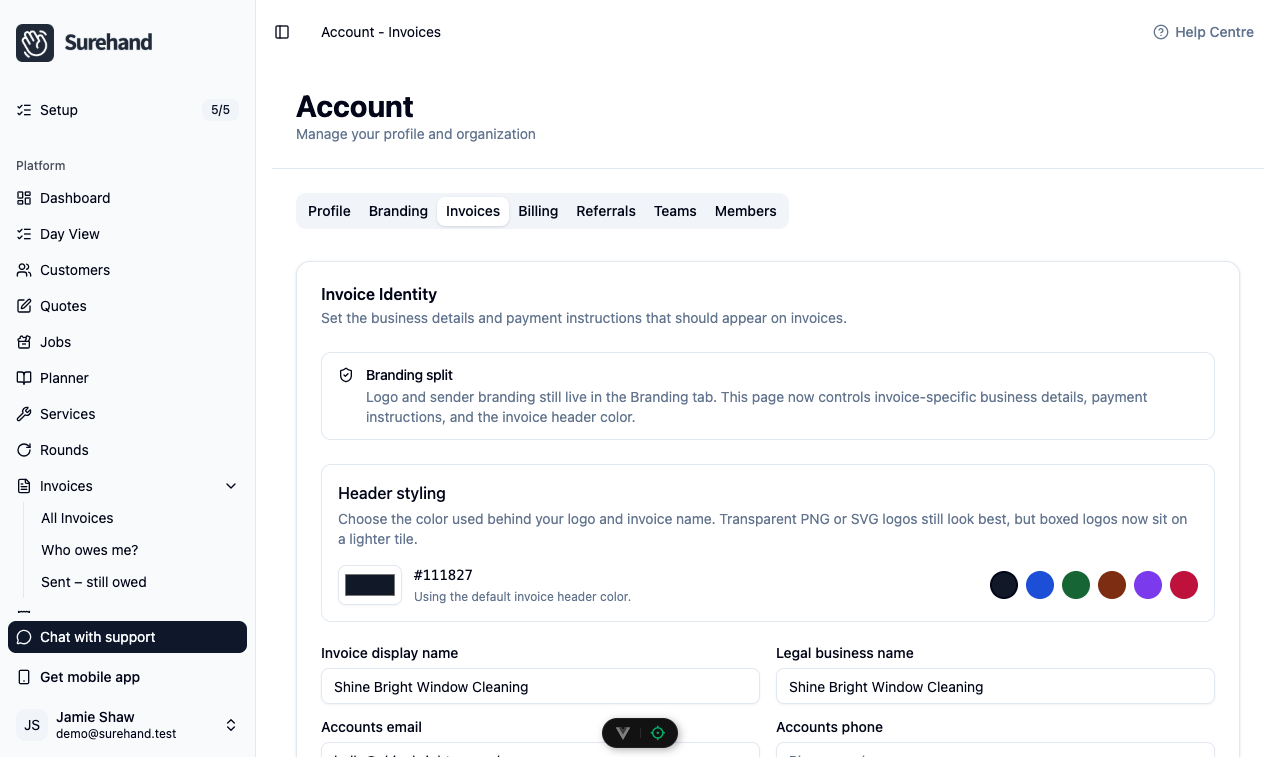
- Open your account and settings. Review the business profile, branding and invoice details that can appear on customer-facing documents.
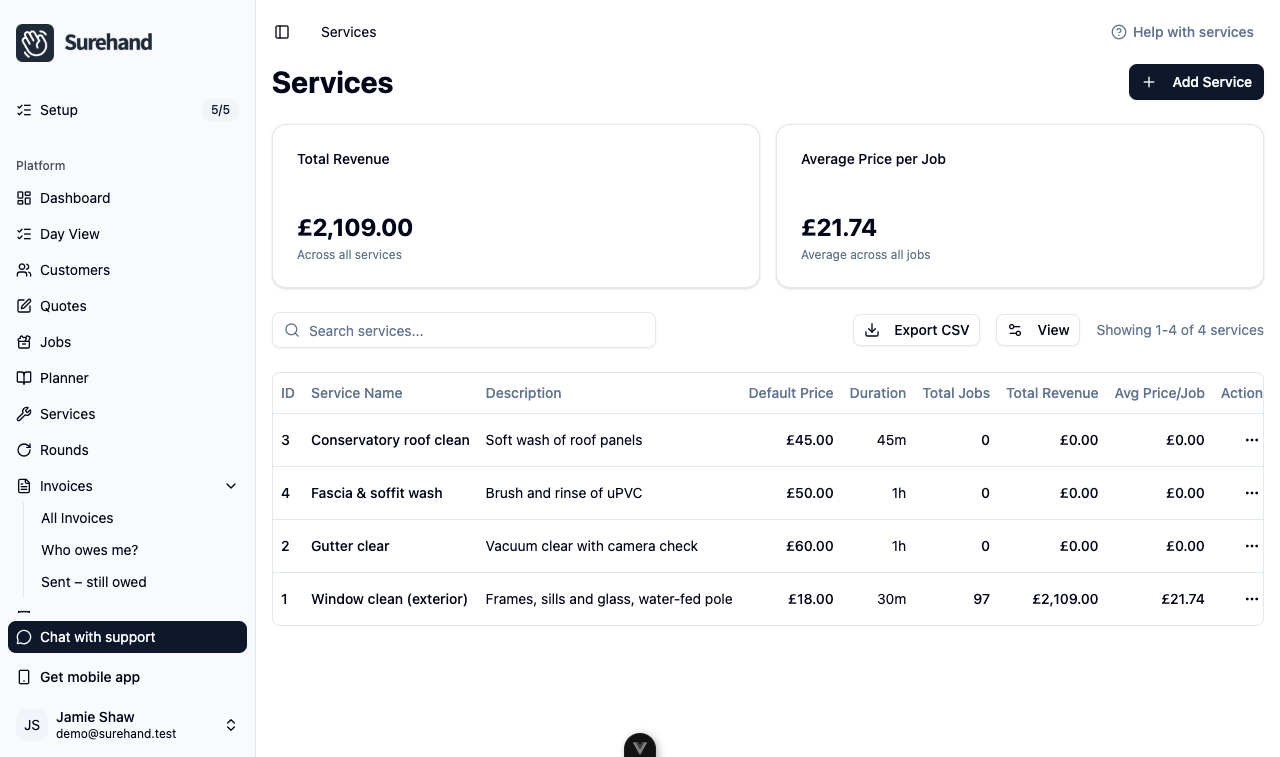
- Open Services and add the work you provide most often, with a clear name and usual price.
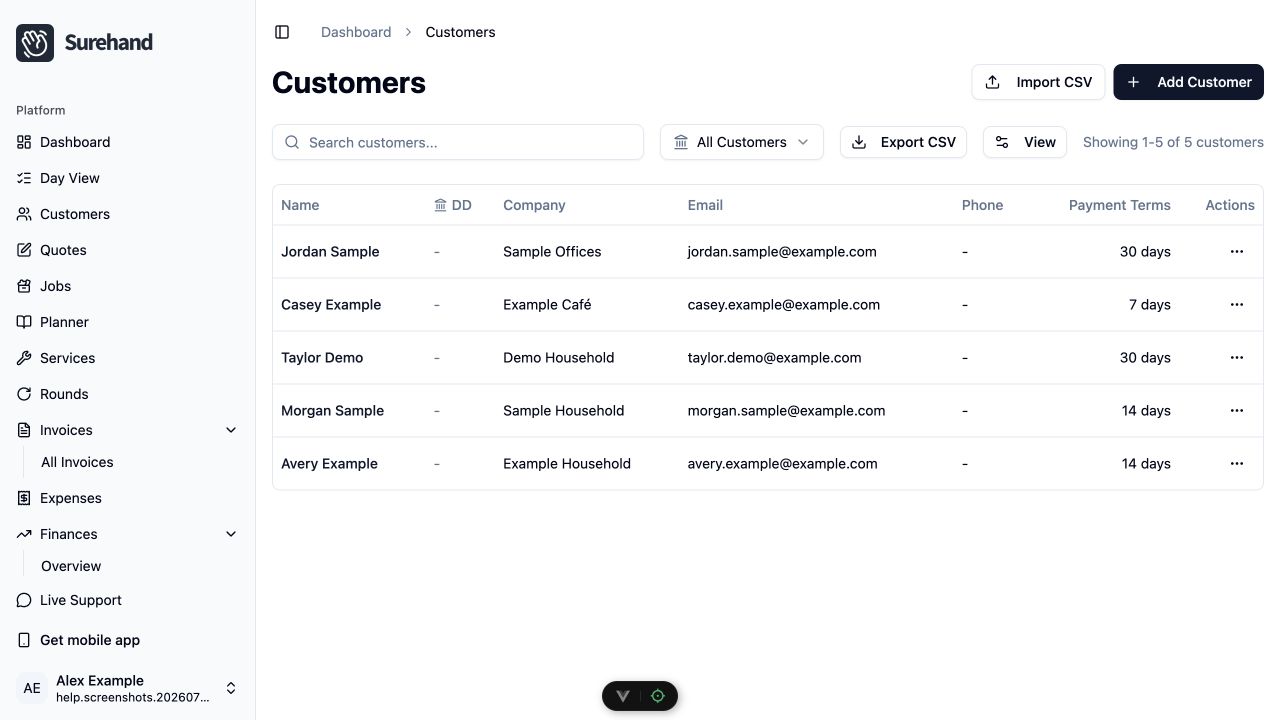
- Open Customers to add a customer or import a CSV.
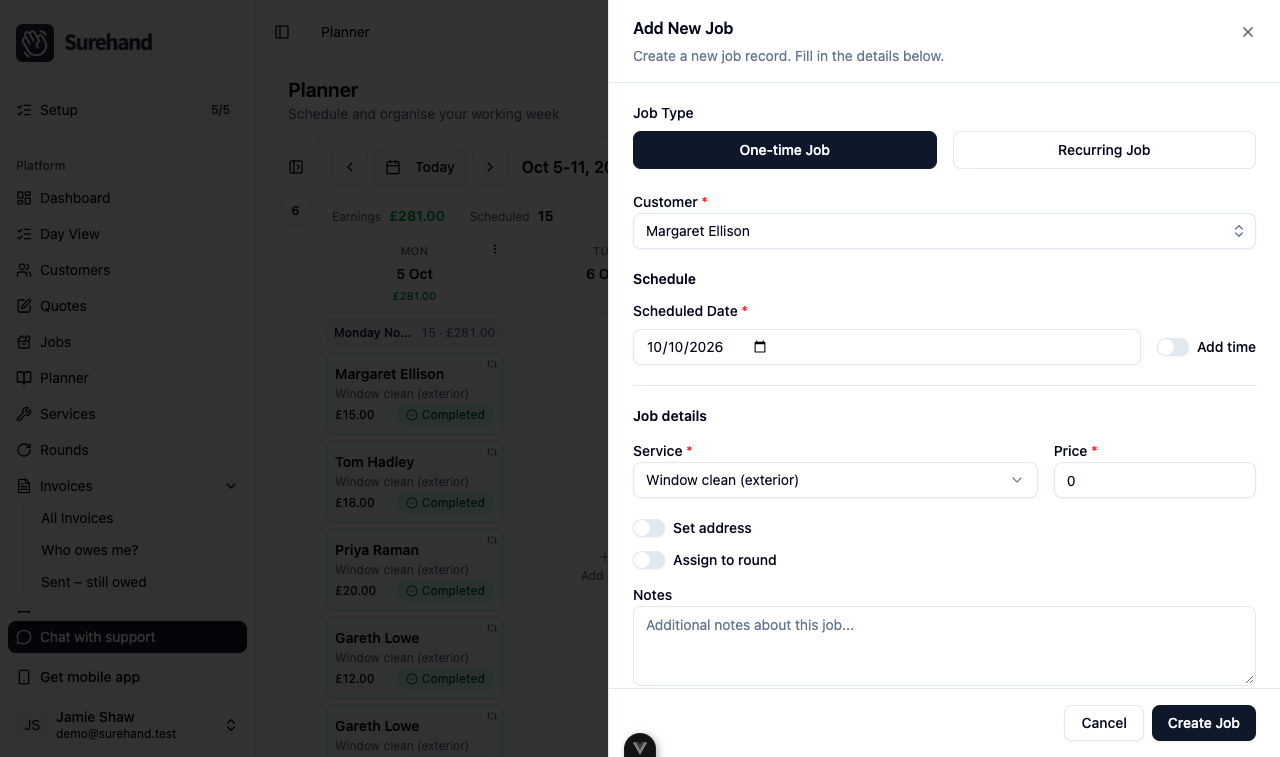
- Open Planner and create a one-off job for that customer.
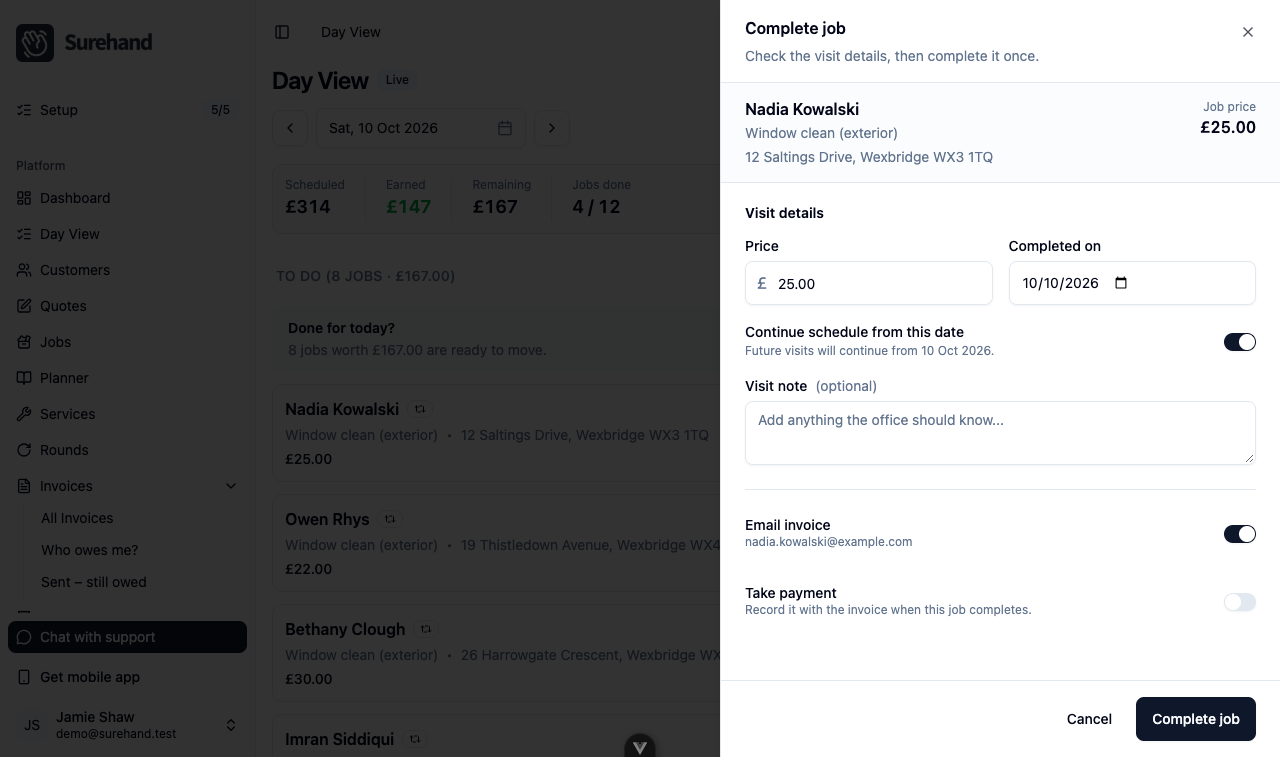
- Use Day View to find the visit and complete it.
Set up on iPhone or iPad
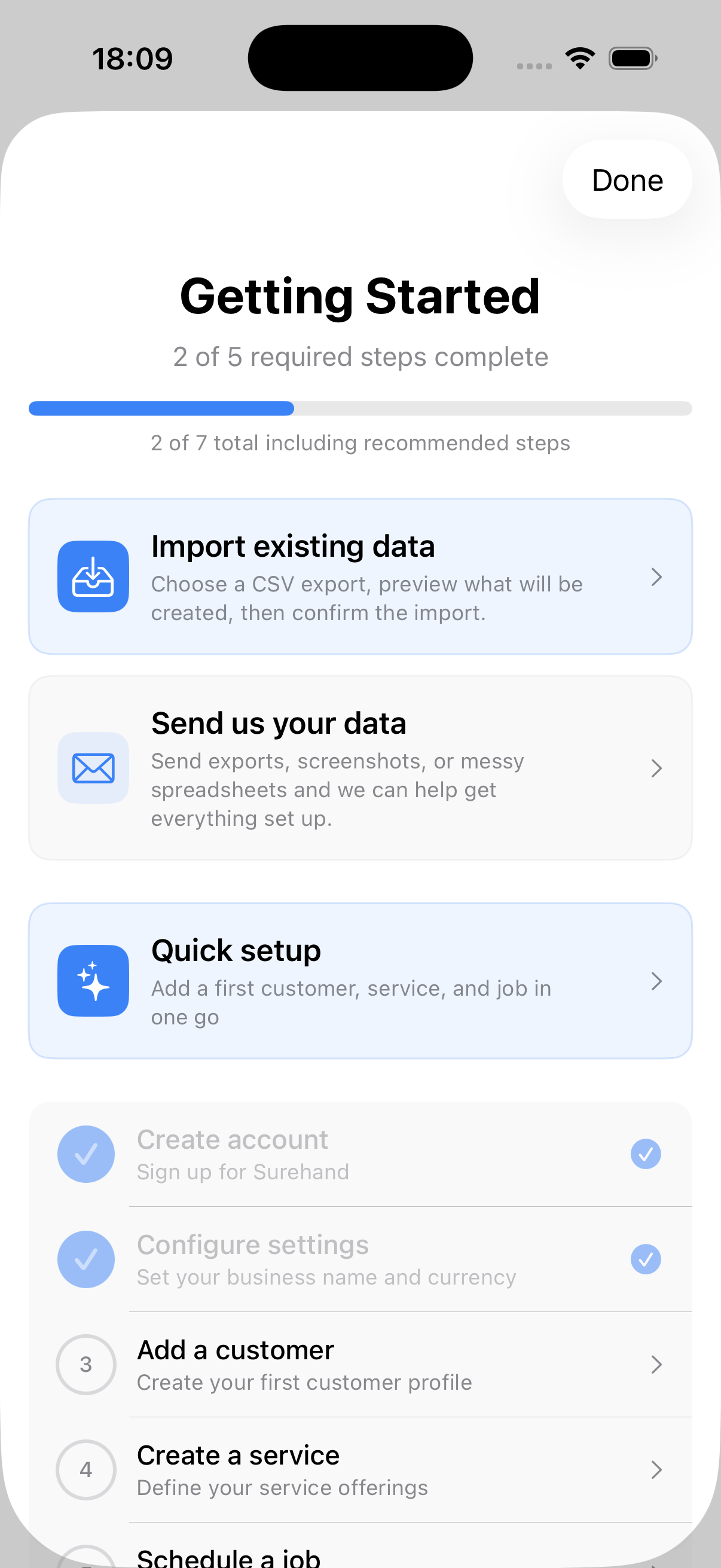
- On Home, open Getting Started and work through the checklist, including the business details that appear on customer-facing documents.
- Add your usual services with a clear name and price.
- Add a customer, or choose Import existing data to bring in a CSV.
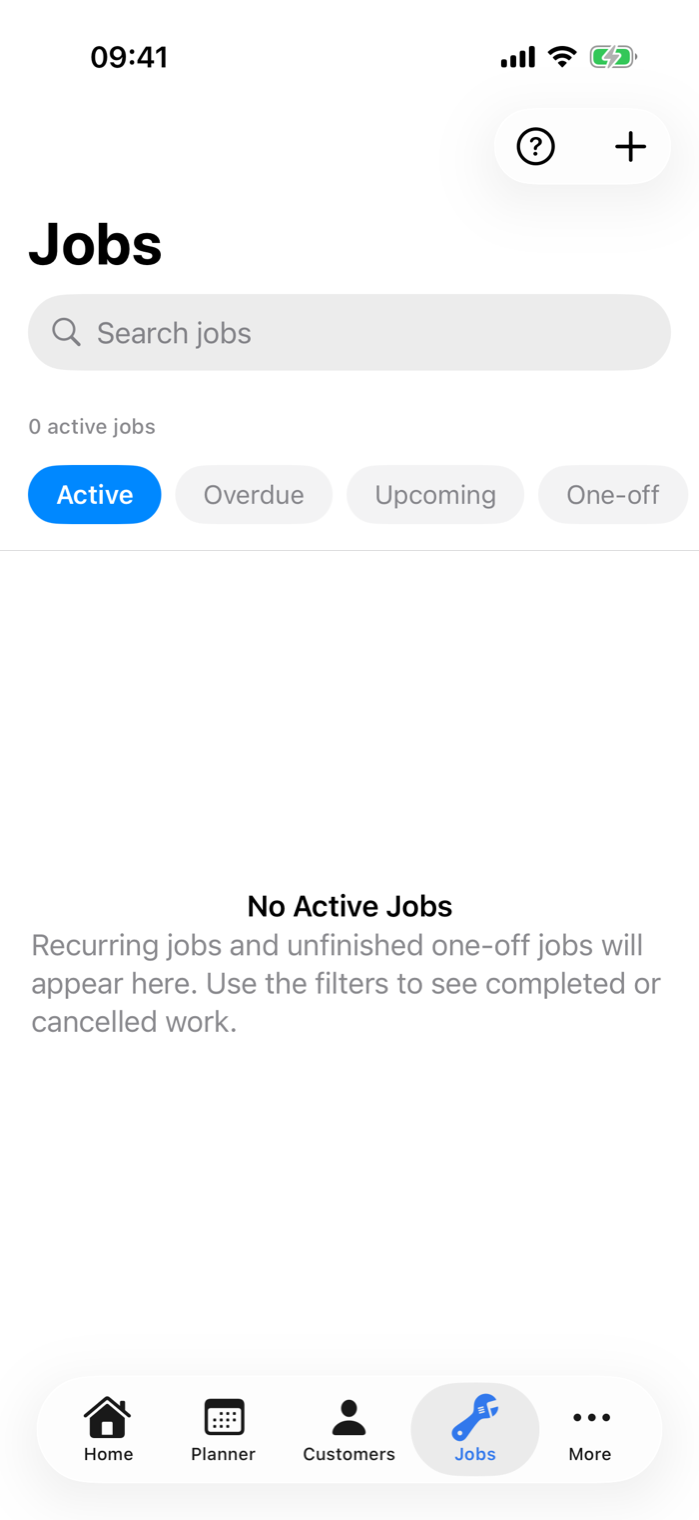
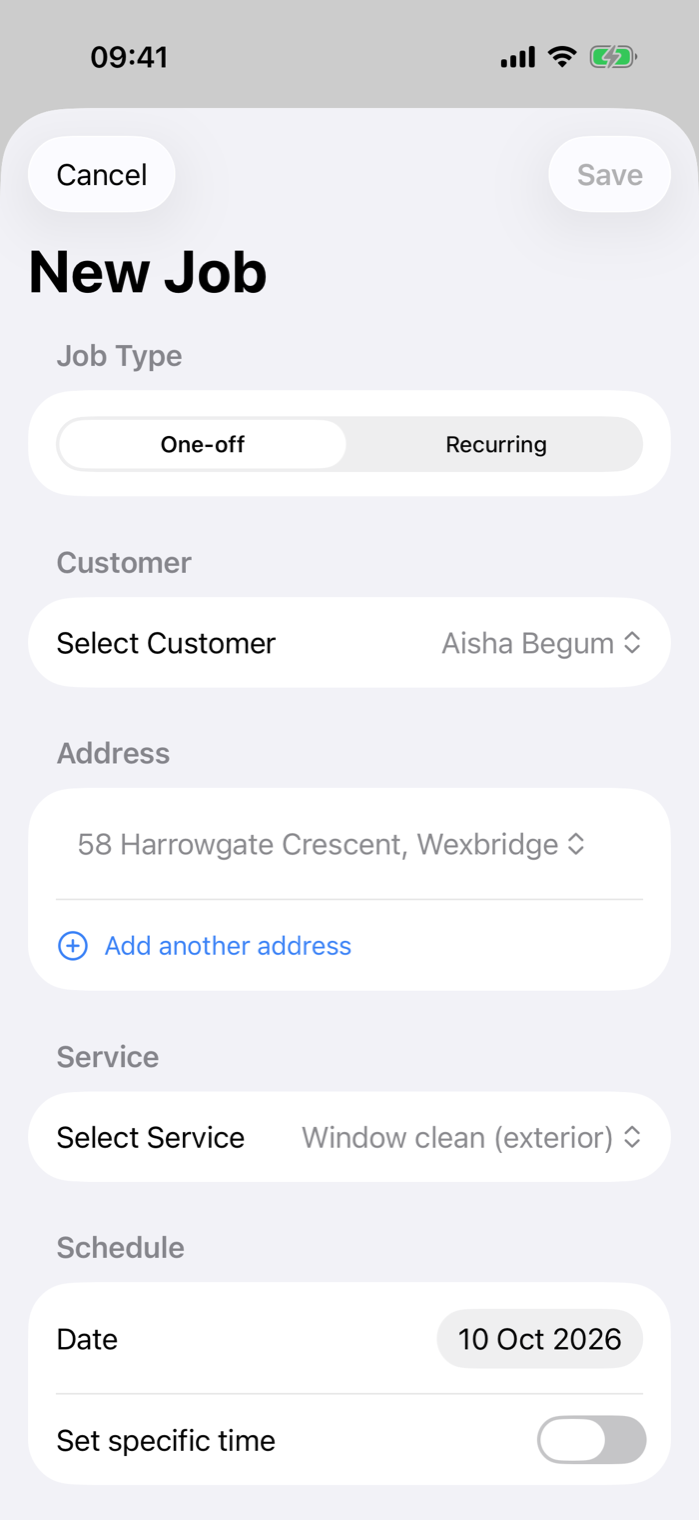
- Open Jobs and use the + action to create a one-off job.
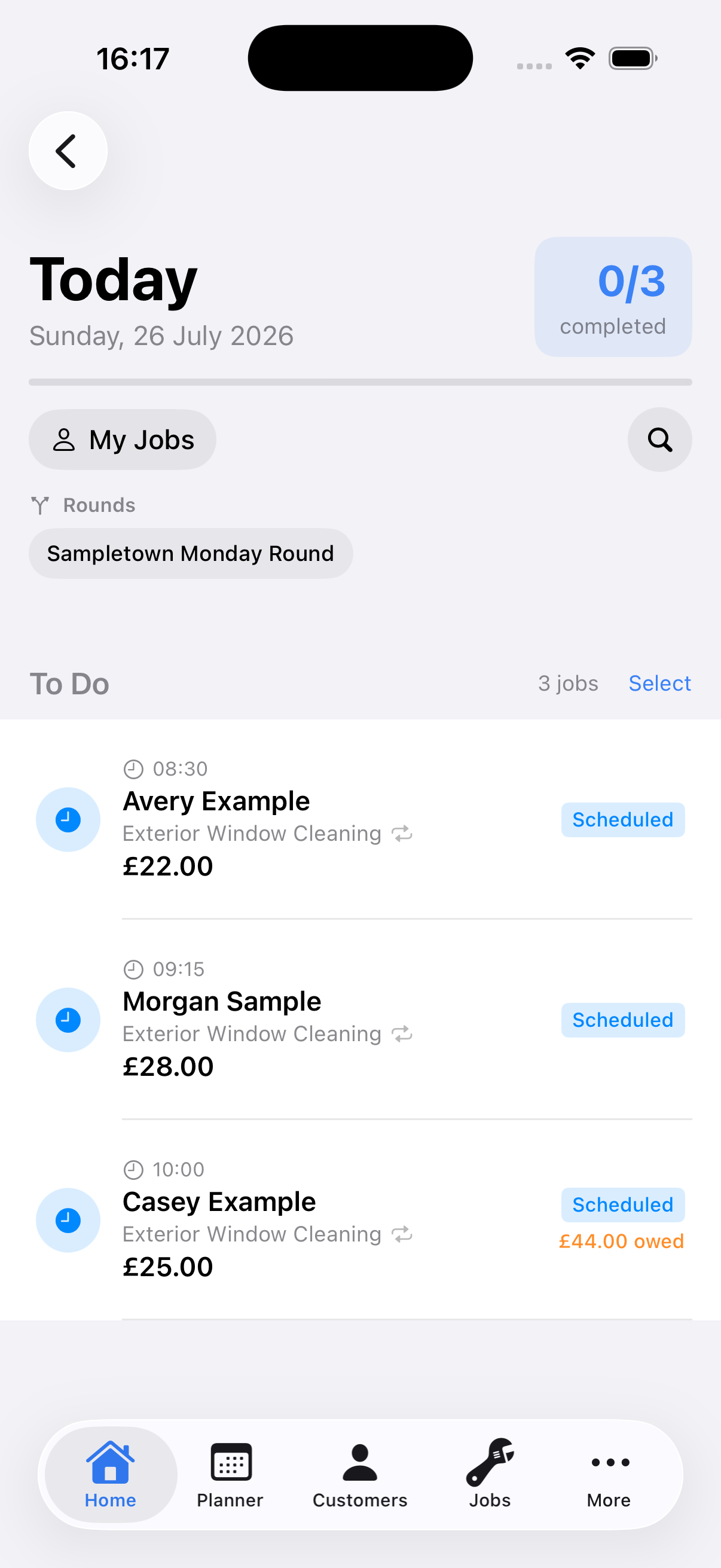
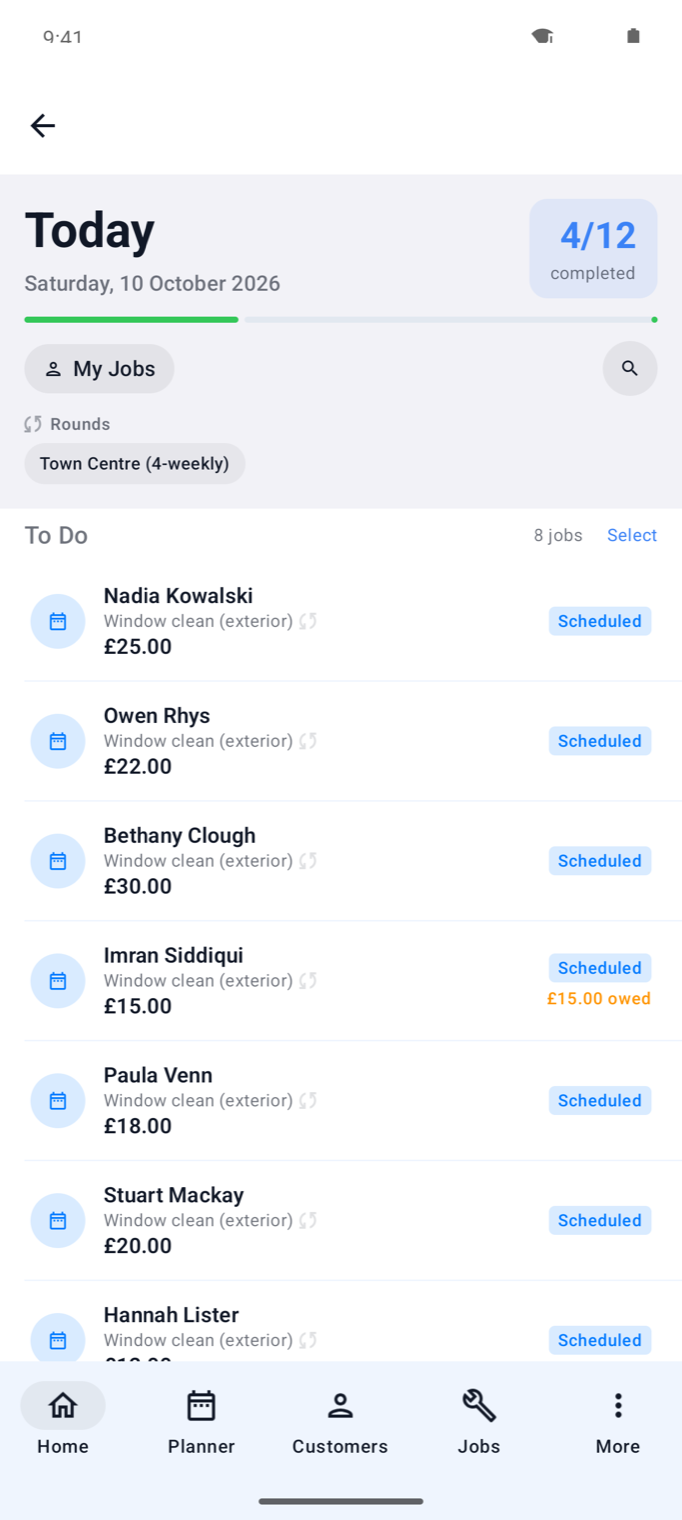
- Open Today to find the visit and complete it.
Set up on Android
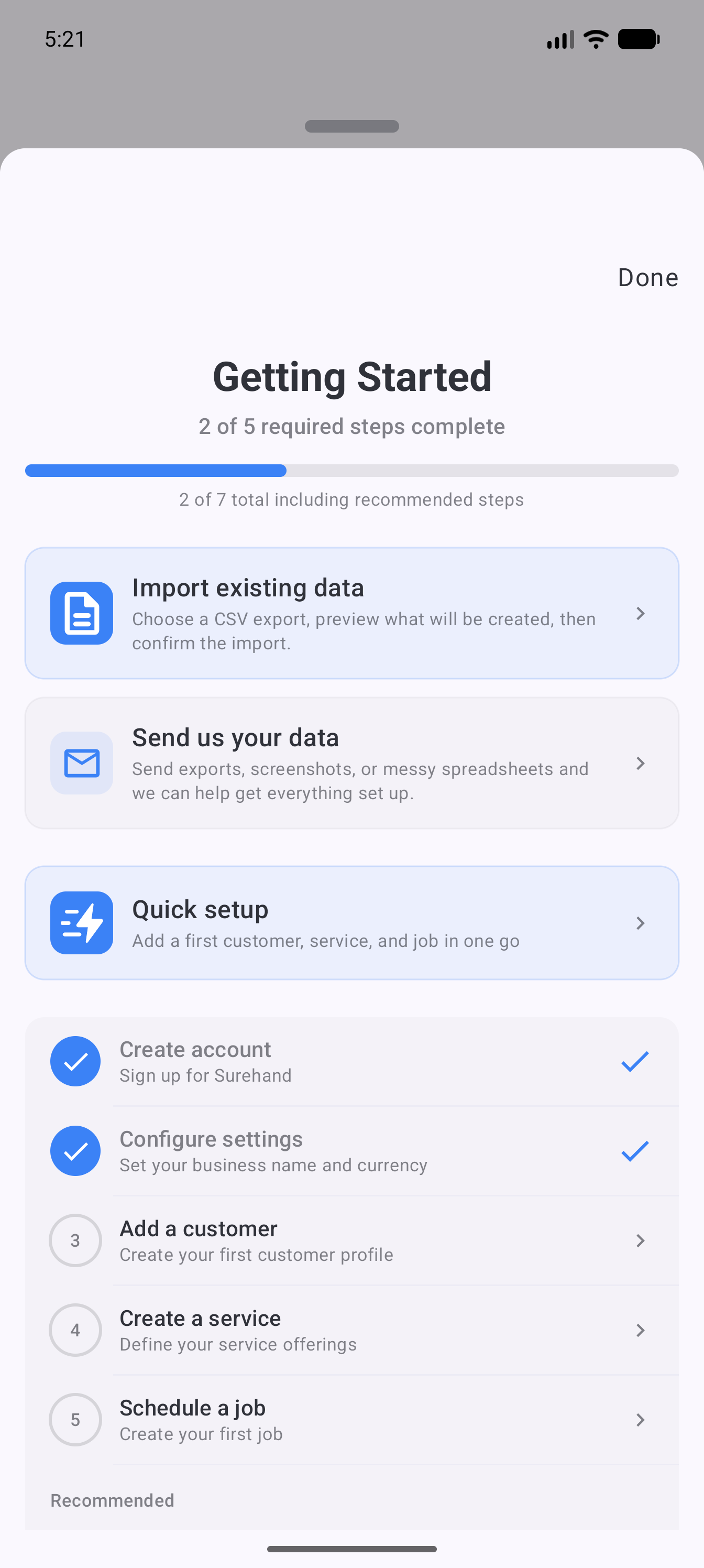
- On Home, open Getting Started and work through the required steps.
- If you already have customer or round data, choose Import existing data from that checklist.
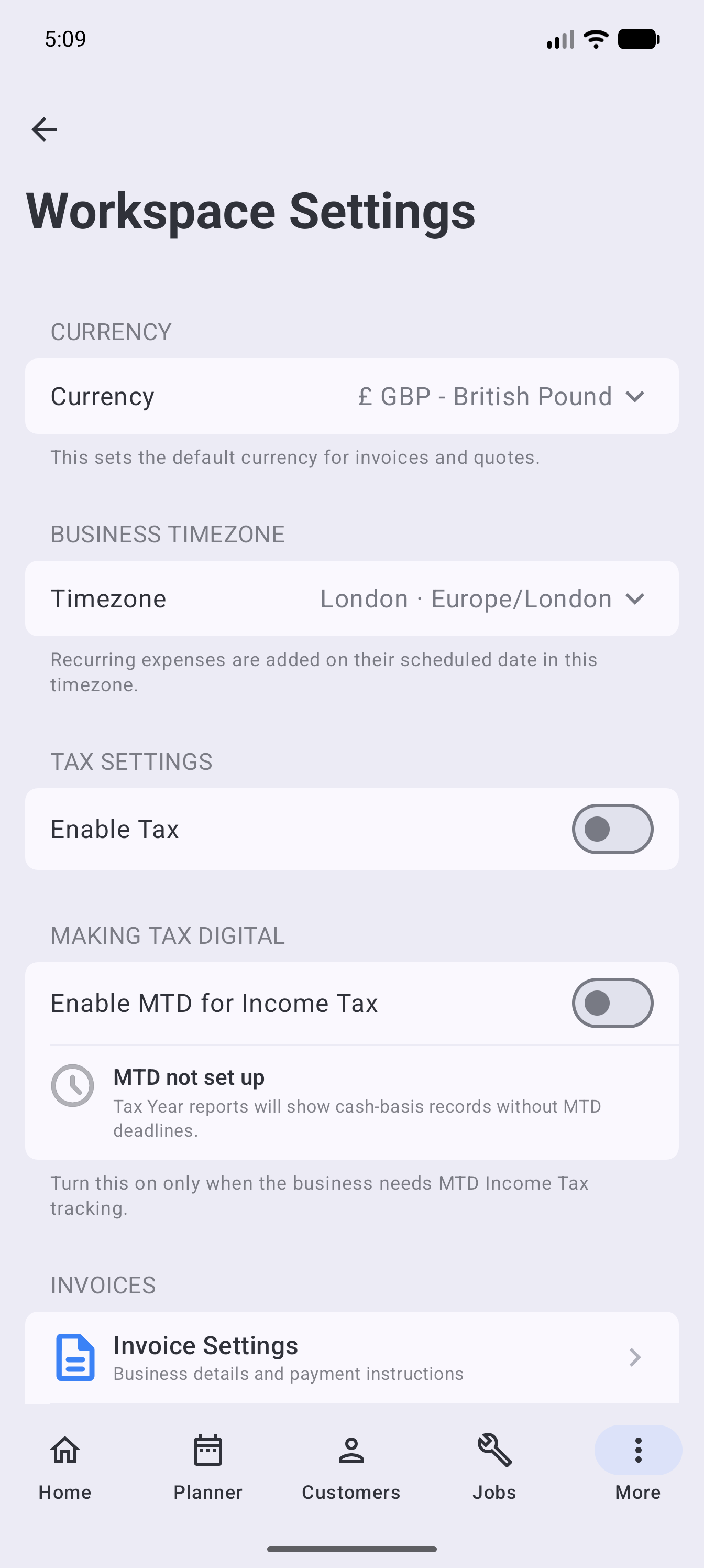
- Open More → Workspace Settings and check your currency, timezone, tax and invoice settings.
- In Workspace Settings, open Services and add the work you normally offer with a clear name and price.
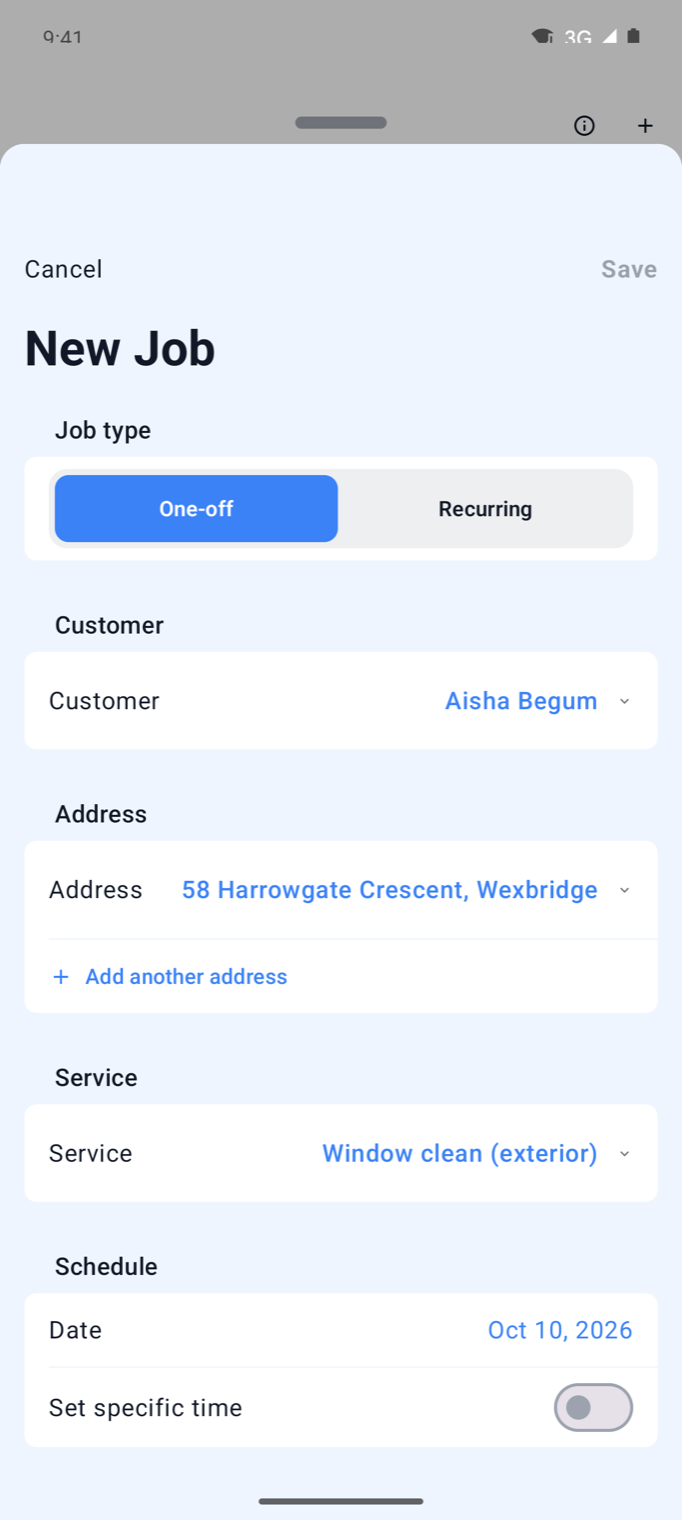
- Add a customer, then use the + action in Jobs to create a one-off job.
- Open Today to find the visit and complete it.
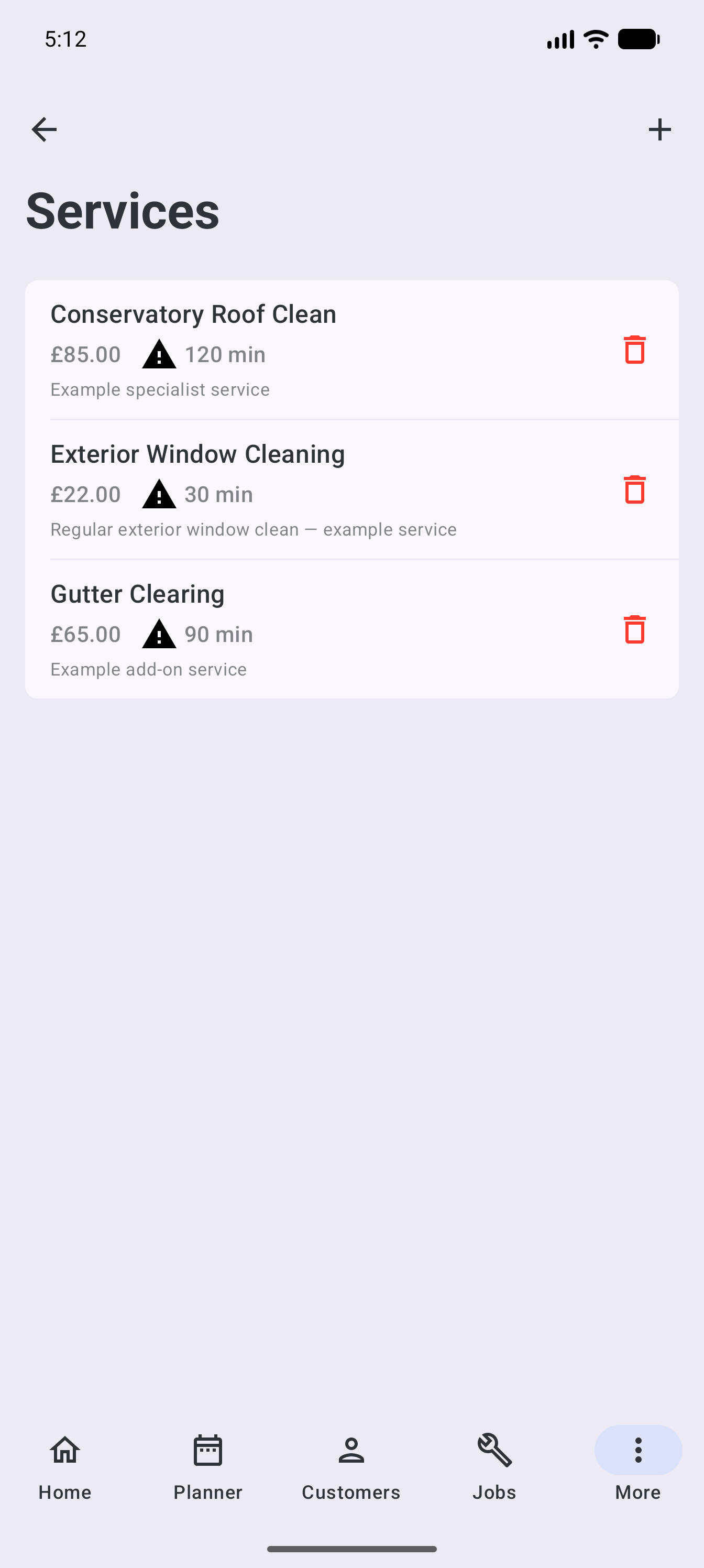
Services make it faster to build jobs, quotes and invoices. You can still change the description or price for individual pieces of work.
3. Add or import customers
Add a customer manually when you only need a few records. If you are moving an existing customer list or window-cleaning round, use the CSV import instead.
Learn how to add and manage customers
Learn how to import customers and scheduled work
4. Schedule your first job
Select the customer and service, choose the date, and check the price and assignment.
Start with a one-off job while you learn the workflow. Add recurring work once the basic details are correct.
Learn how to create and schedule a job
5. Check the working day
Use Today or Day View to see what needs doing. Open a job to review the address, service, notes and any form attached to it.
If a visit cannot go ahead, reschedule it or use Skip This Visit where that option is available. Skipping a visit does not remove the underlying recurring schedule.
6. Complete the job
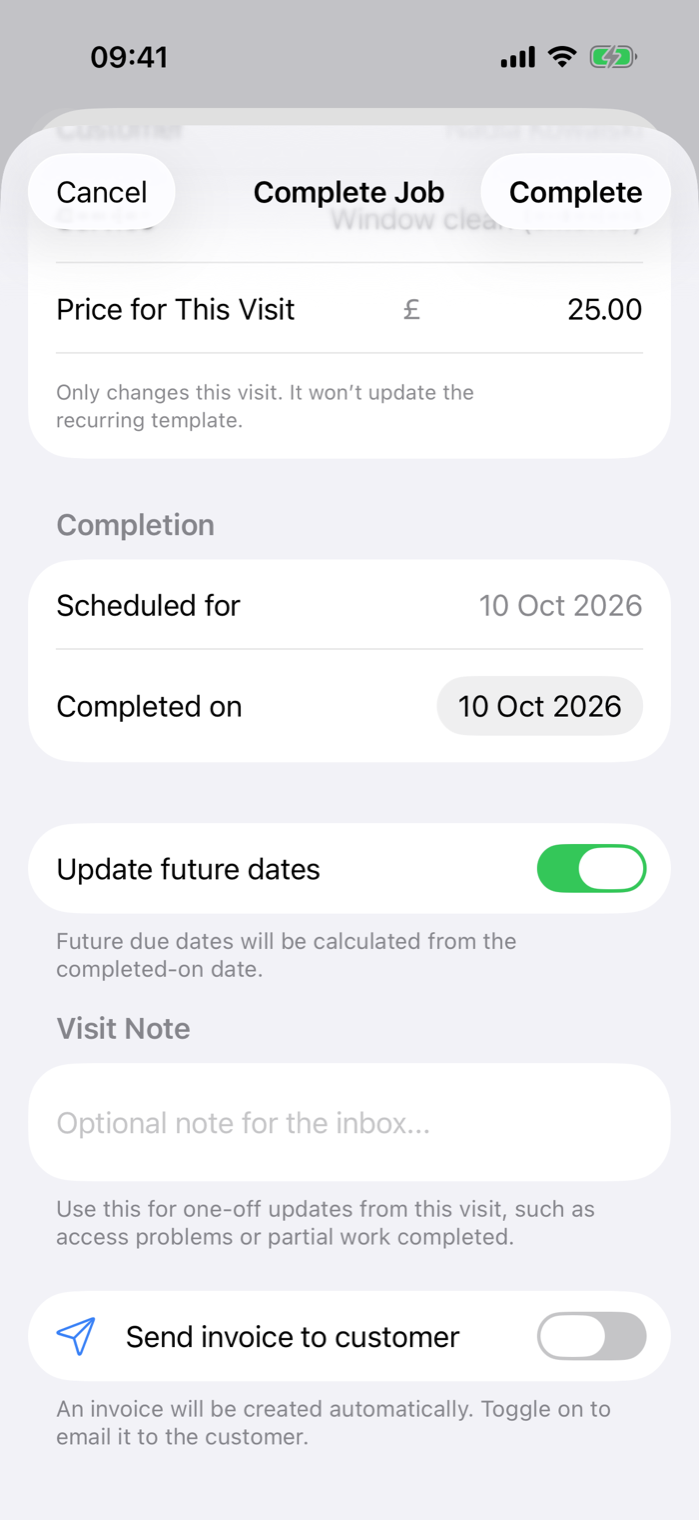
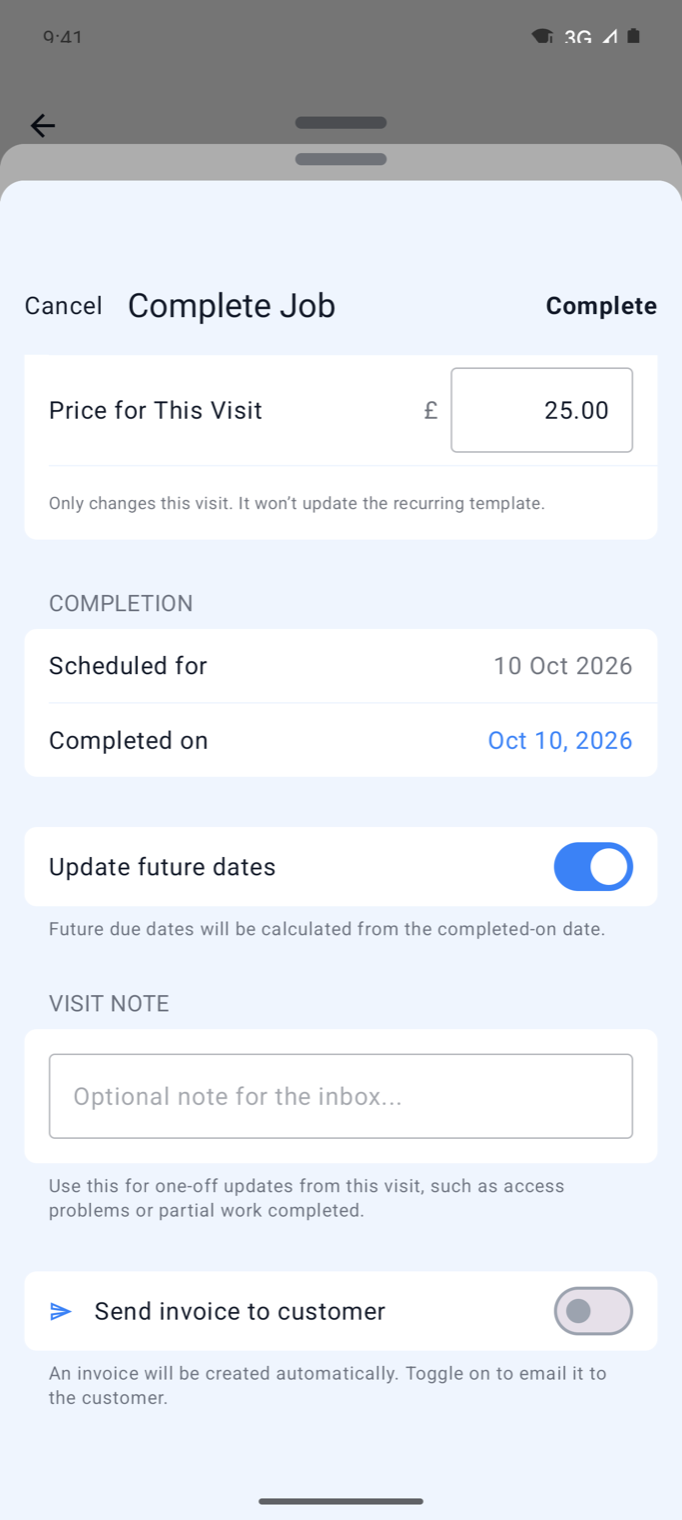
Open the job and use its completion action. Review the visit price and notes. Surehand creates the invoice automatically. On the web and in the mobile apps, you can also email it to the customer as you complete the job; on the web, turn on Email invoice (it appears when the customer has an email address).
Learn how to complete a job and send an invoice
What to do next
Once the first job has moved through correctly, add the rest of your regular work. Window cleaners can follow the complete Surehand for Window Cleaners path.