Complete the job after the work is finished. Surehand can create the invoice from the completed visit, keeping the customer, service and price connected.
Before completing a visit, check:
- The correct customer and address.
- The service performed.
- The price for this visit.
- Any required job form.
Instructions for your platform
Choose where you’re using Surehand. We’ll remember your selection for the next guide.
Complete the visit on the web
- Open Day View and find the visit.
- Choose Complete.
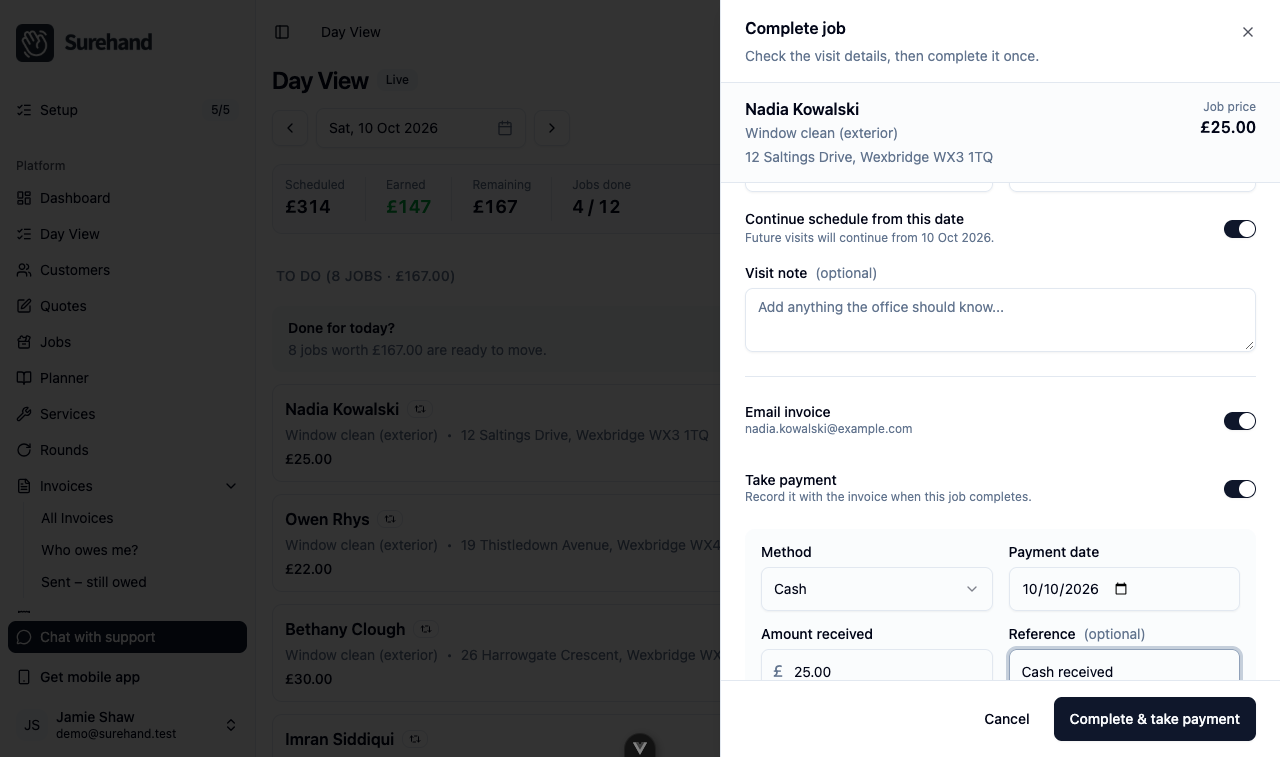
- In Complete job, check the Price and Completed on date, and add a Visit note if needed.
- For recurring work, leave Continue schedule from this date on if later visits should follow on from this completion date. Turn it off to keep future visits on their existing dates.
- Turn on Email invoice to send the invoice to the customer’s email address when the job completes. This option only appears if the customer has an email address.
- If you have been paid, turn on Take payment, then enter the Method, Payment date, Amount received and an optional Reference. The amount can be less than the price if the customer paid part of it.
- Choose Complete job, or Complete & take payment if you turned on Take payment.
Surehand raises the invoice when it completes the job. If you left Email invoice off, open the invoice afterwards to review and send it.
Complete the visit on iPhone or iPad
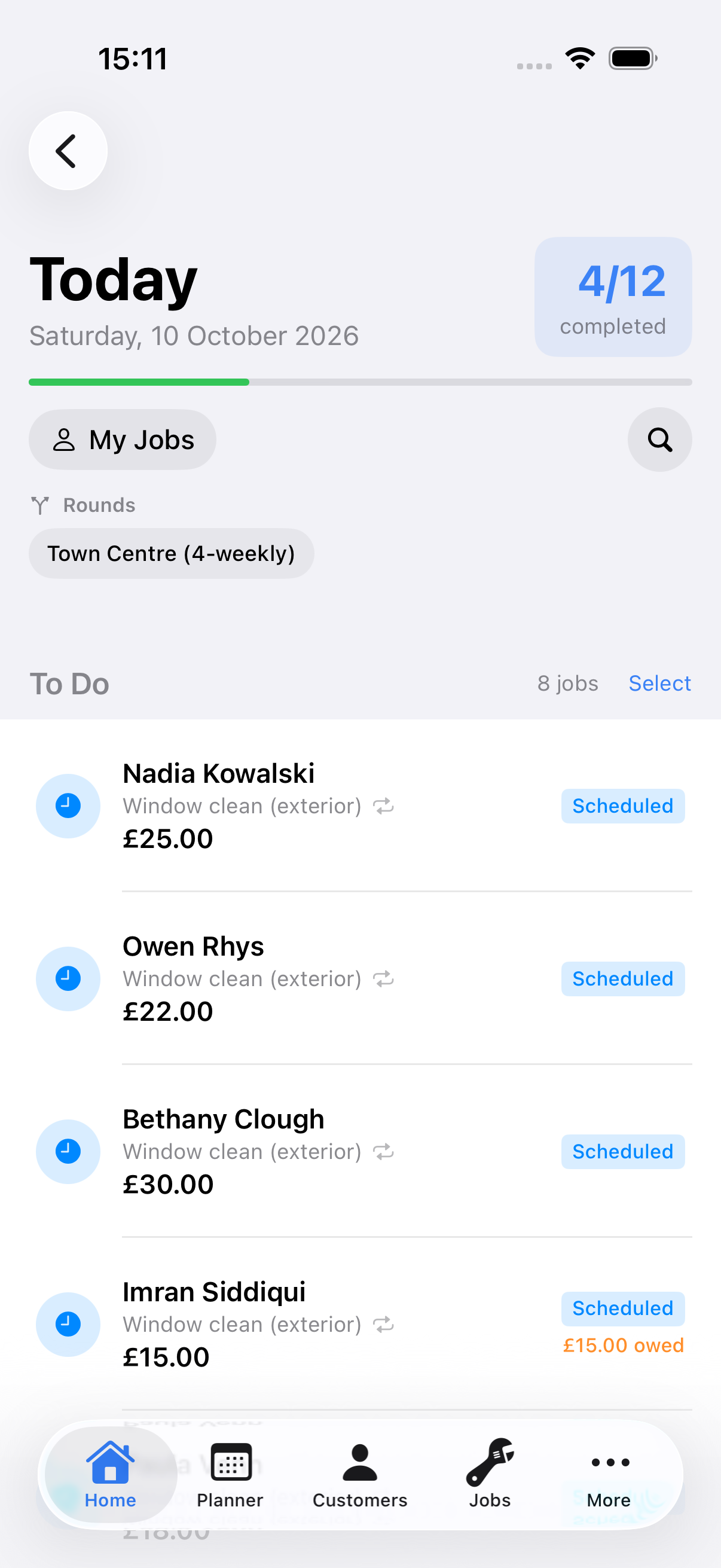
- Open the visit from Today or its job details.
- Choose Mark as Completed.
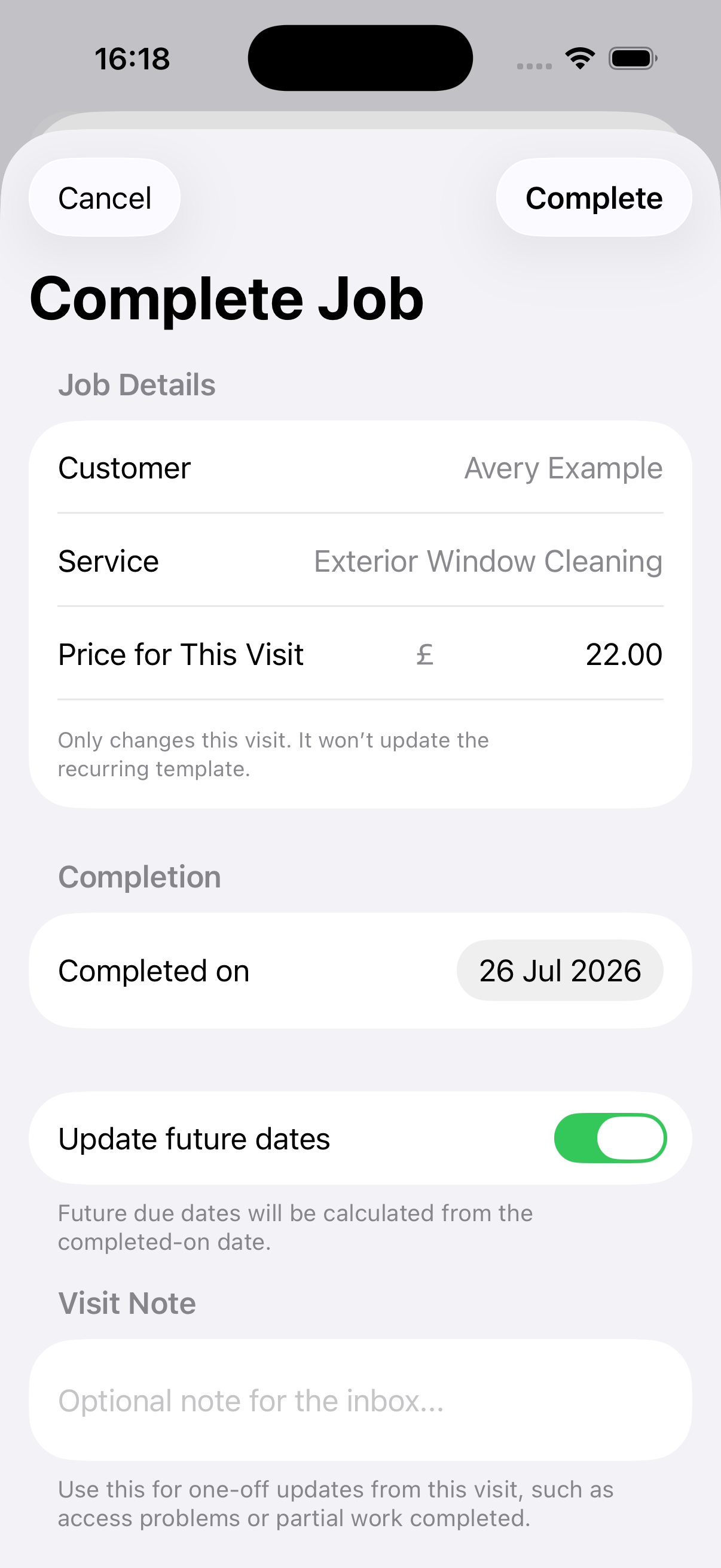
- Review the visit price and add a visit note if needed.
- Turn on Send invoice to customer if the invoice should be emailed now.
- Choose Complete.
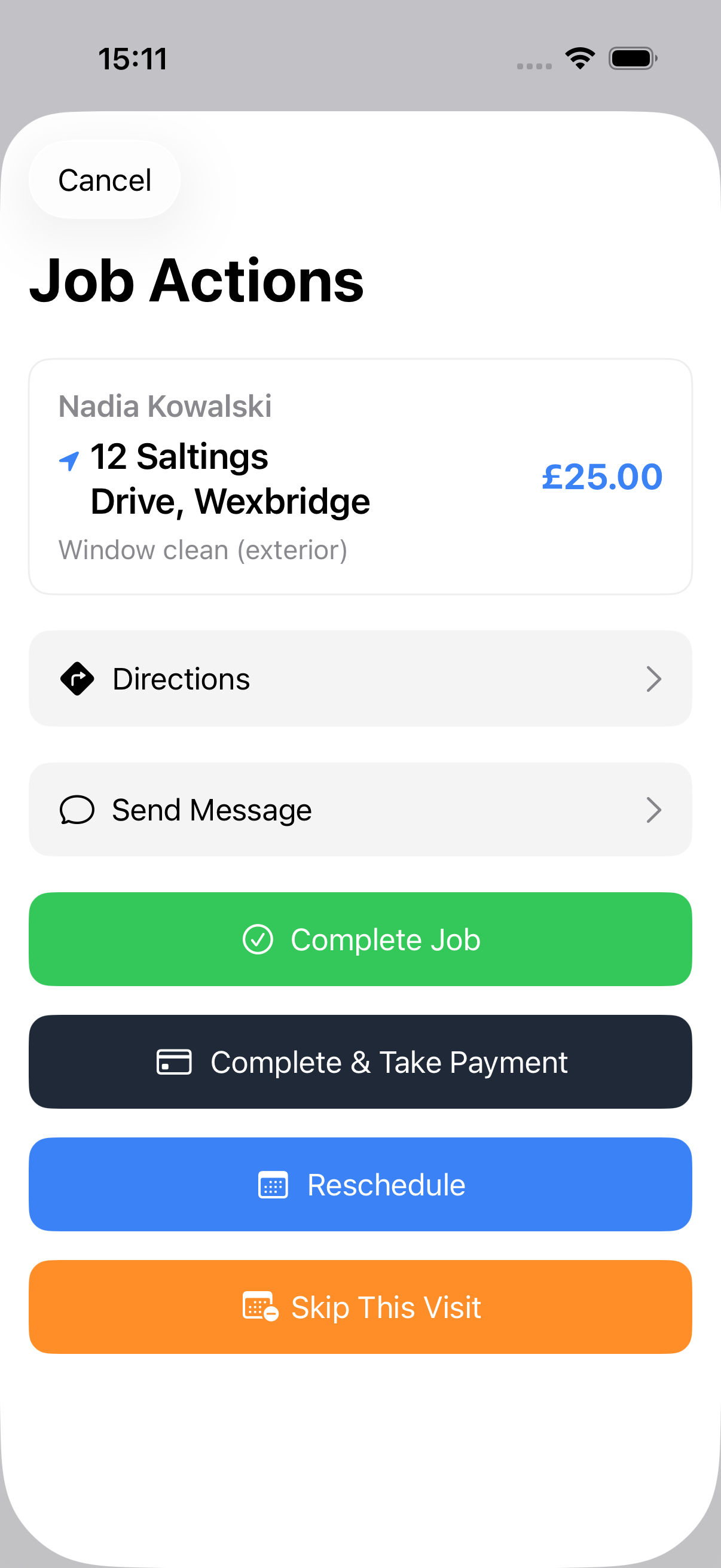
Surehand creates the invoice automatically. You can instead choose Complete & Take Payment when you are collecting or recording money at the same time.
Complete the visit on Android
- Open the visit from Planner or Jobs.
- Choose Complete Job.
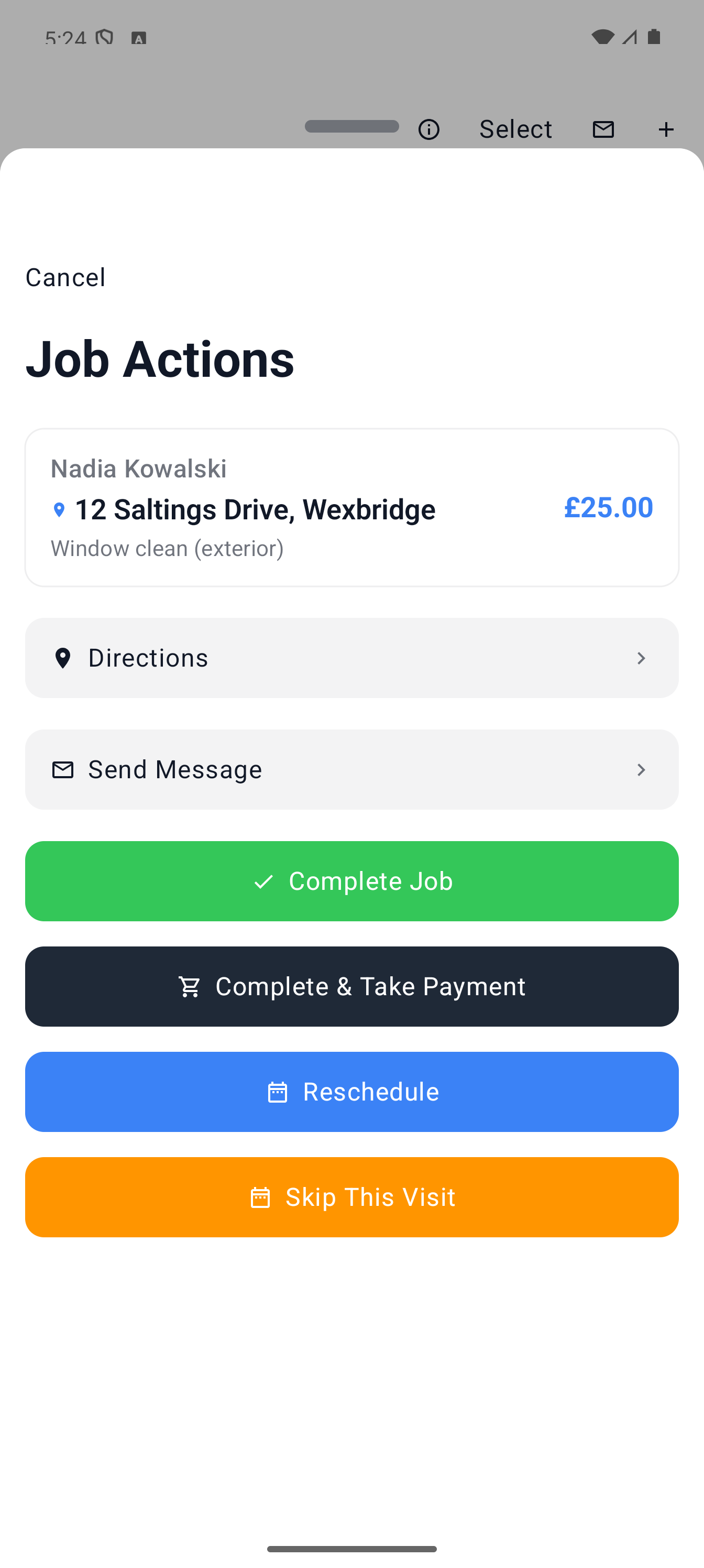
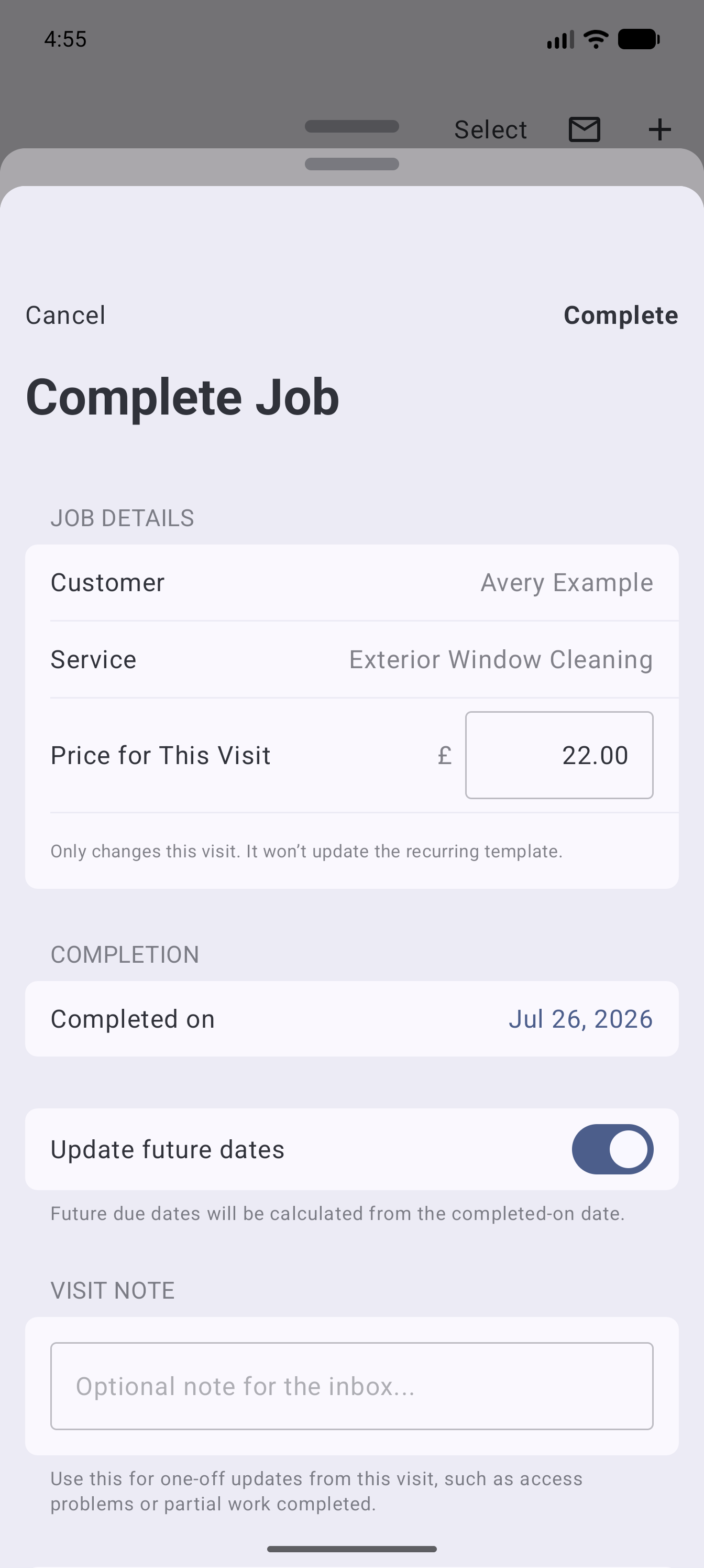
- Review the visit price and add a visit note if needed.
- Turn on Update future dates only if later recurring visits should be calculated from this completion date.
- Turn on Send invoice to customer if the invoice should be emailed now.
- Confirm completion.
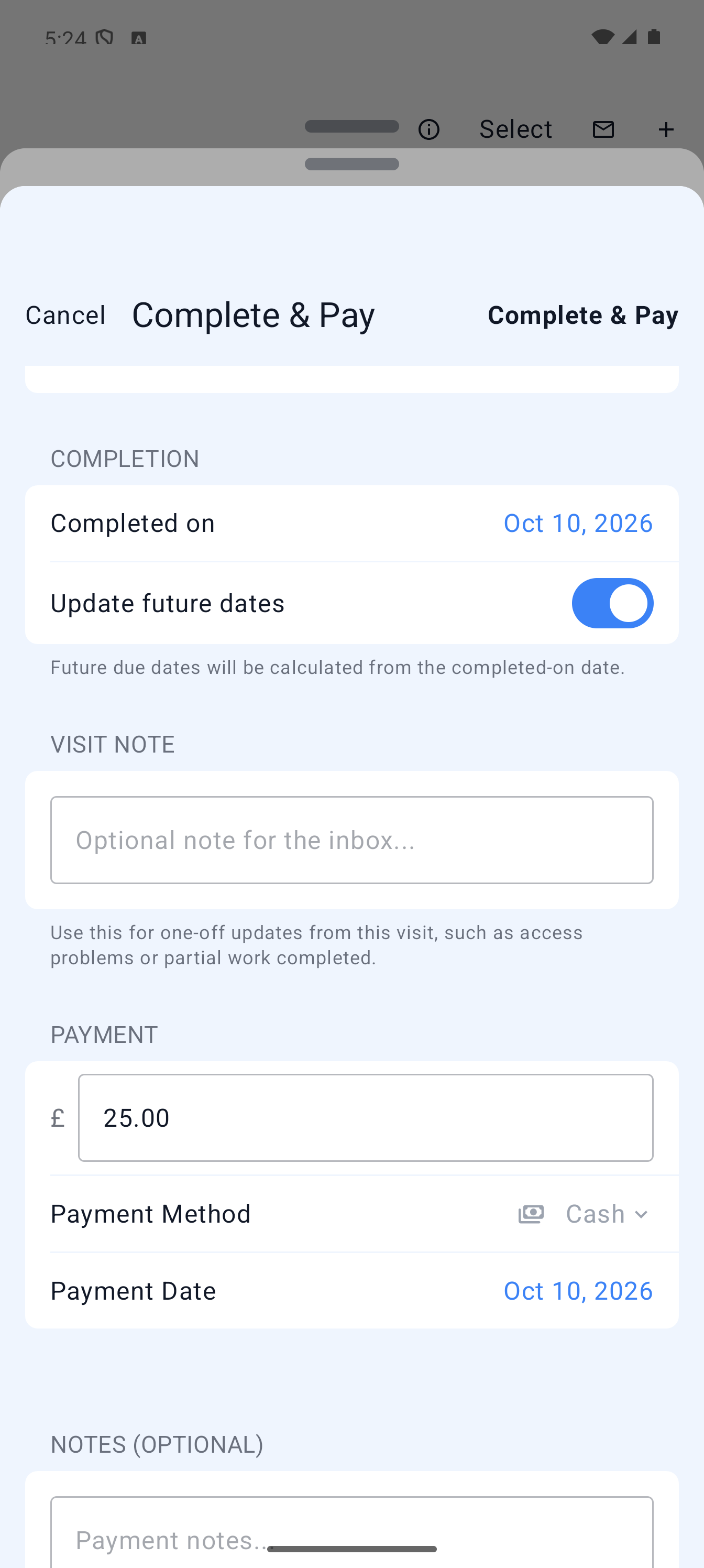
Surehand creates the invoice automatically. You can instead choose Complete & Take Payment when you are collecting or recording money at the same time.
Change only this visit
Changing the final visit price affects the invoice for this occurrence. If the normal price has changed for future visits, update the recurring work separately.
Check the invoice
Open Invoices or the customer’s invoice section and check:
- The customer-facing description.
- Issue and due dates.
- Total amount.
- Payment status.
- Whether an email has been sent.
You can preview, print or download the customer-facing invoice from its detail page.
Send or resend the invoice
Open the invoice and use its email action. If the customer has no email address, add one to their profile first.
Do not send a voided invoice. Correct the underlying record or create the appropriate replacement.
If a completed job has no invoice
Newly completed jobs should raise invoices automatically. The manual invoice area includes a recovery option for older completed jobs that are still missing an invoice.
Avoid creating a second manual invoice until you have checked whether one already exists.