Use the focused daily view to work through what needs attention now.
Instructions for your platform
Choose where you’re using Surehand. We’ll remember your selection for the next guide.
Work from Day View
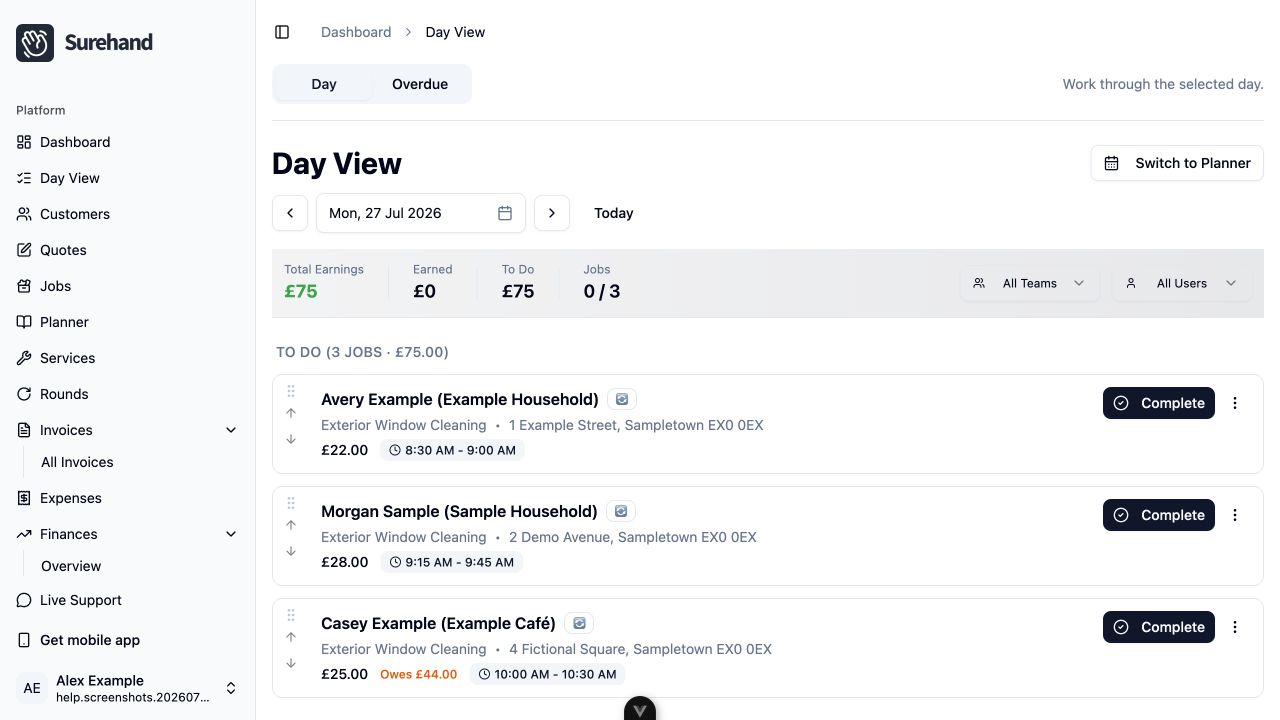
Open Day View and select the working date. Review the scheduled jobs, their order, addresses, assignments and any forms before setting off.
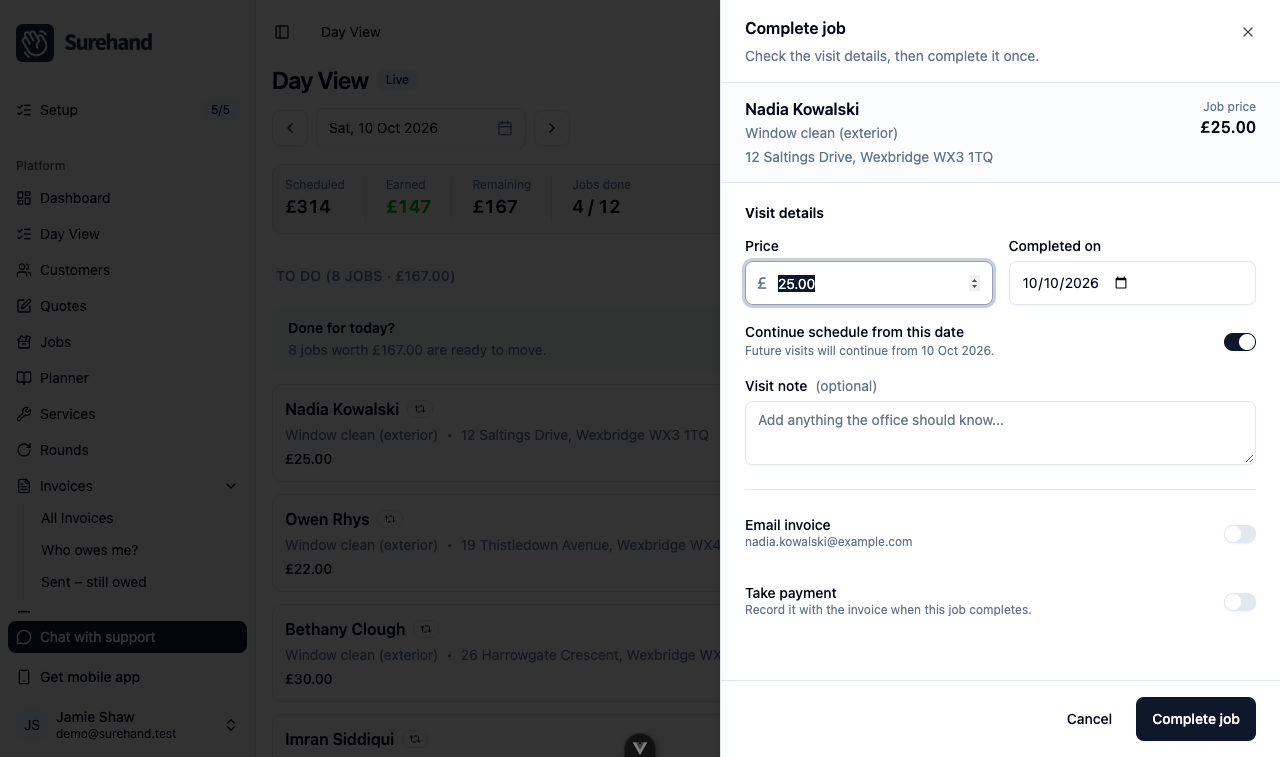
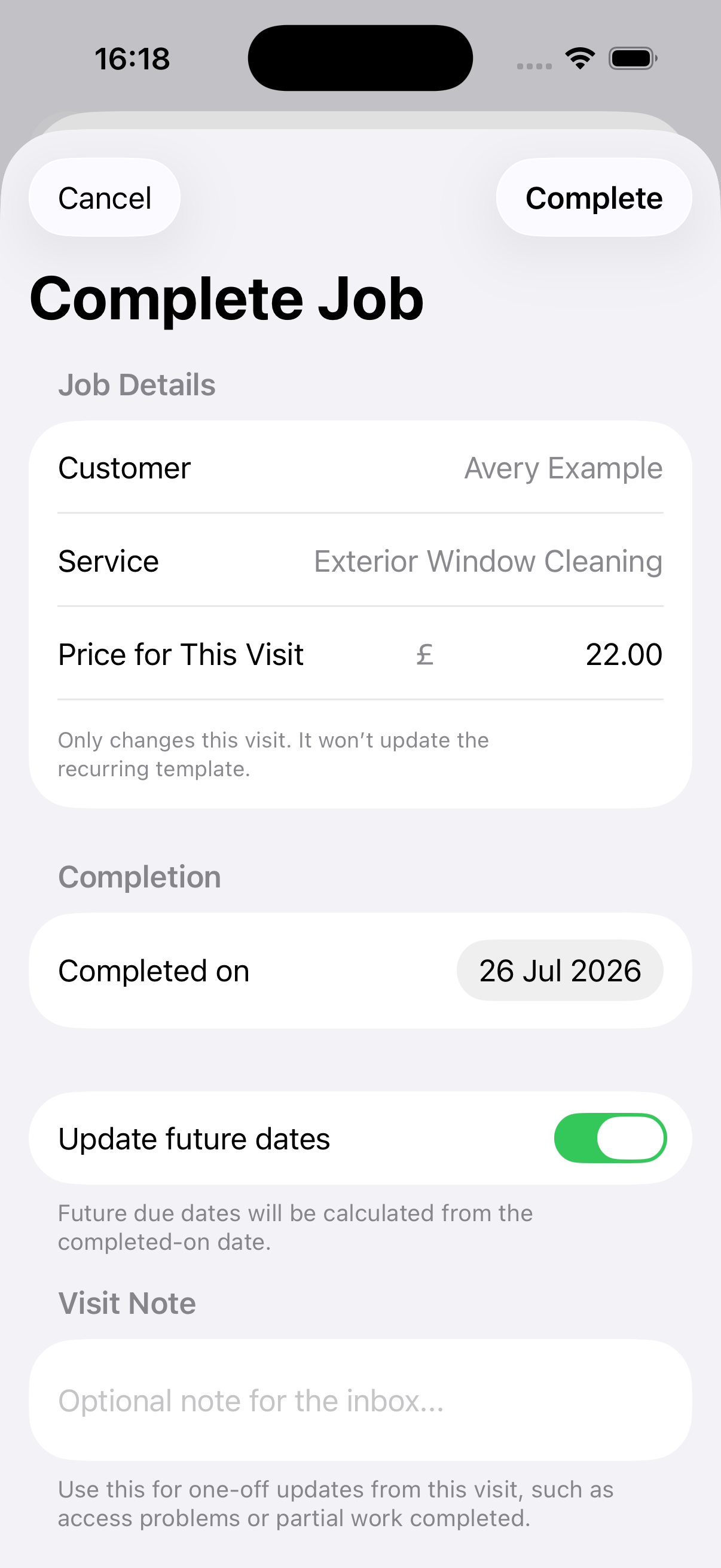
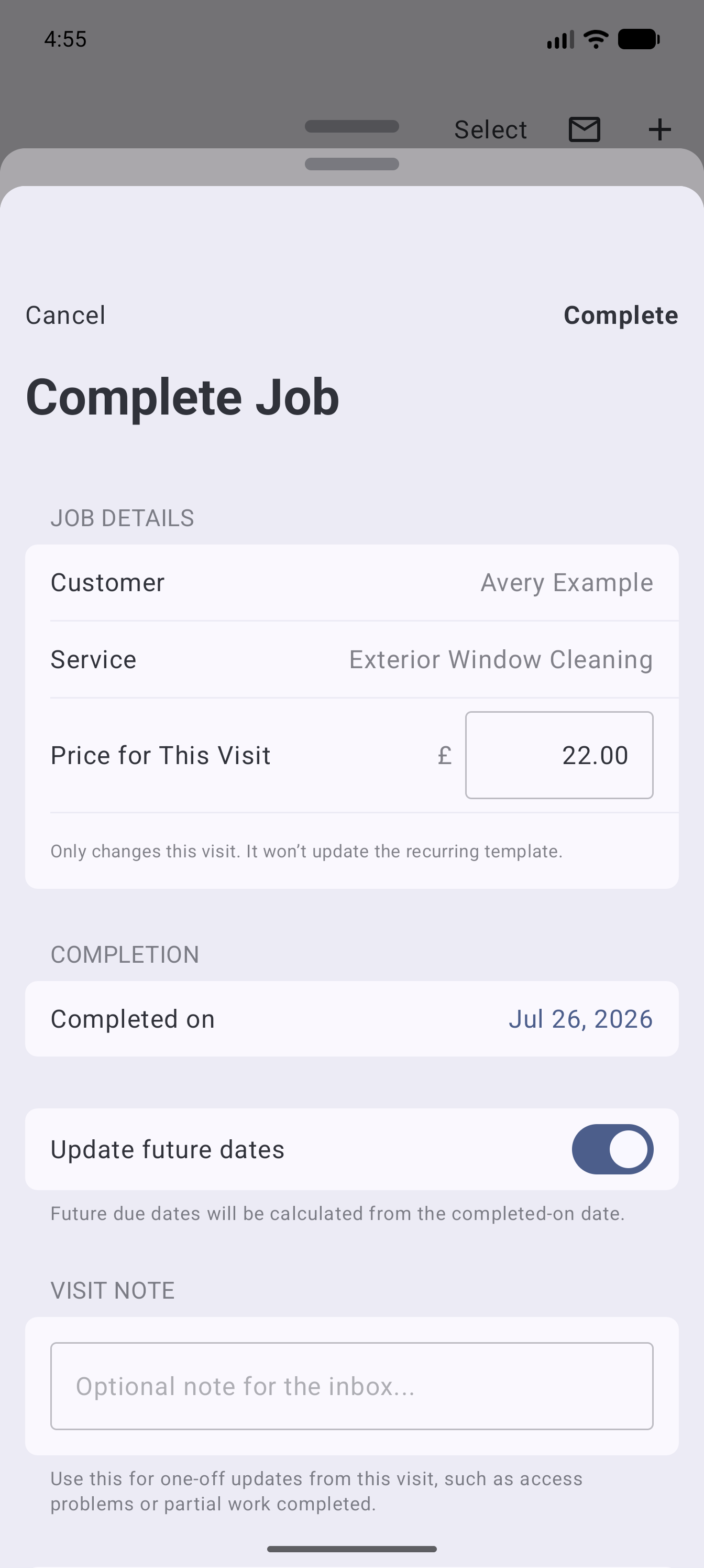
Select Complete on a job when the visit is finished. The Complete job panel lets you:
- Confirm the Price for this visit.
- Set the Completed on date.
- Turn on Continue schedule from this date for a recurring job, so future visits are worked out from the completion date. Leave it off to keep their existing dates.
- Add a Visit note for the office.
- Turn on Email invoice to send the invoice to the customer's email address. This appears when the customer has an email address.
- Turn on Take payment to record a payment with the invoice, then choose the Method, Payment date and Amount received.
Select Complete job, or Complete & take payment if you turned on Take payment.
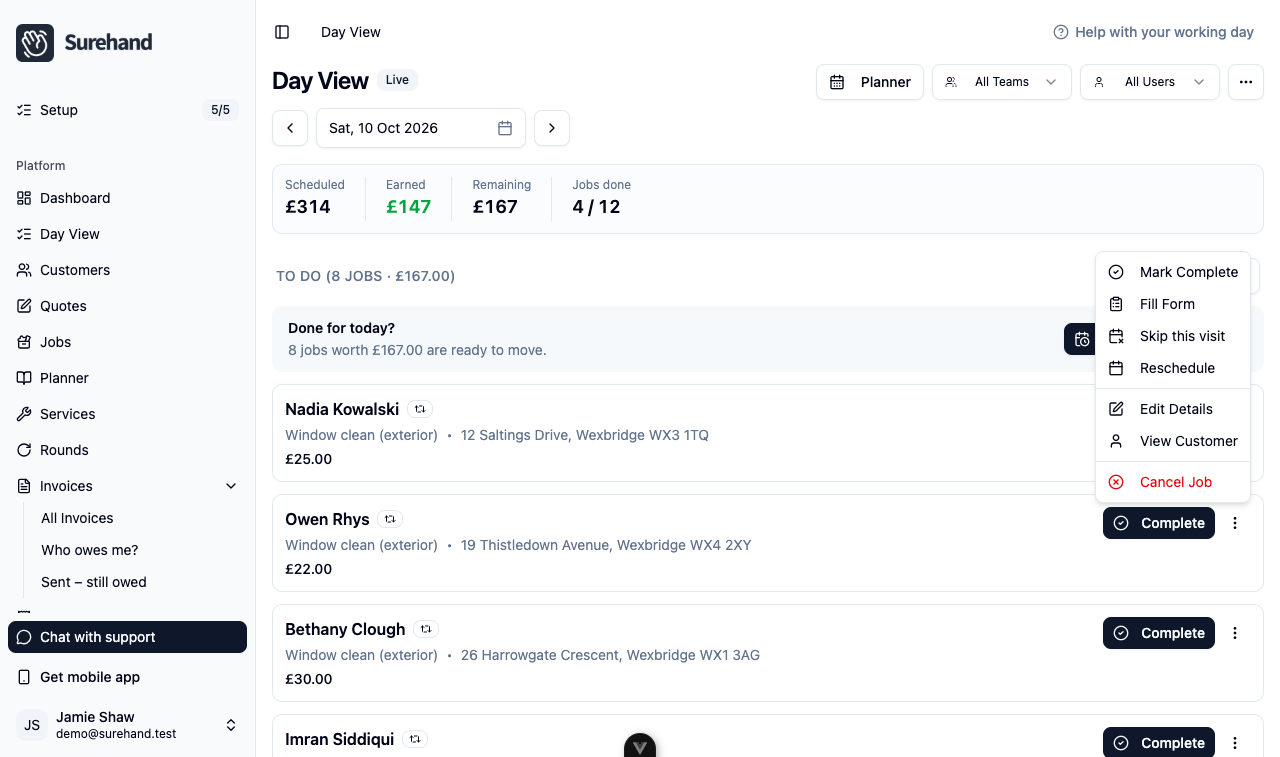
Open the more menu (⋮) on a job for other actions:
- Fill Form to complete a service form for the visit.
- Skip this visit when a recurring visit will not happen but the schedule should continue.
- Reschedule when the work will happen on another date.
Keep the route useful
Arrange jobs in the order that makes sense for the route. Use the map and address information as a guide, but account for access times and customer arrangements as well.
Changing the order does not change the recurring schedule itself.
Work from Today on iPhone or iPad
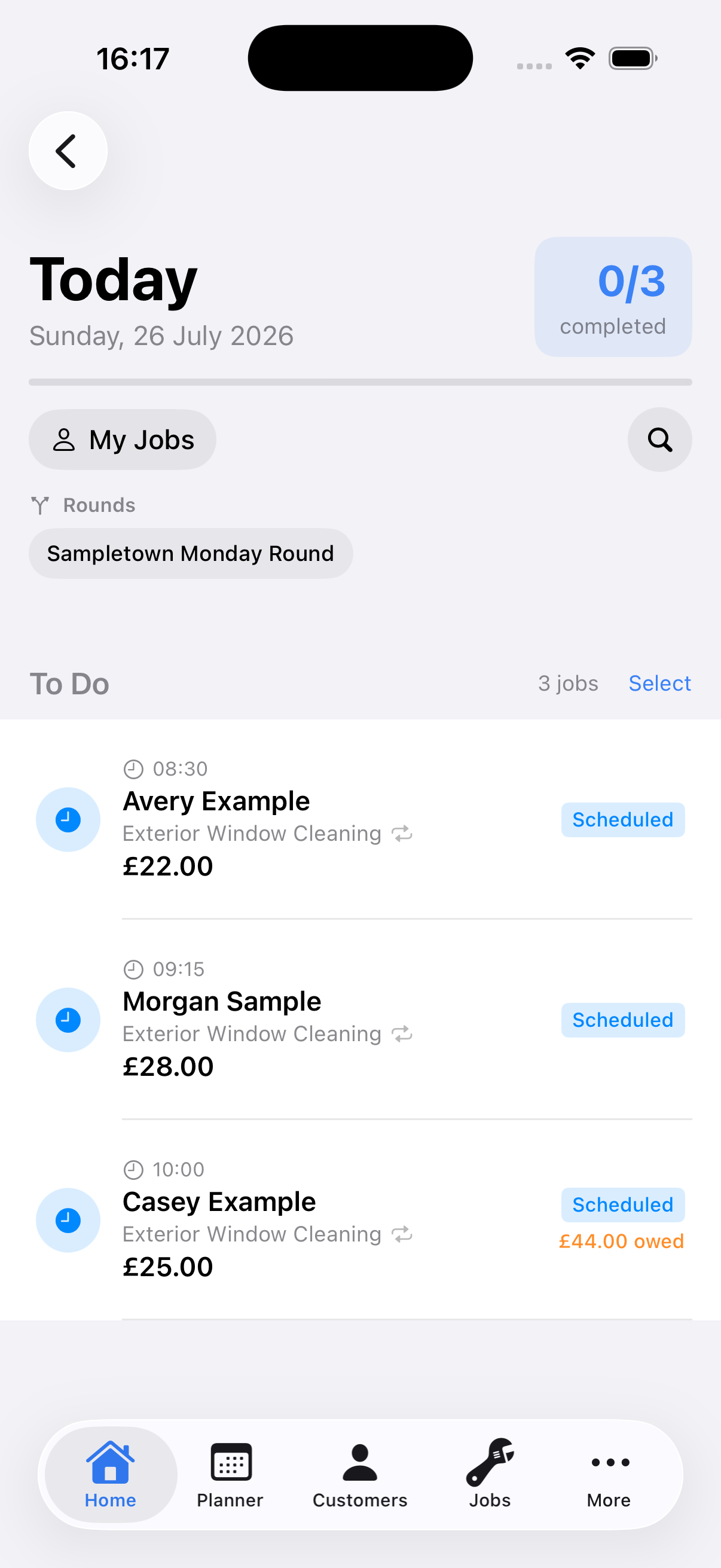
Open Today and review the scheduled jobs. Use search and the assignment filter when you only need to see work for a particular person or team.
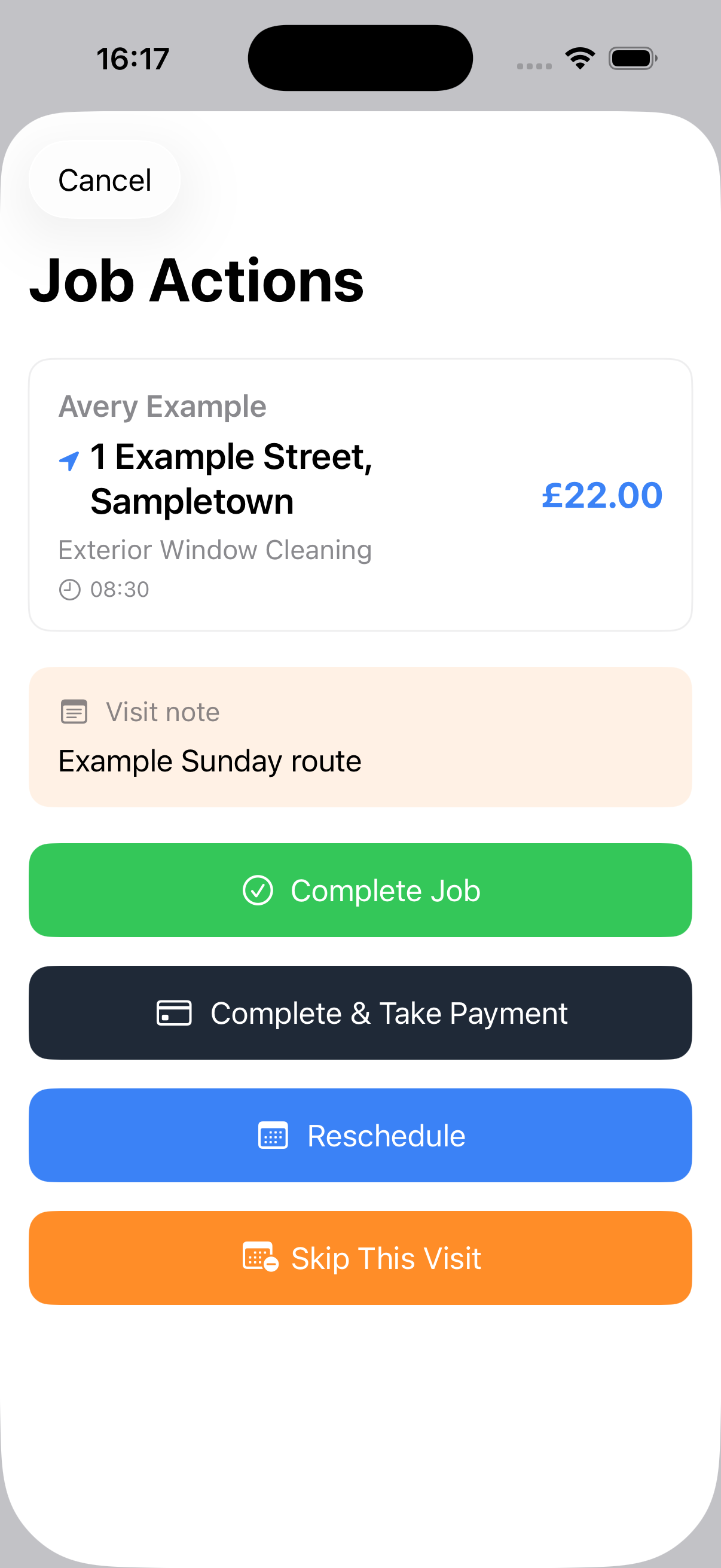
Open a job for its address, service, price, notes and forms. When the visit is finished, choose Mark as Completed or Complete & Take Payment. Use Reschedule or Skip This Visit when the work did not happen.
Work from Planner on Android
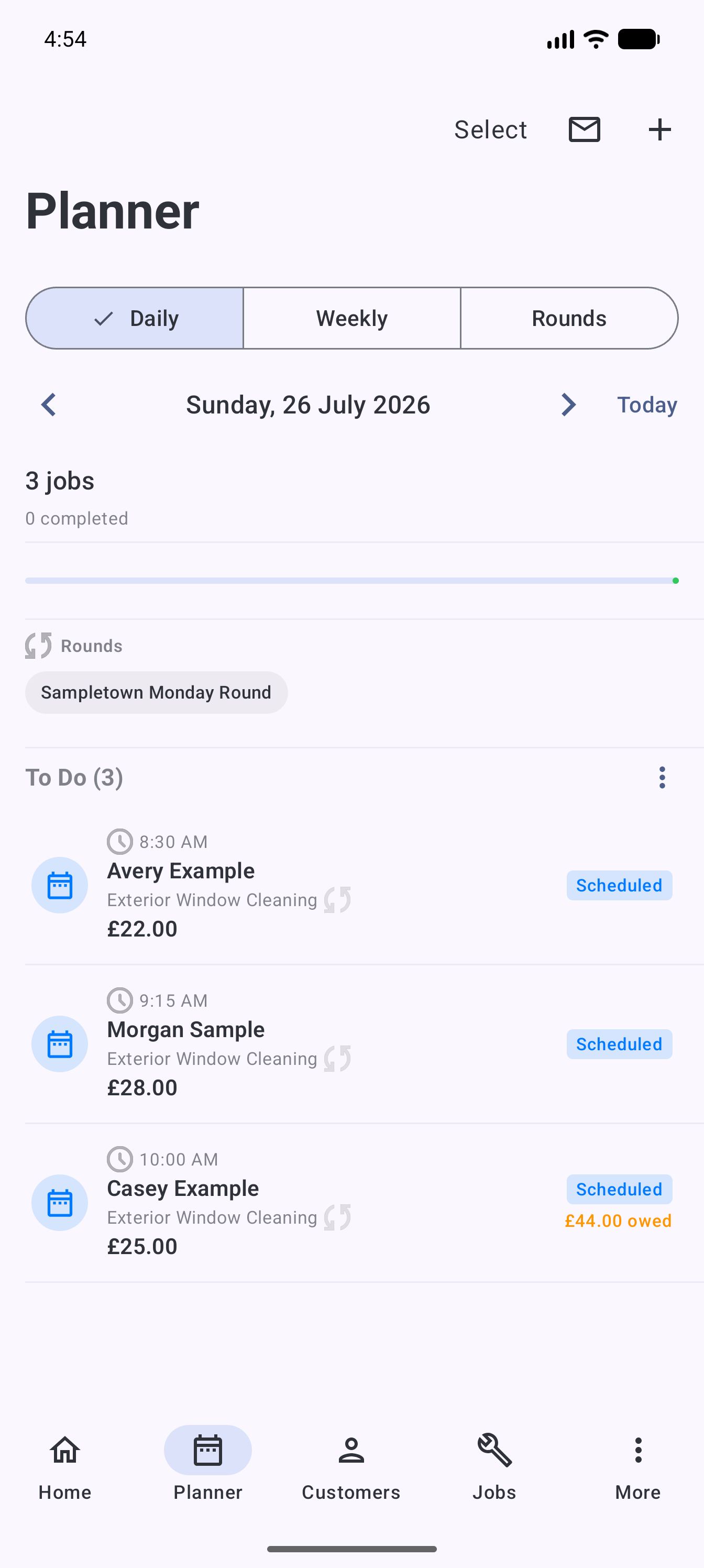
Open Planner, choose Daily, and select the working date. Review the scheduled visits, times, prices and any outstanding balance before setting off.
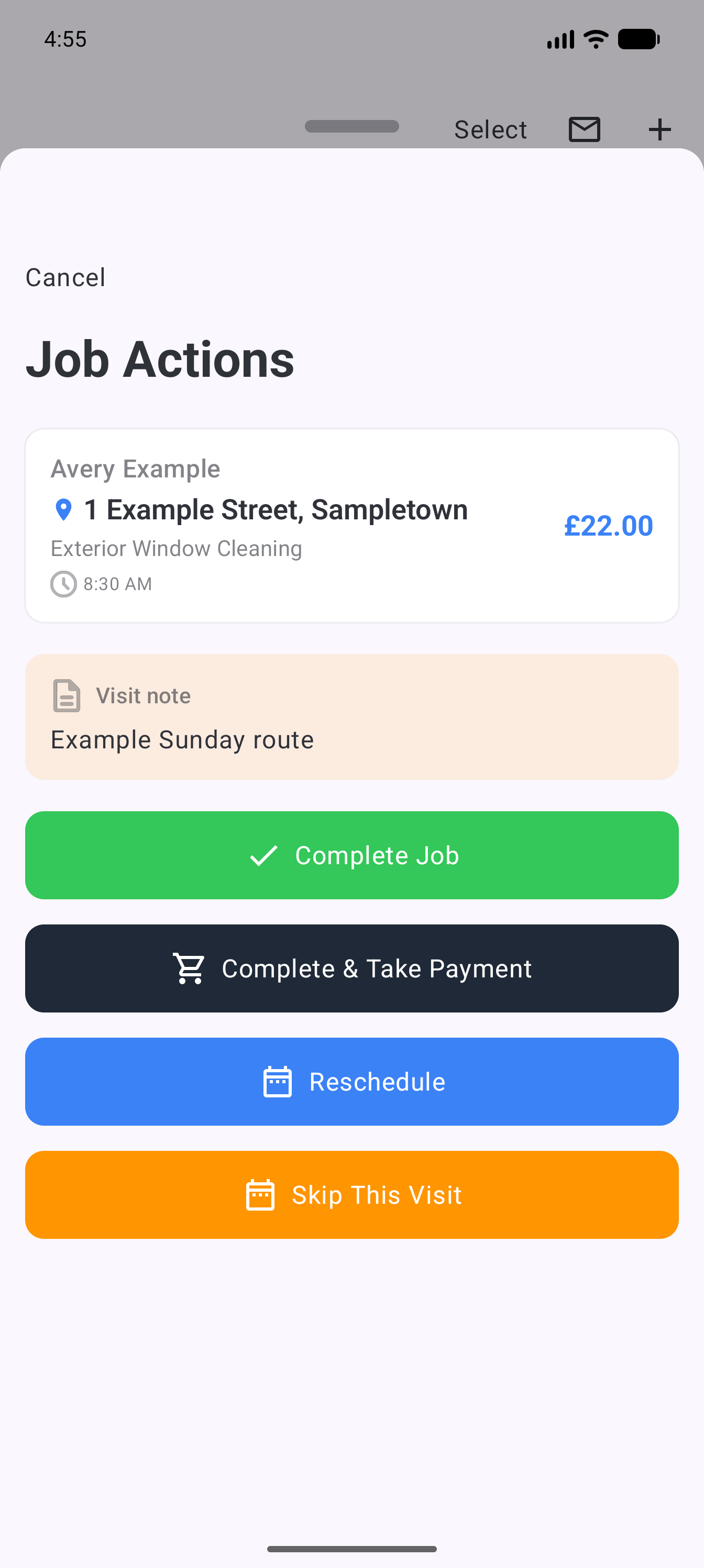
Tap a job to open Job Actions for its address, service, price and visit note. When the visit is finished, choose Complete Job or Complete & Take Payment. Use Reschedule or Skip This Visit when the work did not happen.
At the property
Open the job to review:
- Customer and service address.
- Service and price for this visit.
- Job notes.
- Any form or evidence required.
Use the visit note for information specific to this occurrence, such as access problems or partially completed work.
Leave the job in the right state
Choose the outcome that reflects what happened:
- Complete the job when the work is finished.
- Use the payment option in the completion flow when money was received.
- Reschedule when the work will happen on another date.
- Skip This Visit when this occurrence will not happen but the recurring schedule should continue.
Do not mark an uncompleted visit complete simply to remove it from the list. Completion can create an invoice and affect financial records.
End-of-day check
Before finishing:
- Check that completed work is marked complete.
- Review any jobs still showing as scheduled.
- Check invoices created from completed jobs.
- Record payments taken outside Surehand.
- Add useful notes while the details are fresh.