Bad weather does not need to break a recurring schedule. Move the affected visit or working day, then let the underlying pattern continue.
Instructions for your platform
Choose where you’re using Surehand. We’ll remember your selection for the next guide.
Move one visit
In the Planner, open the affected visit and choose Reschedule from its actions. Select the new date, review the change and confirm it.
Use this when one property cannot be accessed, one customer asks for another day, or only part of the route is affected.
Check that you are changing the selected visit rather than the recurring template.
Move the scheduled jobs for a day
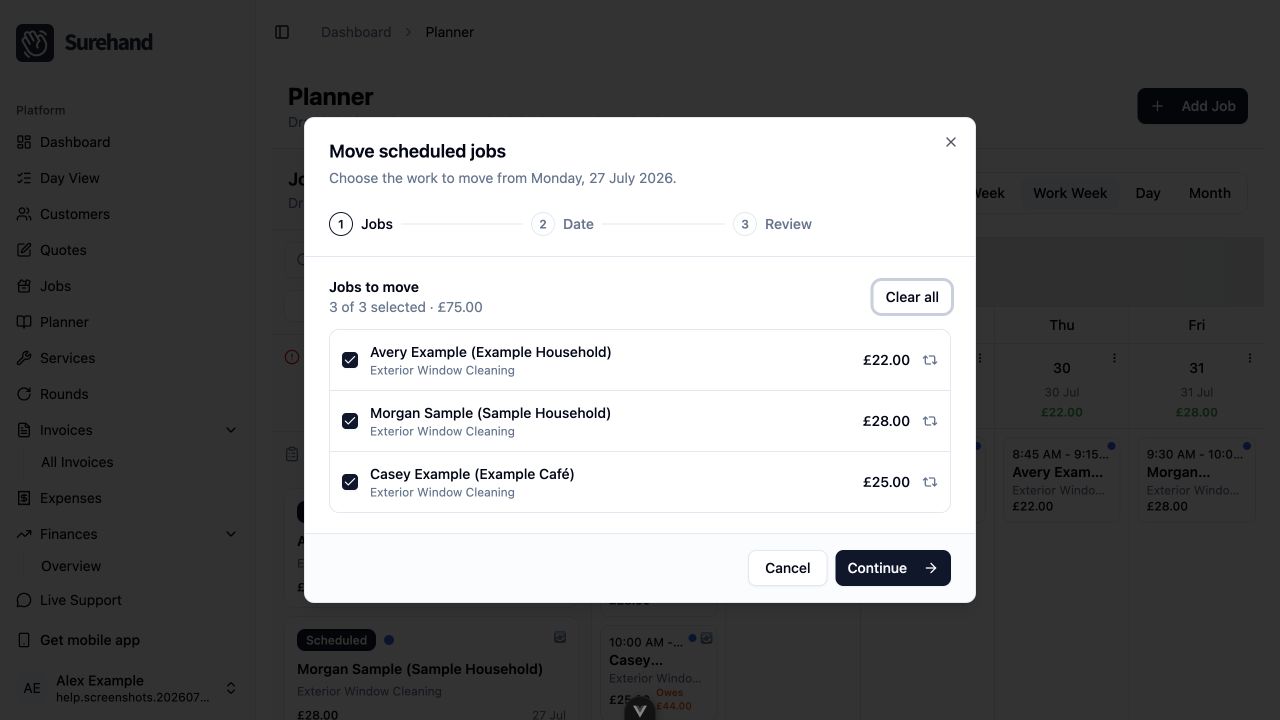
In the Planner, open the actions for the affected date and choose the option to Move scheduled jobs.
- Review the jobs Surehand found for that date.
- Choose the new date.
- Turn on Shift future visits only when the recurring pattern should move too.
- Review the change and choose Move jobs.
- Review both the original and destination dates.
Only scheduled work that can be rescheduled is included. Completed or otherwise ineligible jobs are not treated as new work.
Move visits from several days or rounds
Use this when rain hits part of several days, or you want to pick exactly which visits move.
- In the Planner, switch to Week, Work Week or Scroll.
- Choose Select.
- Tick the visits, rounds or days you want to move.
- Choose Change due date….
- Pick the New due date and check how many visits will be on that day after the move.
- Leave Move future visits too on to shift each recurring job's later visits by the same number of days. Turn it off for a one-off move.
- Choose Move N to [date].
Move one visit
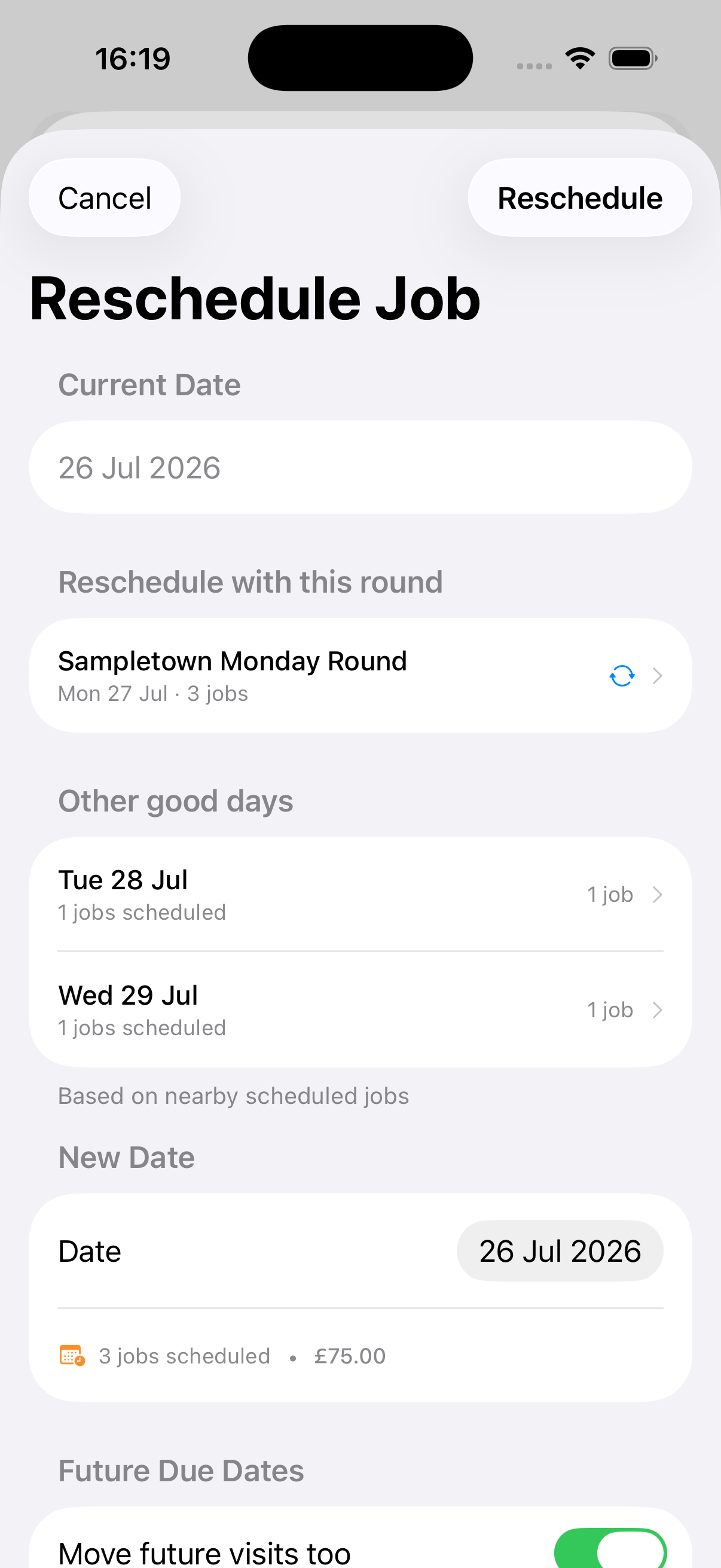
On your iPhone or iPad, open the affected visit and choose Reschedule from the available job actions. Select the new date, review the change and confirm it.
Use this when one property cannot be accessed, one customer asks for another day, or only part of the round is affected.
Check that you are changing the selected visit rather than the recurring template.
Move the affected round
- Open Rounds and choose the affected round.
- Tap ⋯, then choose Reschedule Round to move the round’s next due jobs together. If you opened the round from one day’s visit, you can choose Reschedule This Visit to move only that day’s visit.
- Check the number of jobs at the top of the sheet, then pick the New Date. Surehand shows how many jobs are already scheduled that day.
- Tap Reschedule Round or Reschedule Selected.
Later visits move by the same number of days, so the usual gap between visits stays the same.
Move one visit
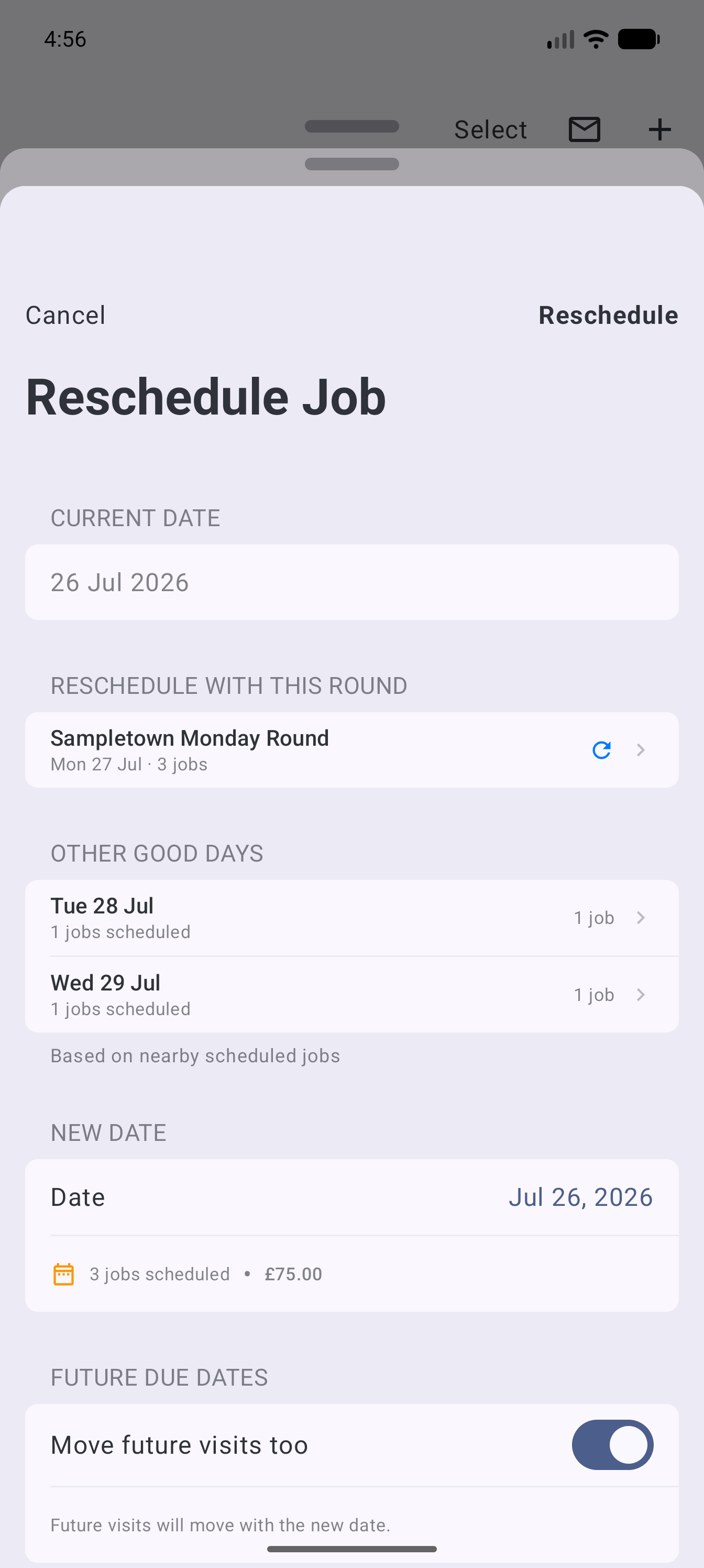
On your Android device, open the affected visit and choose Reschedule from the available job actions. Review Surehand’s suggested days or select another new date, then confirm the change.
Use this when one property cannot be accessed, one customer asks for another day, or only part of the round is affected.
When rescheduling one recurring visit, turn on Move future visits too only when you want later visits to move with the selected date.
Check that you are changing the selected visit rather than the recurring template.
Move the affected round
- Open Rounds and choose the affected round.
- Tap ⋯, then choose Reschedule Round to move the round’s next due jobs together. If you opened the round from one day’s visit, you can choose Reschedule This Visit to move only that day’s visit.
- Check the number of jobs at the top of the sheet, then pick the New Date. Surehand shows how many jobs are already scheduled that day.
- Tap Reschedule Round or Reschedule Selected.
Later visits move by the same number of days, so the usual gap between visits stays the same.
Keep recurring schedules intact
Moving an occurrence changes when that visit will happen. It should not be used to permanently change every future date.
If the customer’s normal day or frequency has changed, edit the recurring template instead.
Avoid creating duplicates
Do not create replacement jobs before checking whether the existing visits can be moved. Copying or recreating them can leave duplicate work and make invoicing less clear.
Tell customers separately
Rescheduling and customer communication are separate actions. Moving jobs does not mean every affected customer has automatically received a message.
Use the available reminder or communication action when you need to notify customers, and check that each customer has the necessary contact details.
Check the new working day
After moving the work:
- Confirm the jobs appear on the intended date.
- Check their order.
- Resolve any clashes with work already scheduled there.
- Make sure the assigned person or team can still complete them.