Create a one-off job when the work should happen once. Use recurring work for a regular clean, maintenance visit or other repeating service.
Instructions for your platform
Choose where you’re using Surehand. We’ll remember your selection for the next guide.
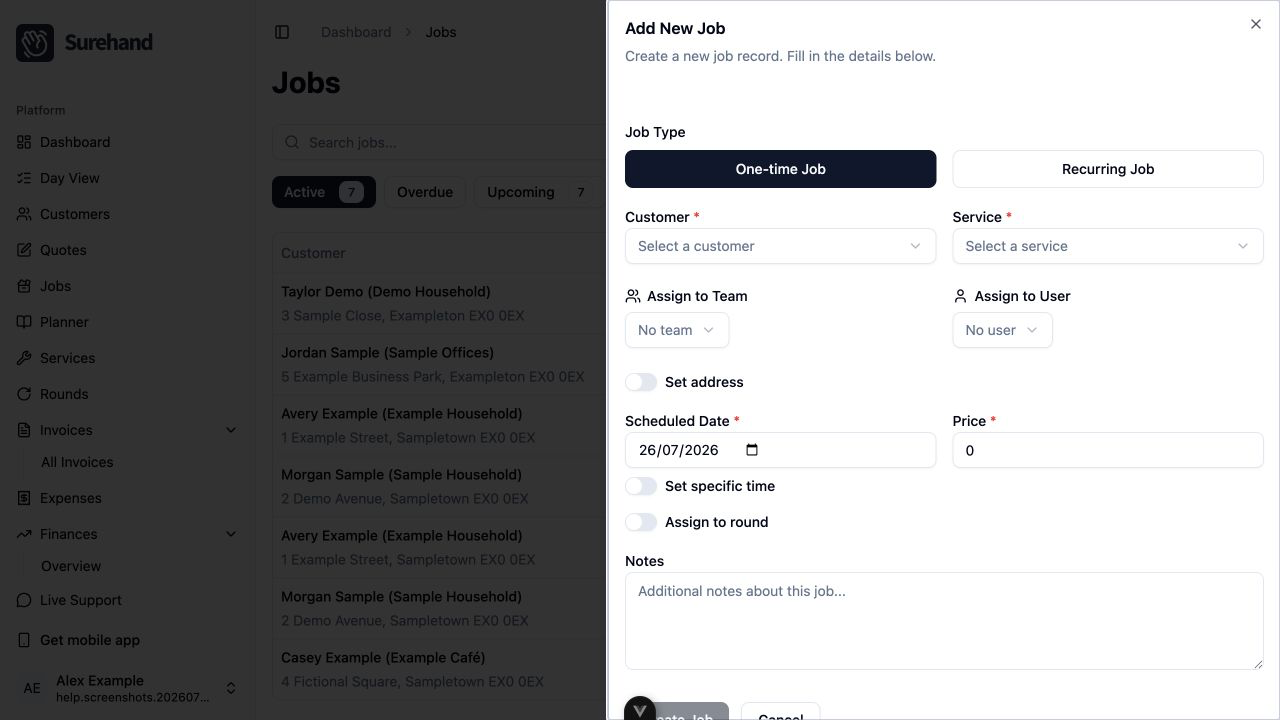
Create a job on the web
- Open Planner and choose the date or time where the job should appear.
- Start a new job and leave Job Type set to one-off work.
- Select the customer, service and service address.
- Set the date and any required start and end time.
- Check the price and tax.
- Assign a team or user if responsibility matters.
- Add notes needed by the person completing the job.
- Save the job.
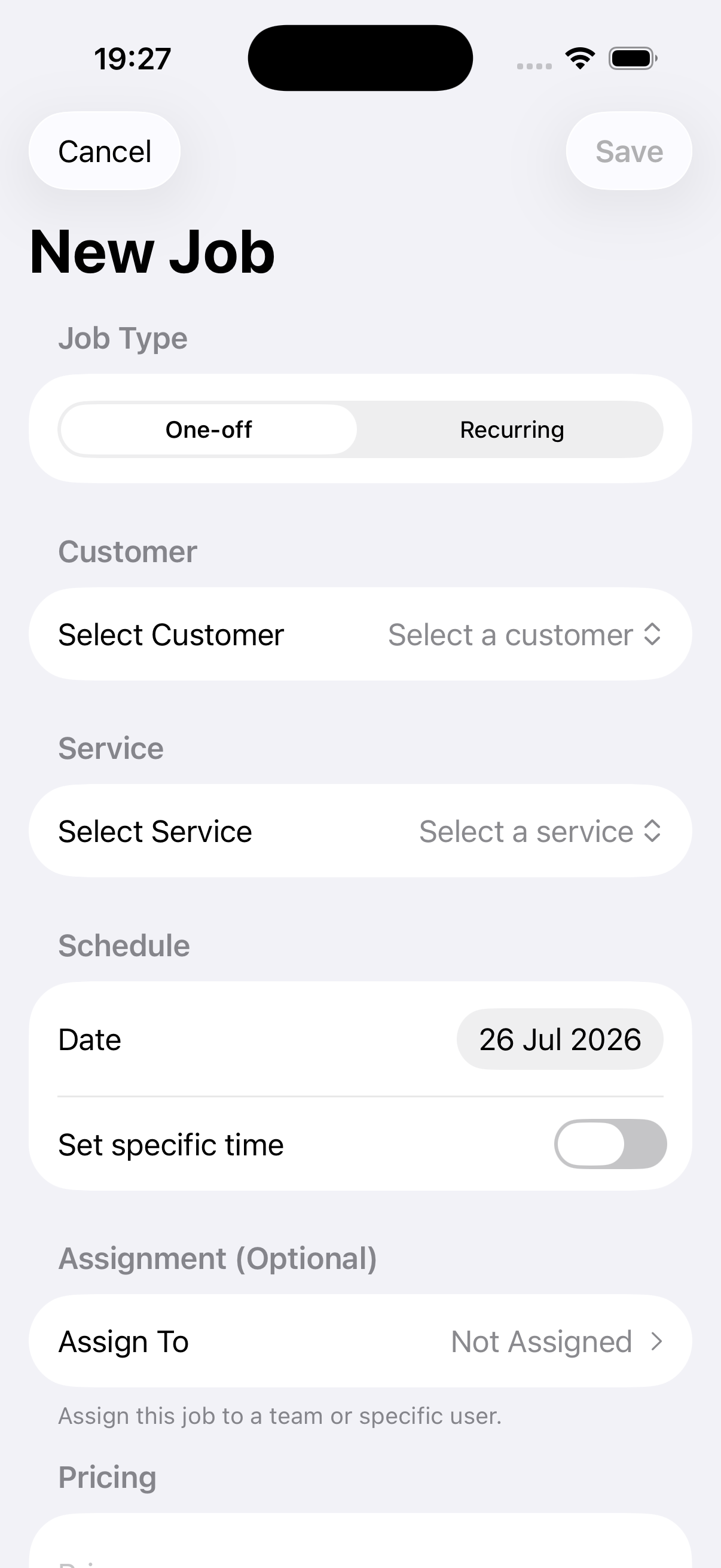
Create a job on iPhone or iPad
- Open Jobs and use the + action.
- Select One-off.
- Choose the customer, service and address.
- Set the scheduled date and time.
- Check the price, notes and assignment.
- Choose Save.
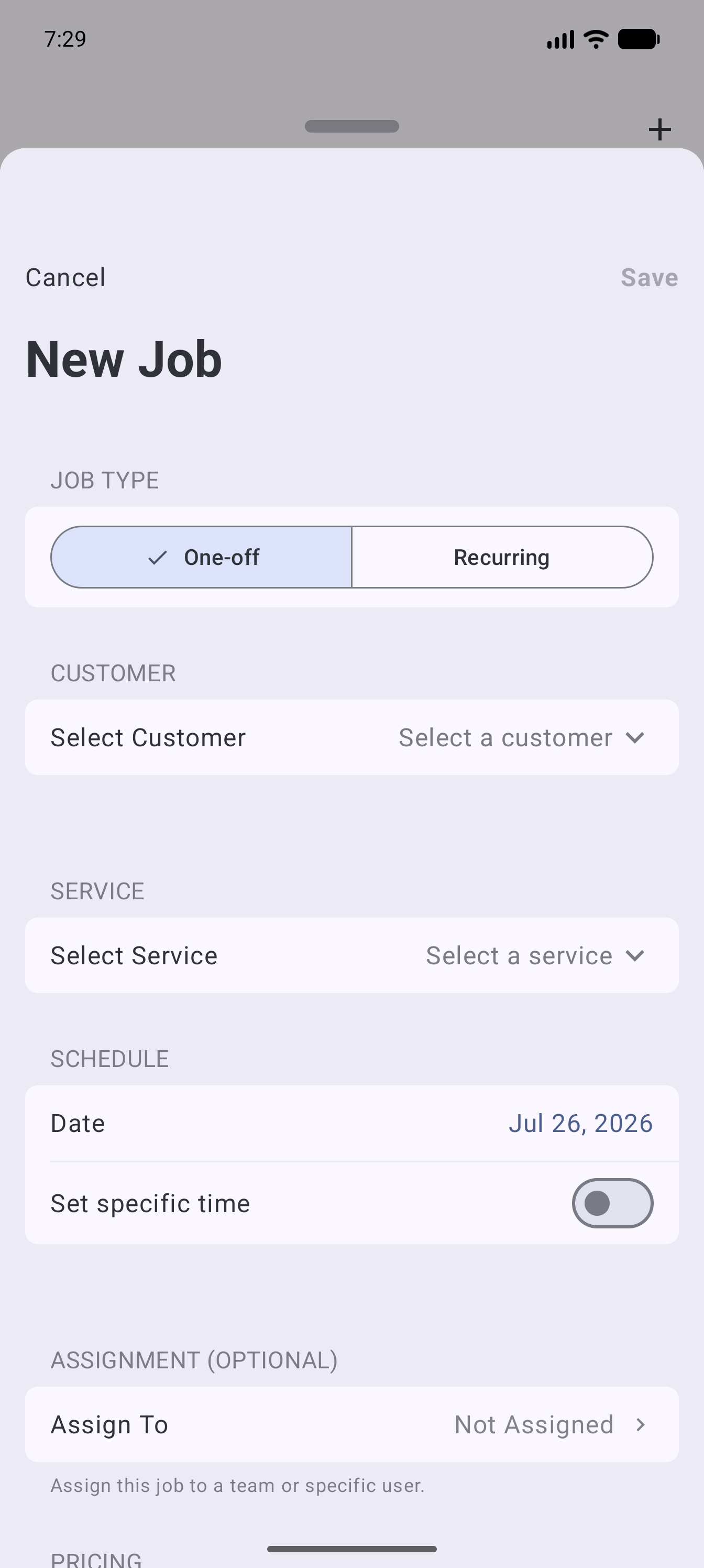
Create a job on Android
- Open Jobs and use the + action.
- Select One-off.
- Choose the customer, service and address.
- Set the scheduled date and time.
- Check the price, notes and assignment.
- Choose Save.
Choose the right status
New work should normally remain Scheduled until it is completed, skipped or cancelled. Avoid marking work complete in advance because completion can affect invoicing, payments and reporting.
Assign the work
Assign a user or team when responsibility matters. Access and team membership can affect which work a person can see.
Invite people and organise teams
Check the saved job
Find the job in Planner, Day View, Today or Jobs, then check:
- Customer and service address.
- Service and visit price.
- Scheduled date and time.
- Assigned person or team.
- Notes needed on site.
If the work should repeat, create recurring work rather than copying the same one-off job many times.