Invite each person with their own email address. Individual accounts make assignments and access easier to manage than sharing one login.
Instructions for your platform
Choose where you’re using Surehand. We’ll remember your selection for the next guide.
Invite a person on the web
- Open Account.
- Open Members.
- Choose Invite Member.
- In Invite Worker, enter the person’s Email address.
- Choose their Role: Admin or Worker.
- Choose Send Invitation.
The invitation appears under Pending Invitations until the person accepts it. You can resend or revoke it from the same screen.
<!-- screenshot: Account → Members on the web, showing the Pending Invitations table with one fictional invitation marked Pending and its resend and revoke buttons -->Create a team on the web
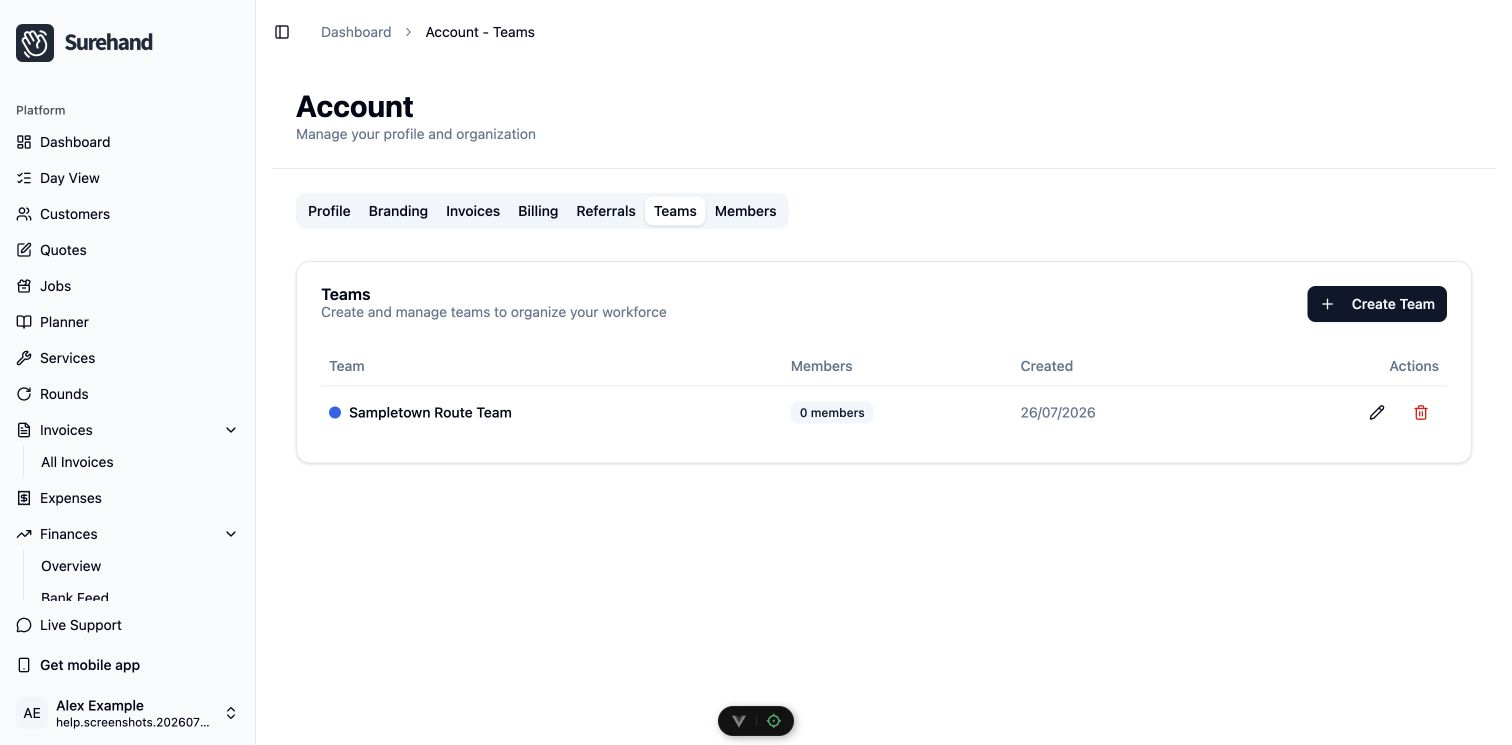
- Open Account → Teams.
- Choose the create action.
- Give the team a recognisable name and save it.
- Add existing users to the team.
Invite a person on iPhone or iPad
- Open More → Team Members.
- Choose Invite Worker.
- Enter the person’s Email address.
- Choose their Role: Worker or Admin.
- Choose Send.
The invitation appears under Pending Invitations until the person accepts it. Choose Resend or Revoke there to manage it.
<!-- screenshot: the Team Members screen on iPhone, showing the Invite Worker button and one fictional invitation under Pending Invitations with Resend and Revoke -->Organise teams on iPhone or iPad
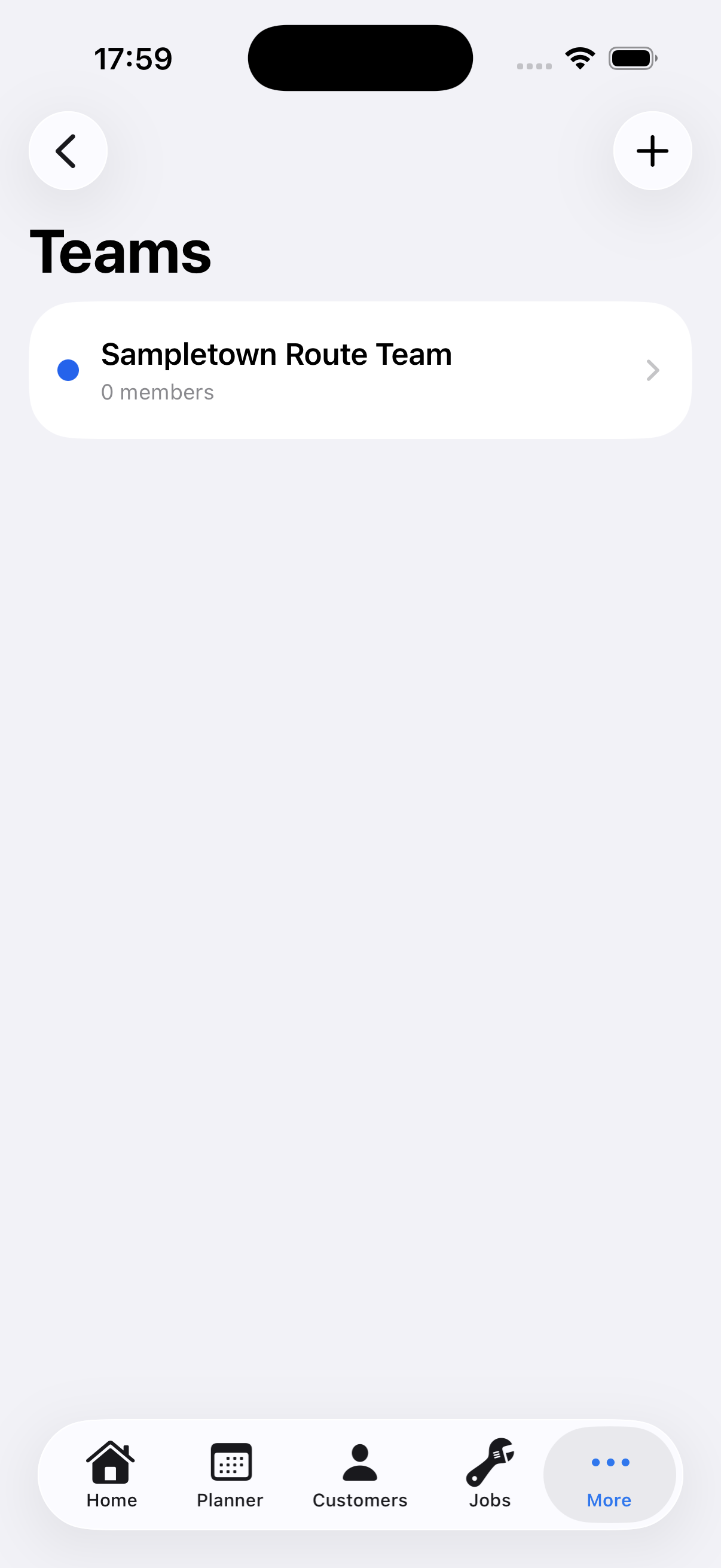
Open More → Teams and use the + action to create a team. Give it a recognisable name, save it, then open the team and choose Add Member to add an existing Surehand user.
Invite a person on Android
- Open More → Team Members.
- Choose Invite Worker.
- Enter the person’s Email address.
- Choose their Role: Worker or Admin.
- Choose Send.
The invitation appears under Pending Invitations until the person accepts it. Choose Resend or Revoke there to manage it.
<!-- screenshot: the Team Members screen on Android, showing the Invite Worker button and one fictional invitation under Pending Invitations with Resend and Revoke -->Organise teams on Android
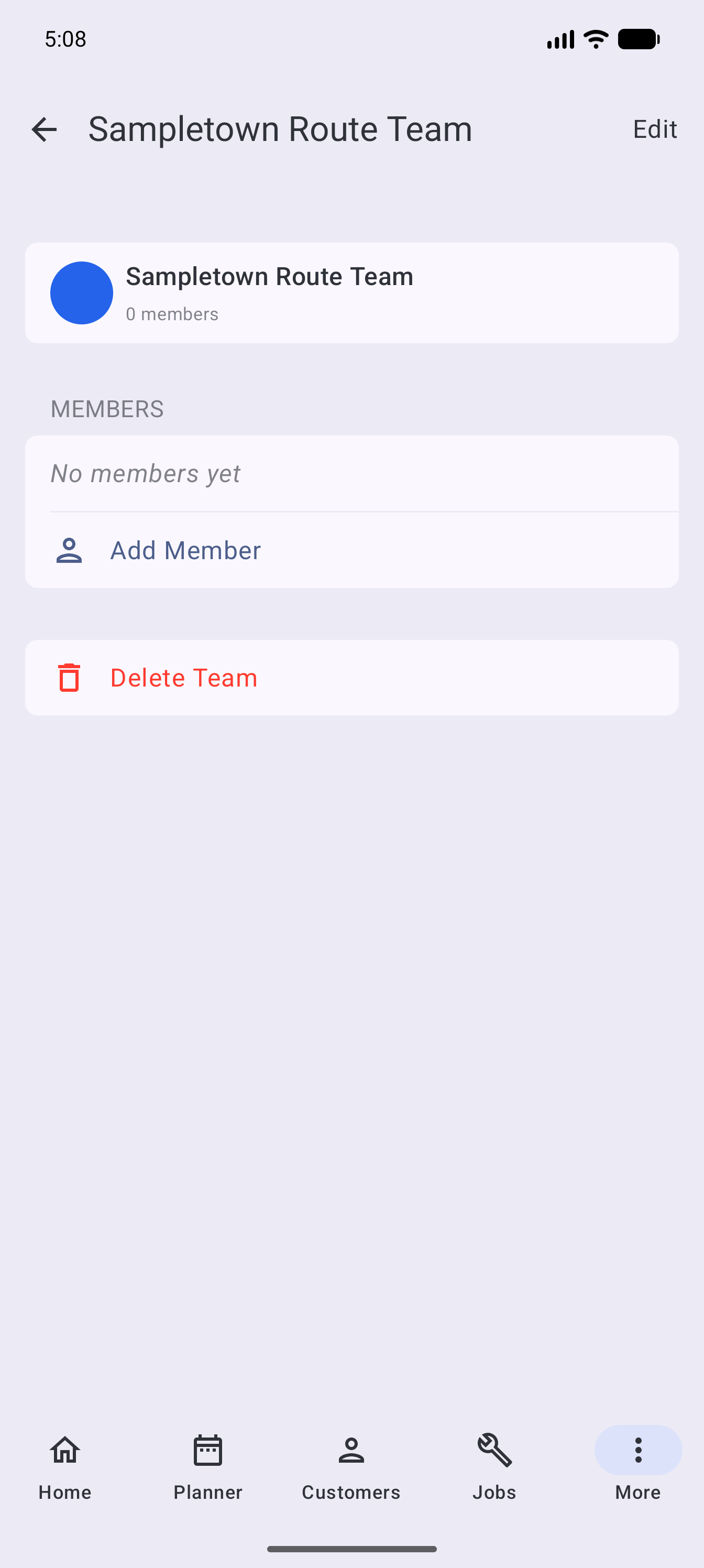
Open More → Teams and choose Create Team. Give it a recognisable name, save it, then open the team and choose Add Member to add an existing Surehand user.
Choose the role carefully
Use the least powerful role that lets the person do their work:
- Admin has full access, including financials and settings.
- Worker sees only their assigned work. They can fill in forms and mark jobs complete, but cannot see financials or manage the schedule.
You can change someone’s role later from the Role menu next to their name in Account → Members.
Financial areas are also protected by financial-access rules. If a person cannot see invoices, expenses or finances, check their role and access before assuming data is missing.
Name teams for the work
Teams group users for job assignment.
For a window-cleaning business, useful team names might be Van 1, North Route, or the names of people who normally work together.
Assign work
Choose a user or team when creating or editing a job. Check the working-day view from the assigned person’s perspective where possible.
A round and a team serve different purposes:
- A round groups recurring work.
- A team groups people.
They can work together, but one does not replace the other.
When somebody leaves
Before removing access:
- Review their upcoming assignments.
- Reassign work that still needs doing.
- Remove them from teams.
- Remove or revoke their membership.
Do not delete customer or job records simply because the person previously assigned to them has left.