Before changing scheduled work, check whether you are editing one visit or the recurring schedule that creates future visits. That distinction prevents accidental changes across an entire round.
Instructions for your platform
Choose where you’re using Surehand. We’ll remember your selection for the next guide.
Change work on the web
- Open Planner, Day View or Jobs.
- Open the visit you need to change.
- Choose the relevant edit, move, skip or cancel action.
- Check whether the action applies to this visit or to future recurring work.
- Confirm the new date, status or cancellation only after reviewing the summary.
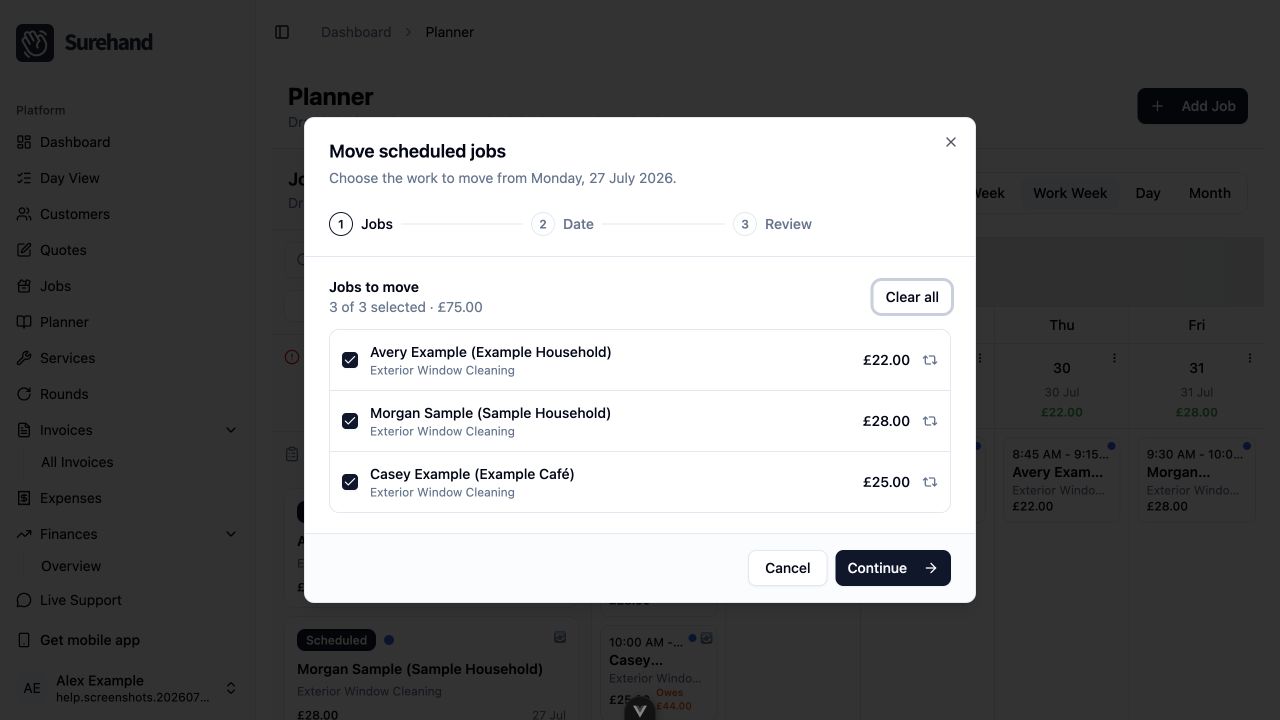
For several visits affected by the same event, use the bulk move workflow from the planner rather than editing each job separately.
Change work on iPhone or iPad
- Open Today, Planner or Jobs.
- Open the affected visit.
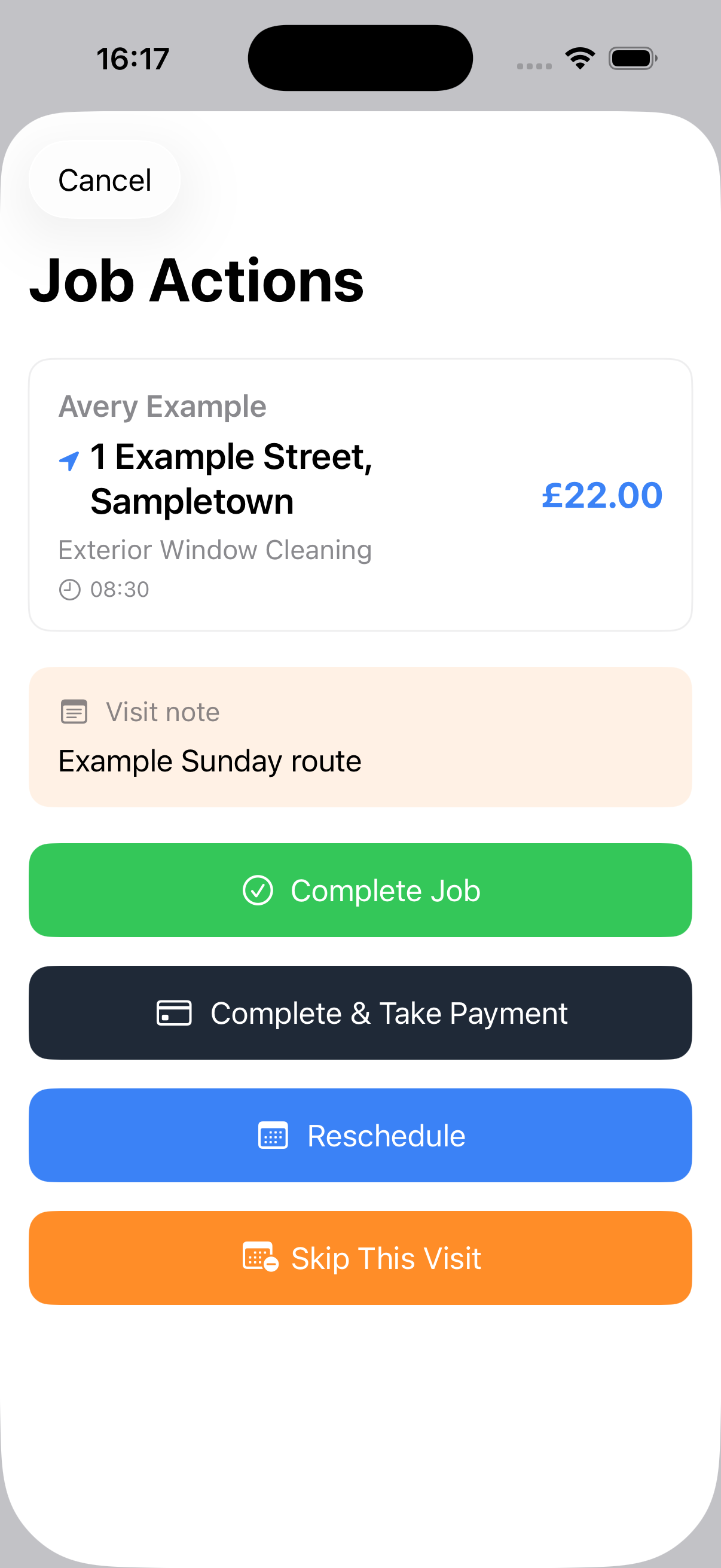
- Use the actions menu.
- Choose Edit, Reschedule, Skip or the available cancellation action.
- Review the date and whether the change affects one visit or recurring work.
- Confirm the action.
Change work on Android
- Open Today, Planner or Jobs.
- Open the affected visit.
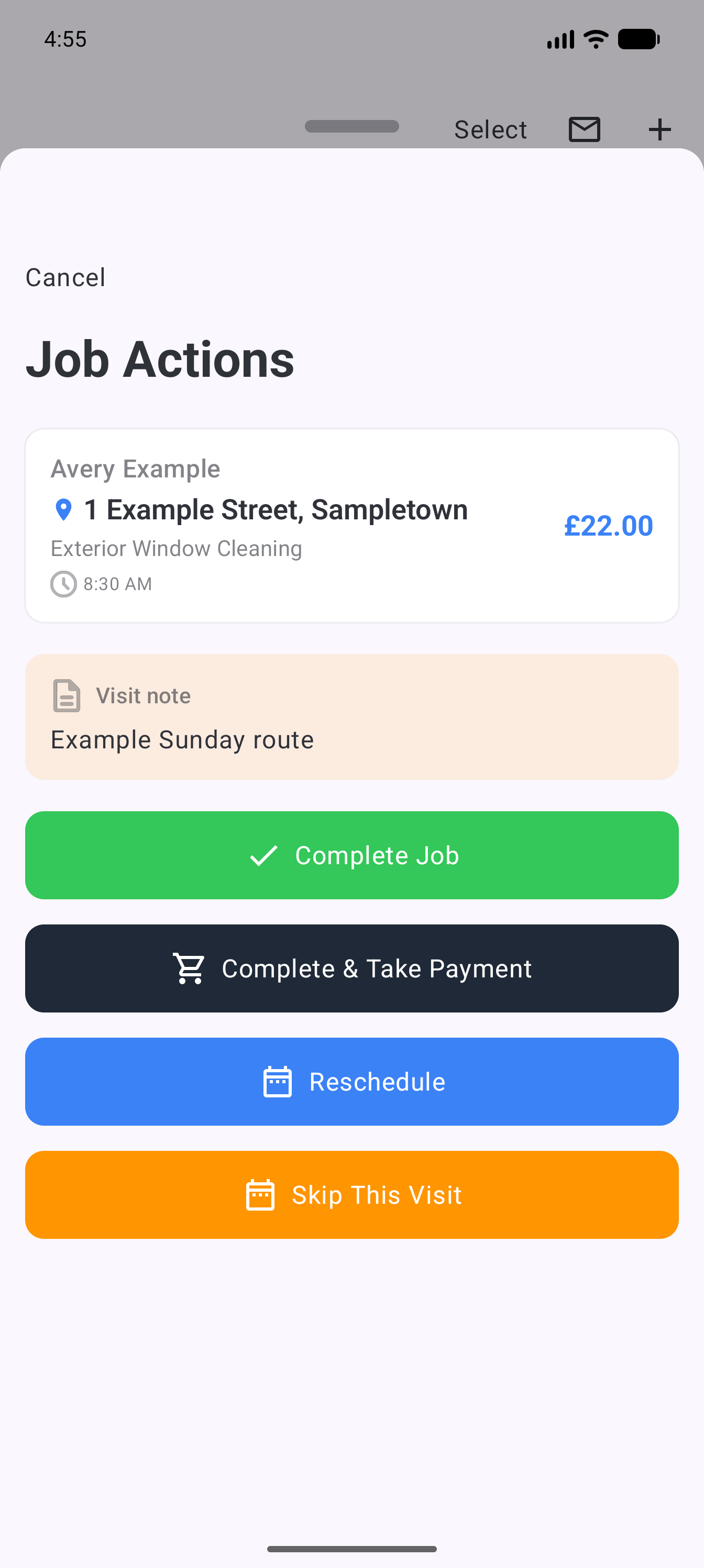
- Use the actions menu.
- Choose Edit, Reschedule, Skip or the available cancellation action.
- Review the date and whether the change affects one visit or recurring work.
- Confirm the action.
Choose the right outcome
- Reschedule when the work is still required on another date.
- Skip when one occurrence should not happen but the recurring schedule should continue.
- Cancel when the planned visit should not proceed.
- Edit recurring work when the ongoing agreement, price or frequency has changed.
Check downstream effects
After making the change, check the planner and customer history. If an invoice, payment or customer message already exists, confirm whether it also needs attention. Changing a job does not necessarily withdraw a document or message that has already been sent.