Check the customer’s email address and mobile number before sending anything. Customer-facing links and reminders can contain information about jobs, invoices or balances.
Instructions for your platform
Choose where you’re using Surehand. We’ll remember your selection for the next guide.
Manage customer portal access on the web
- Open Customers and select the customer.
- Open the Portal section.
- Check whether portal access is enabled.
- Choose Send Portal Invite when the customer should receive a secure magic link.
- Confirm the customer’s email address before sending.
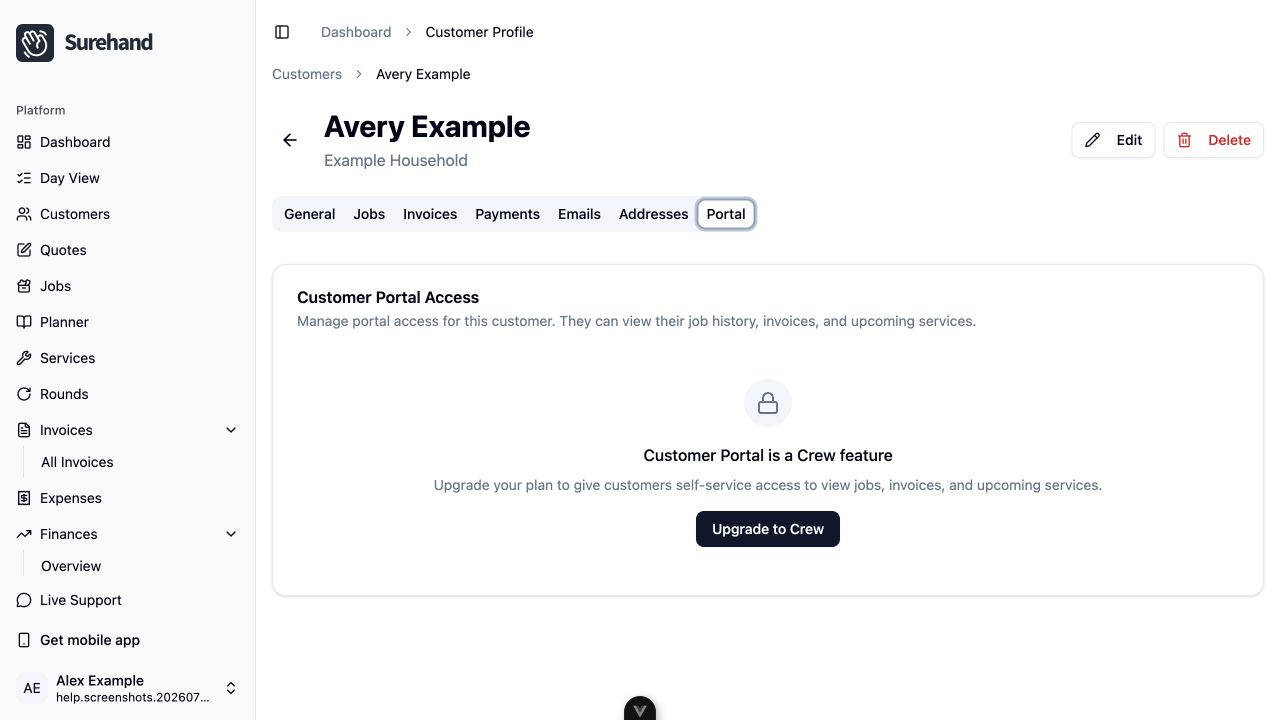
The customer portal is plan-controlled. When enabled, customers can view their job history, invoices and upcoming services. Disabling access prevents future portal use; it does not retract emails that were already delivered.
Use the customer’s Emails section to review messages recorded by Surehand before sending another copy.
Contact a customer on iPhone or iPad
- Open Customers and select the customer.
- Use the available message action for SMS, WhatsApp or email.
- Review the recipient and message before leaving Surehand for another app.
- Open Emails on the customer to check invoice, reminder and portal messages recorded by Surehand.
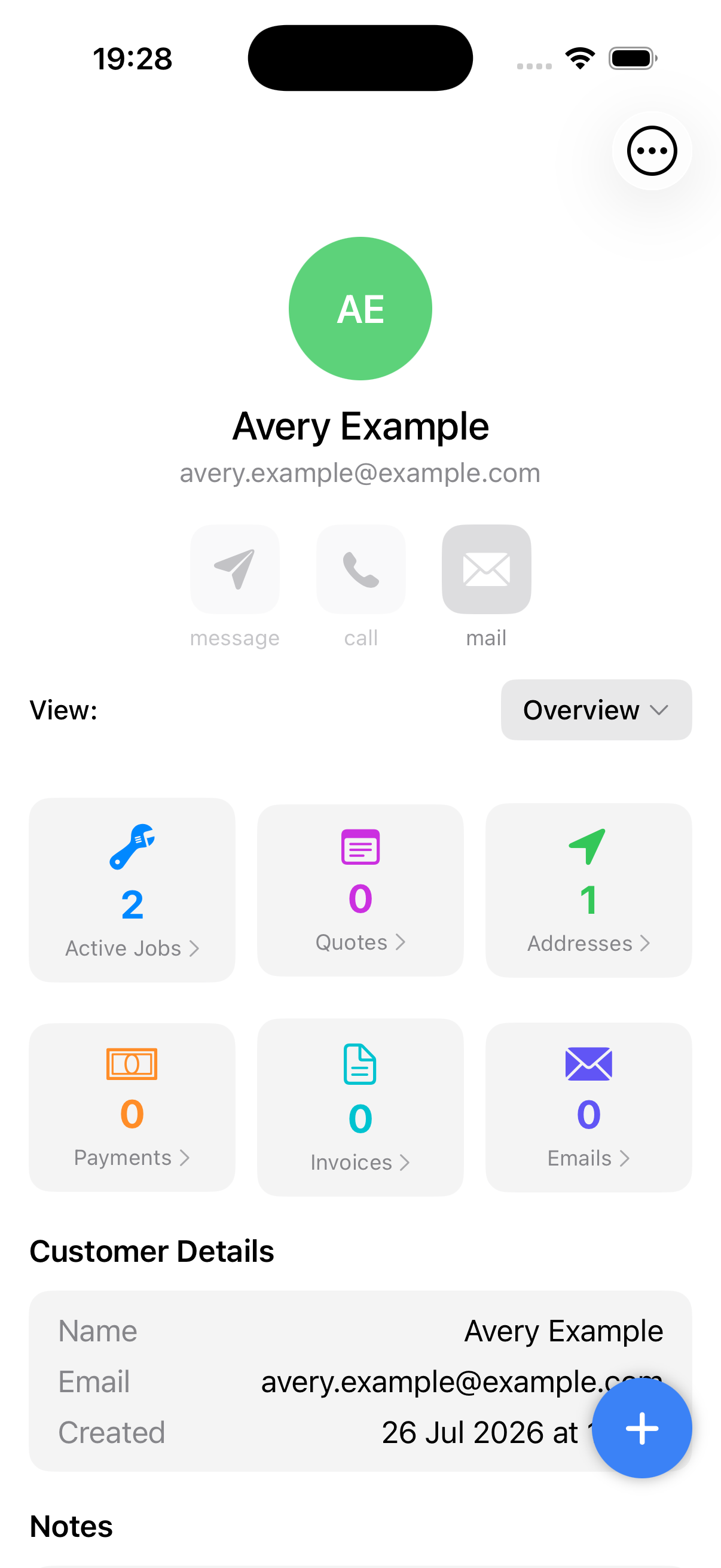
Portal access itself is managed on the web. Use Customers → customer → Portal there to enable access or send an invite.
Contact a customer on Android
- Open Customers and select the customer.
- Use the available message action for SMS, WhatsApp or email.
- Review the recipient and message before leaving Surehand for another app.
- Open Emails on the customer to check invoice, reminder and portal messages recorded by Surehand.
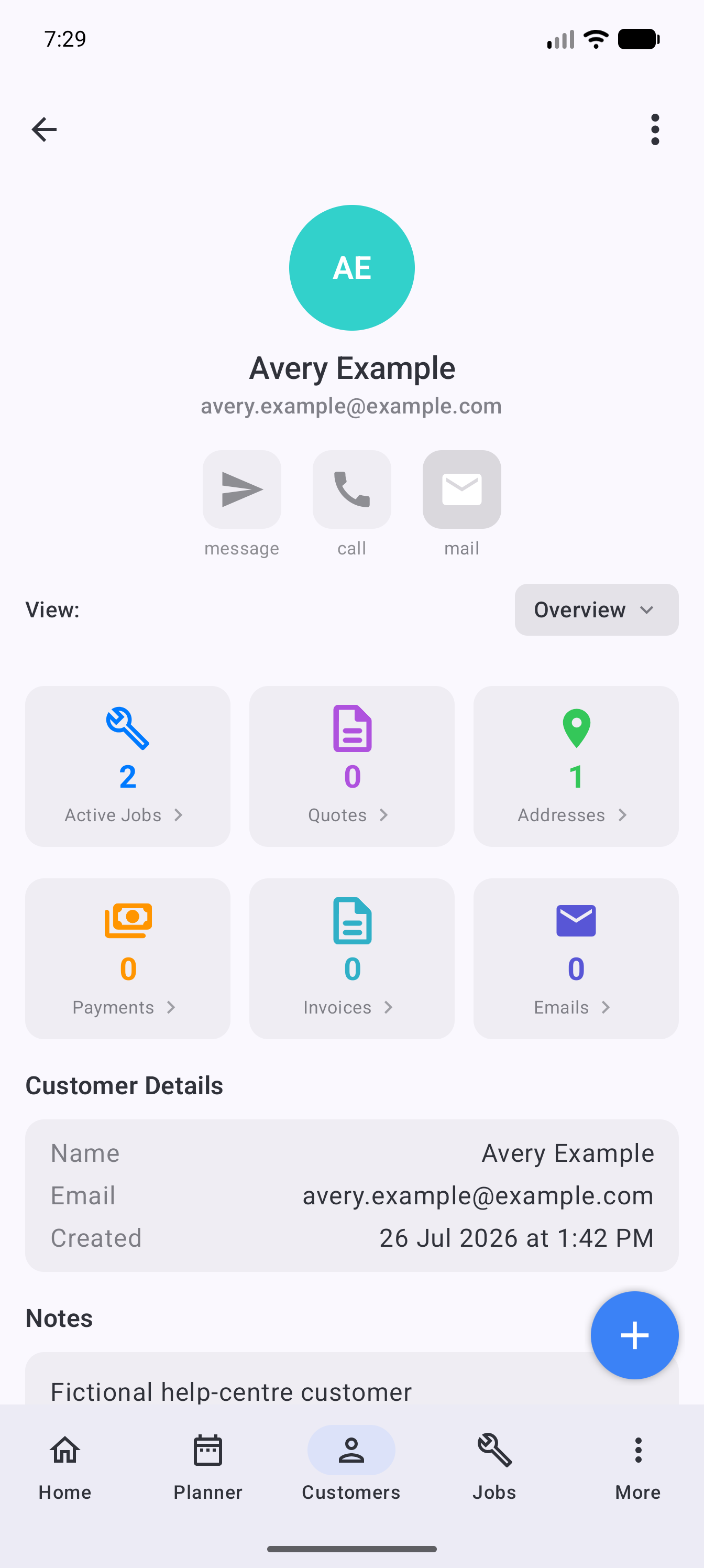
Portal access itself is managed on the web. Use Customers → customer → Portal there to enable access or send an invite.
Avoid duplicate or mistimed messages
Before sending:
- Check the customer has not already received the same invoice or reminder.
- Confirm that the related balance or schedule is still current.
- Avoid including sensitive information in an ordinary SMS or WhatsApp message.
- Use the secure portal or invoice link where appropriate.
If an email failed, correct the address or underlying issue before retrying.