Set up reusable services before creating regular work. A service gives jobs, quotes and invoices a consistent name and usual price, while your workspace and invoice settings control the business details customers see.
Add the services you normally provide
Use a clear customer-friendly name, such as Exterior window clean or Gutter clearance. Add the price you charge most often; you can still change the description or price on an individual job, quote or invoice.
Instructions for your platform
Choose where you’re using Surehand. We’ll remember your selection for the next guide.
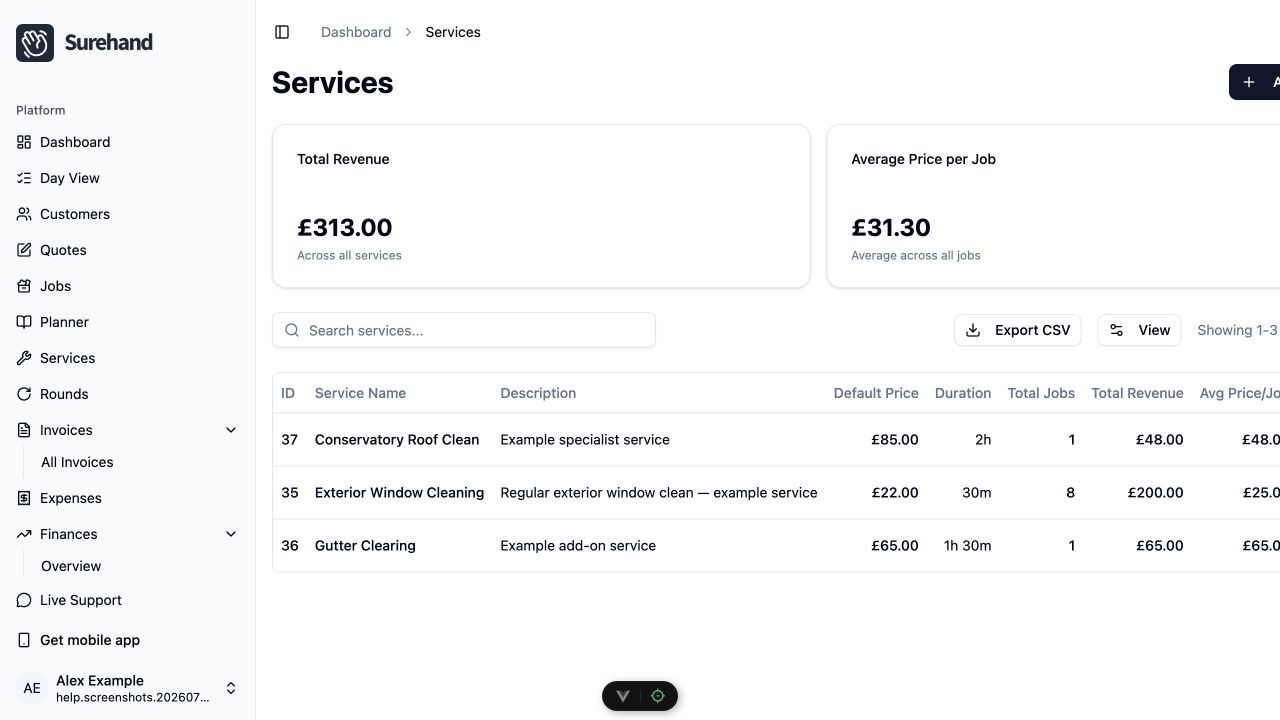
Set up services on the web
- Open Services from the main navigation.
- Choose Add Service.
- Enter a recognisable service name.
- Add the usual price and tax treatment.
- Add a description if it will help when building customer-facing documents.
- Save the service.
Check business and invoice settings
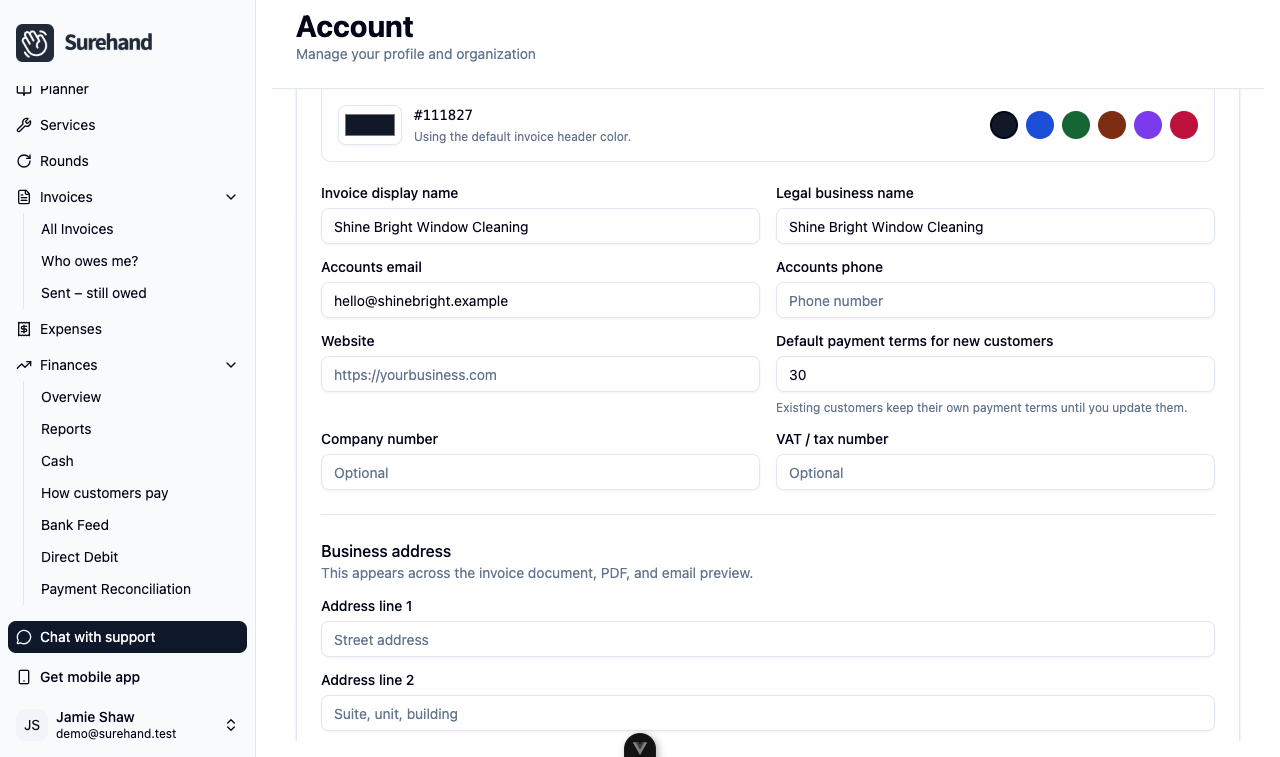
- Open Account → Invoices.
- Under Invoice Identity, check the Invoice display name, Legal business name, Accounts email, Accounts phone, Website, Company number, VAT / tax number and Default payment terms for new customers.
- Check the Business address, then the Payment reference, Payment instructions and Invoice footer.
- Under Bank Transfer, turn on Enable bank transfer instructions if customers pay by bank transfer, and enter your bank details.
- Choose Save Invoice Settings.
- Open Account → Branding to add or change your logo.
- Open Account → Billing to confirm the default currency, timezone and tax settings.
Account → Profile holds your own login details (name, email, password and connected accounts), not the business details customers see.
Review each screen before saving. Changing defaults affects future work and documents; it does not necessarily rewrite records that already exist.
Set up services on iPhone or iPad
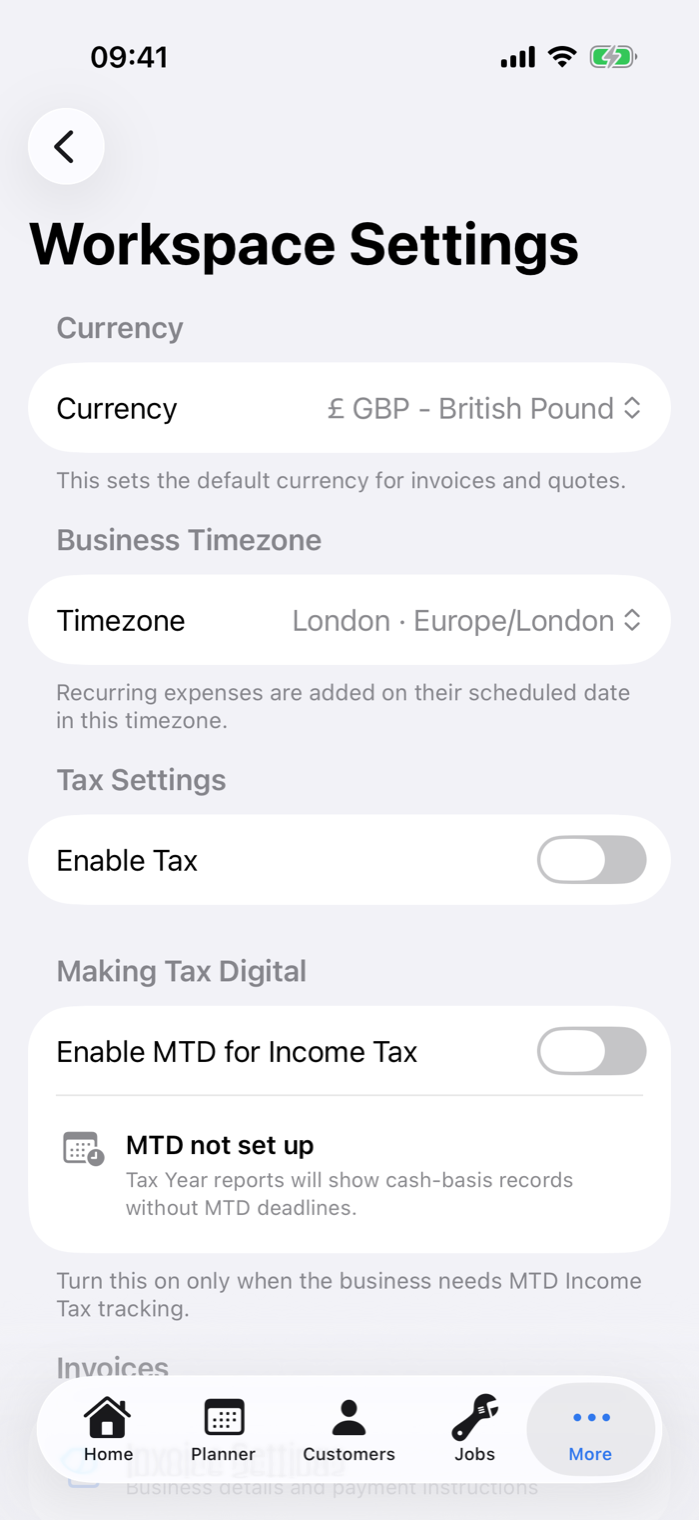
- Open More → Workspace Settings.
Example data: iPhone app More tab with the Workspace Settings row visible - Open Services.
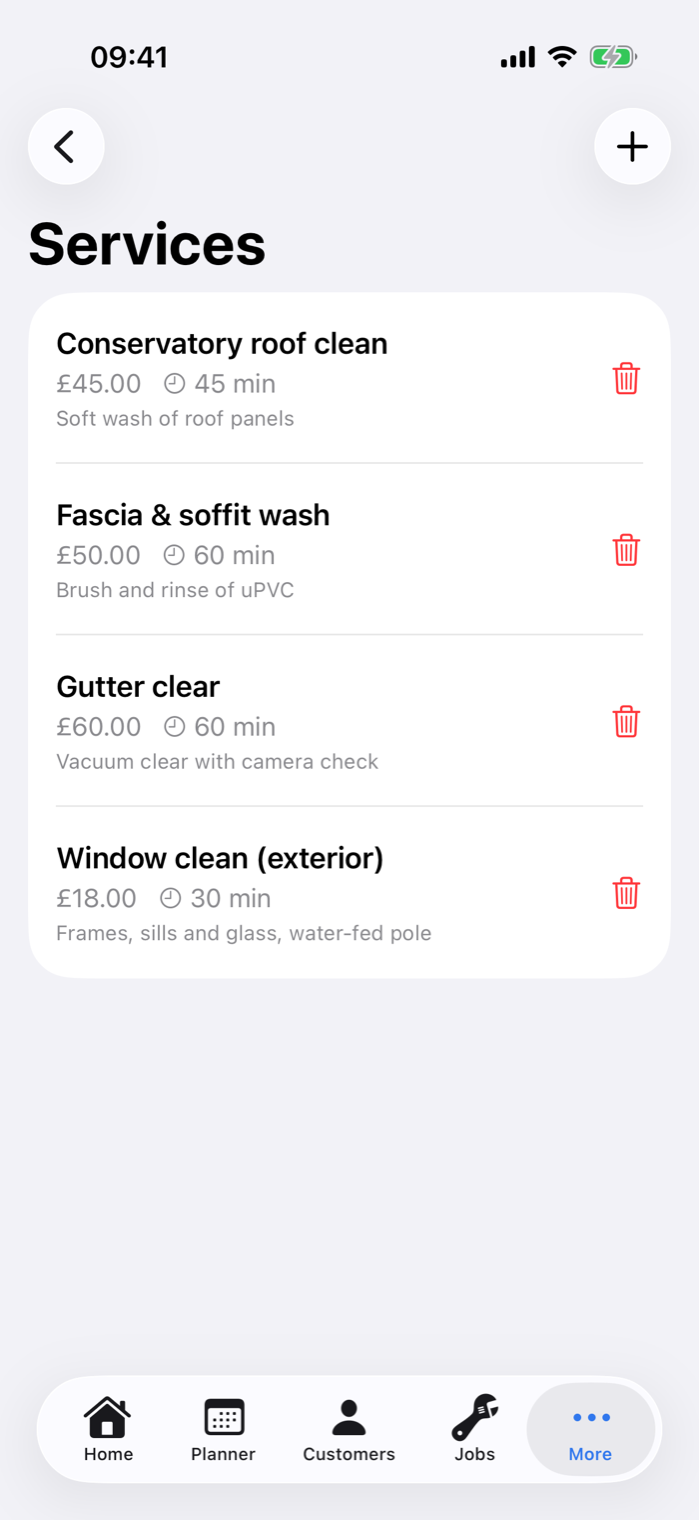
Example data: iPhone Workspace Settings screen with the Services row visible - Use the + action.
- Enter the name, usual price and tax treatment.
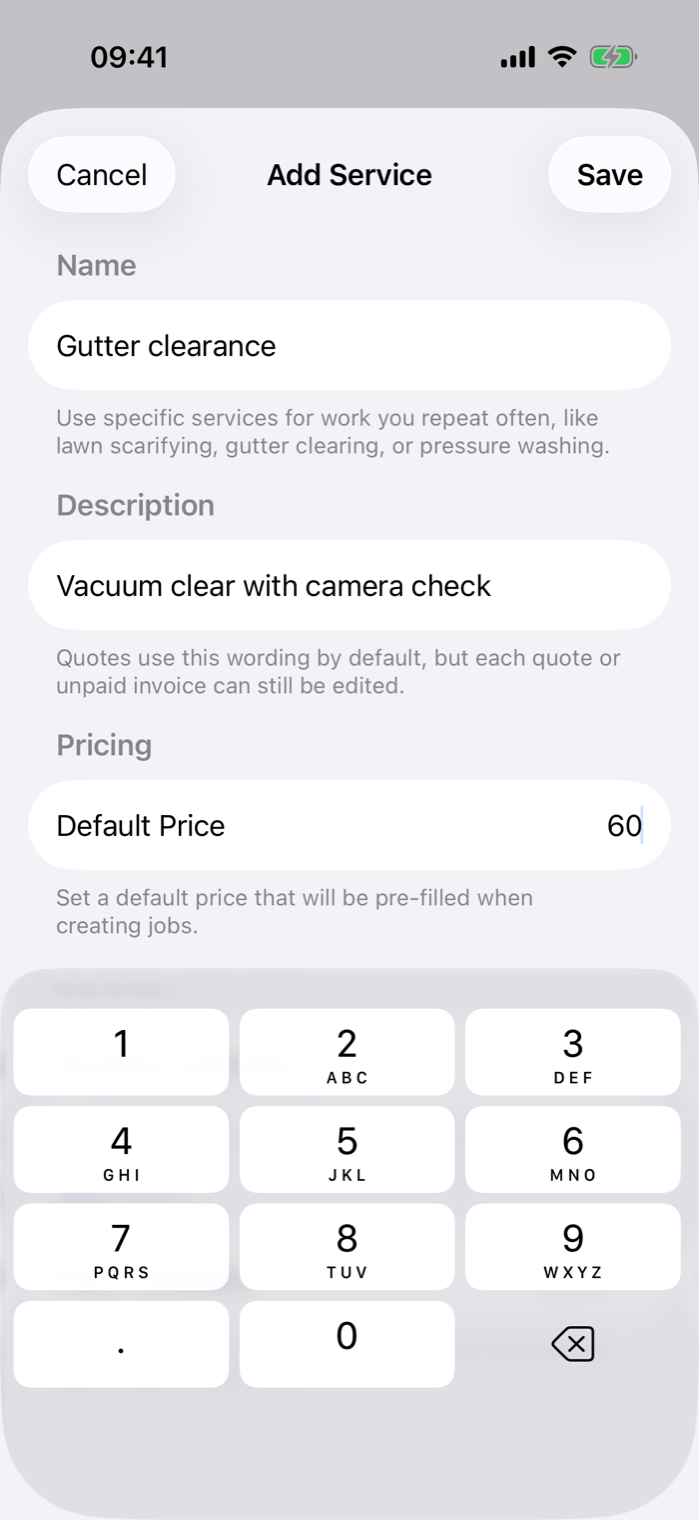
Example data: iPhone Add Service sheet with a fictional service name and Default Price filled in - Save the service.
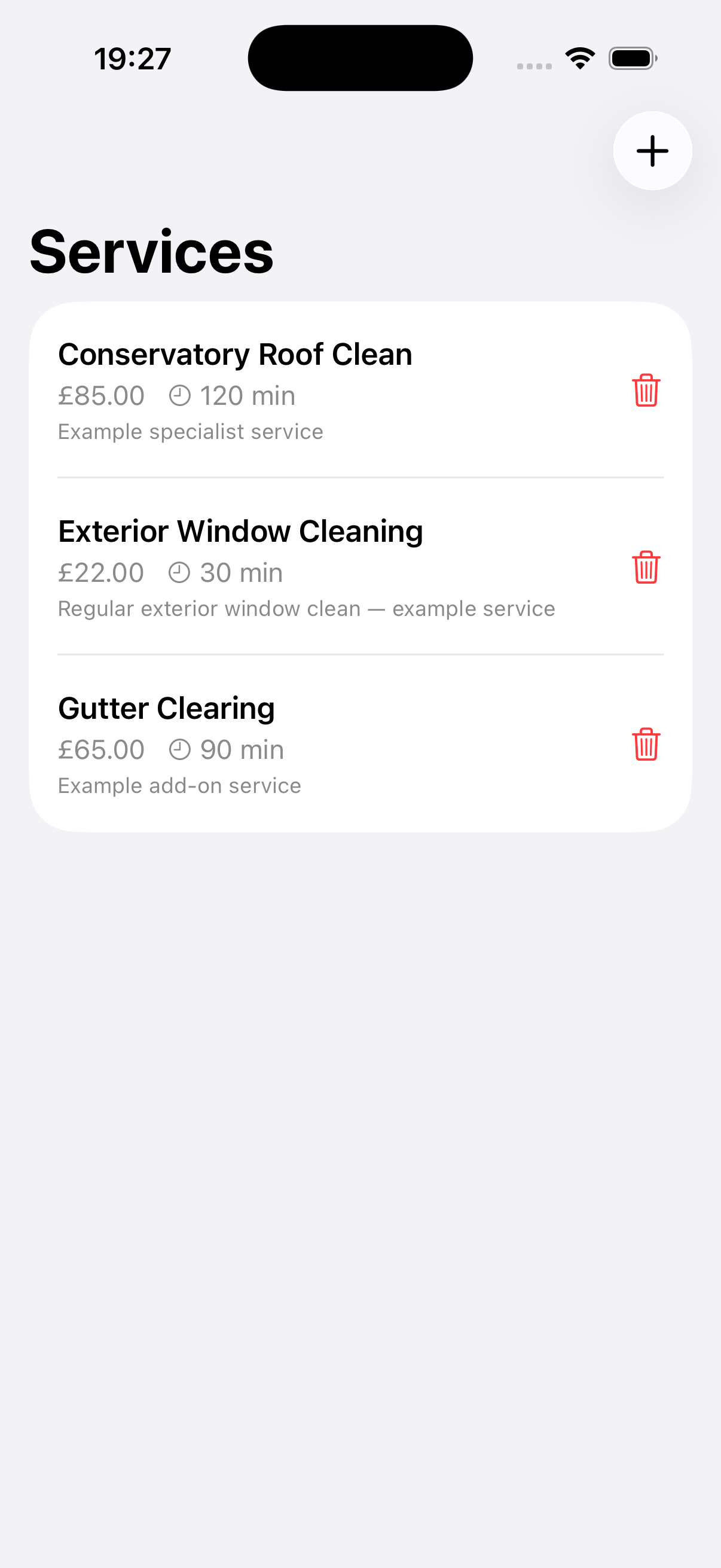
Check workspace and invoice settings
In Workspace Settings, review the business details, currency, timezone and tax settings. Open Invoice Settings to check the payment terms, contact details and wording used on invoices.
Save only after checking the values. Existing invoices remain historical records and are not automatically rewritten when defaults change.
Set up services on Android
- Open More → Workspace Settings.
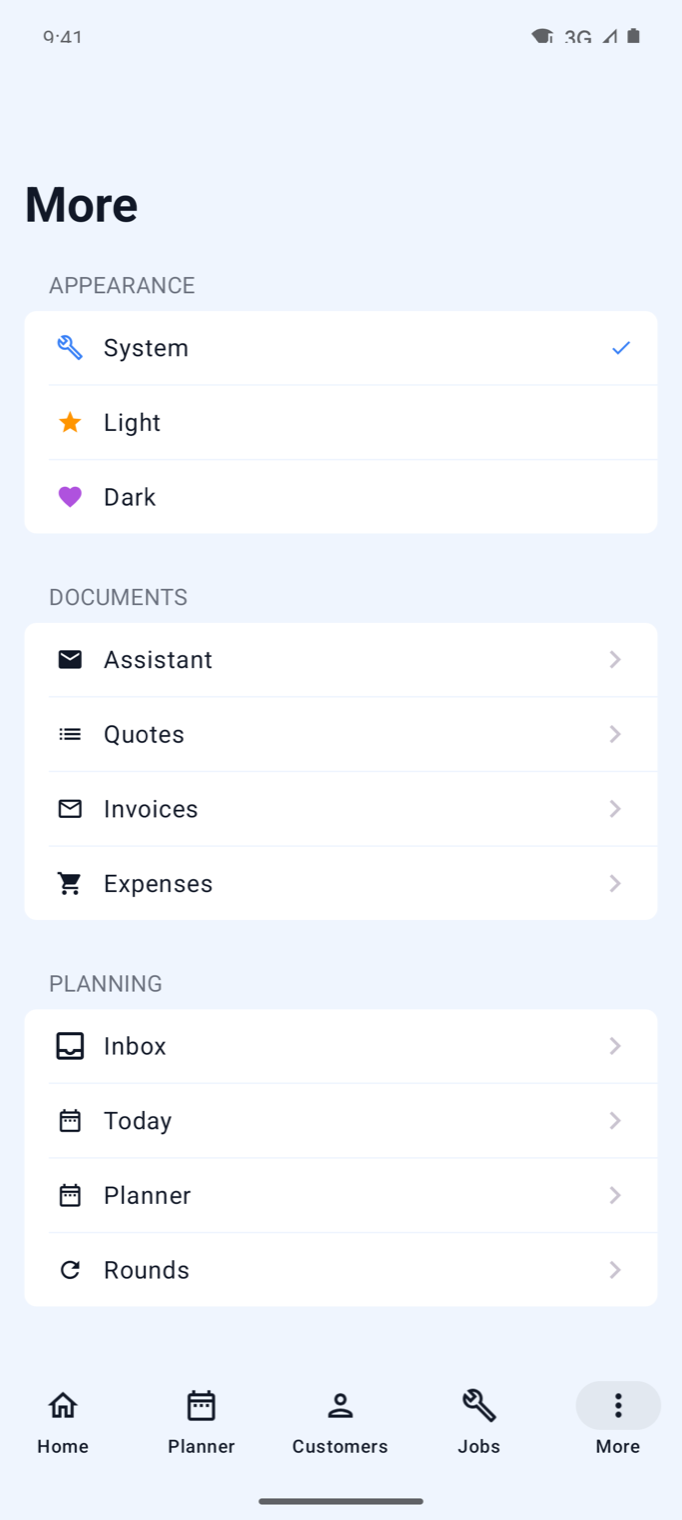
Example data: Android app More tab with the Workspace Settings row in the Settings section - Open Services.
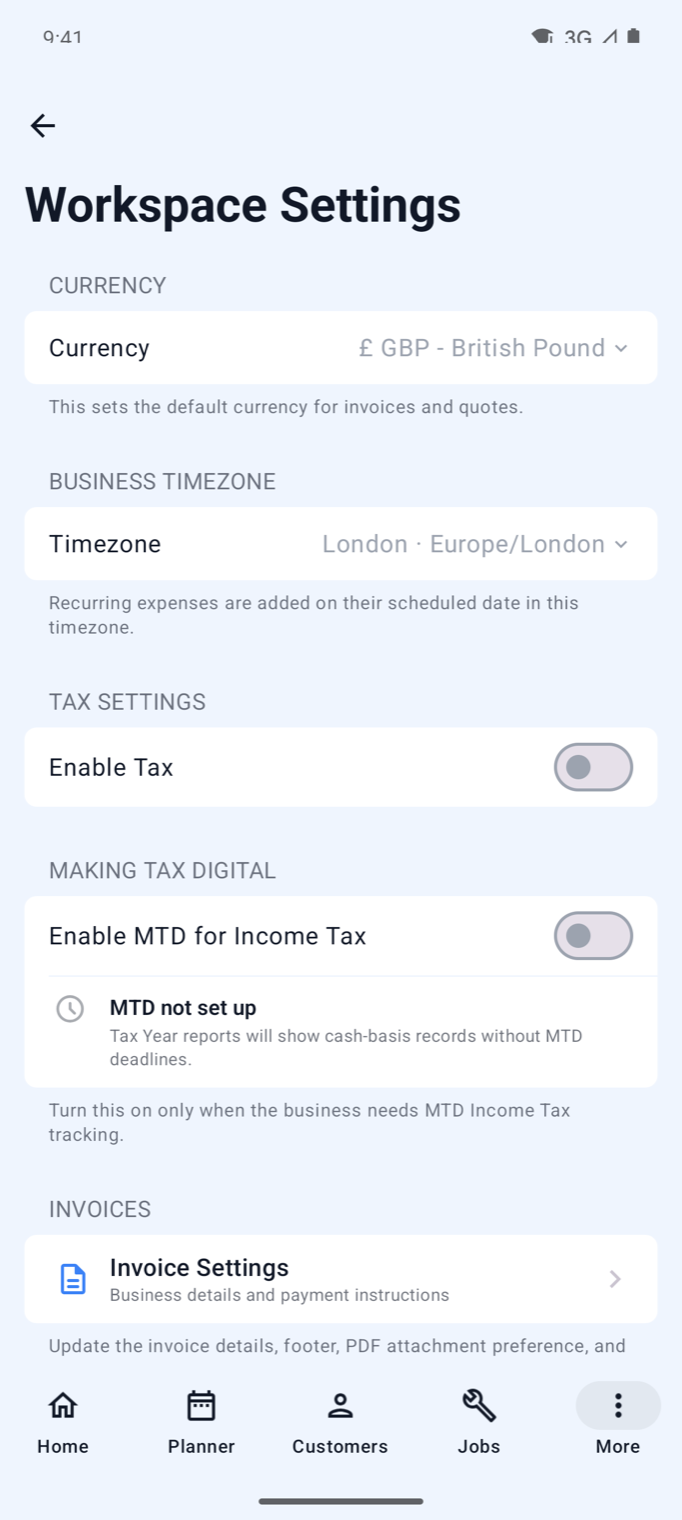
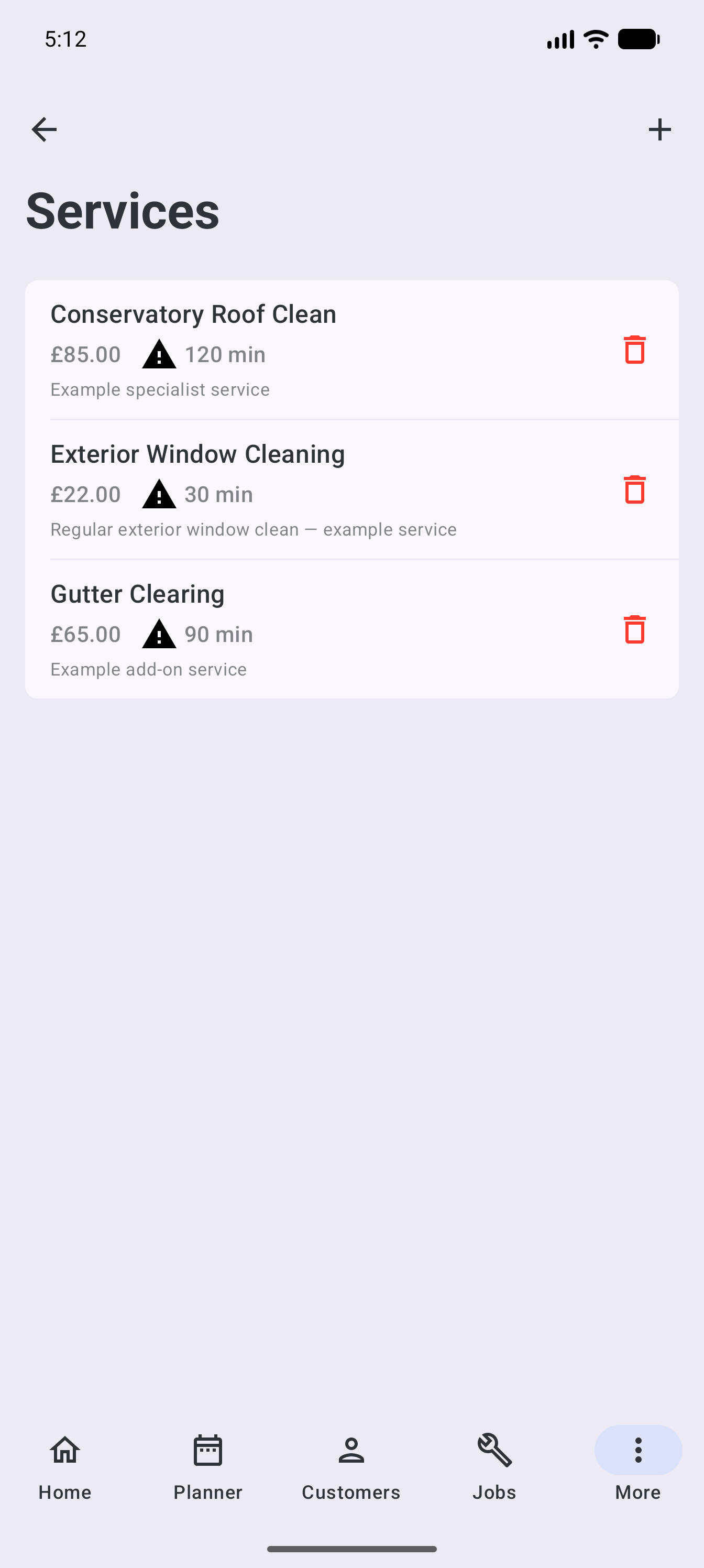
Example data: Android Workspace Settings screen with the Services row visible - Use the + action.
- Enter the name, usual price and tax treatment.
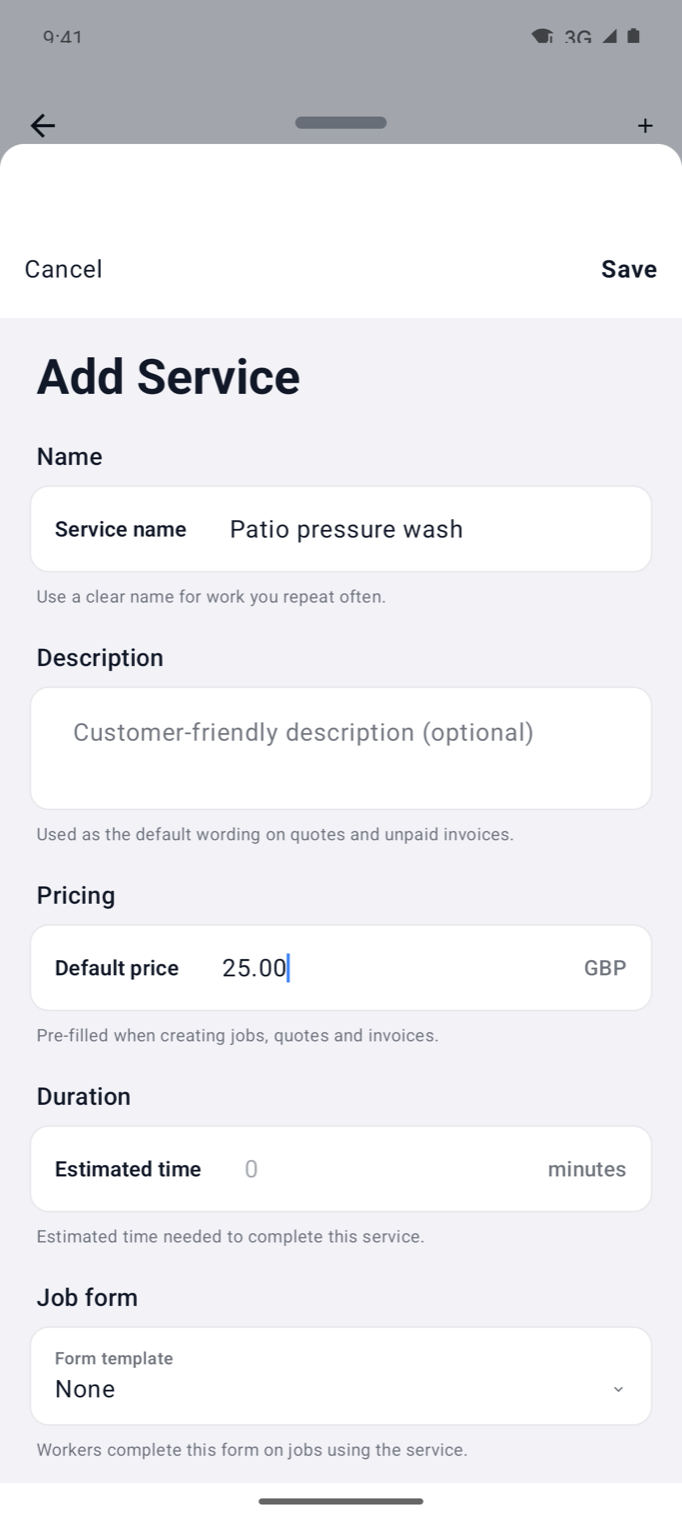
Example data: Android Add Service form with a fictional Service name and Default price filled in - Save the service.
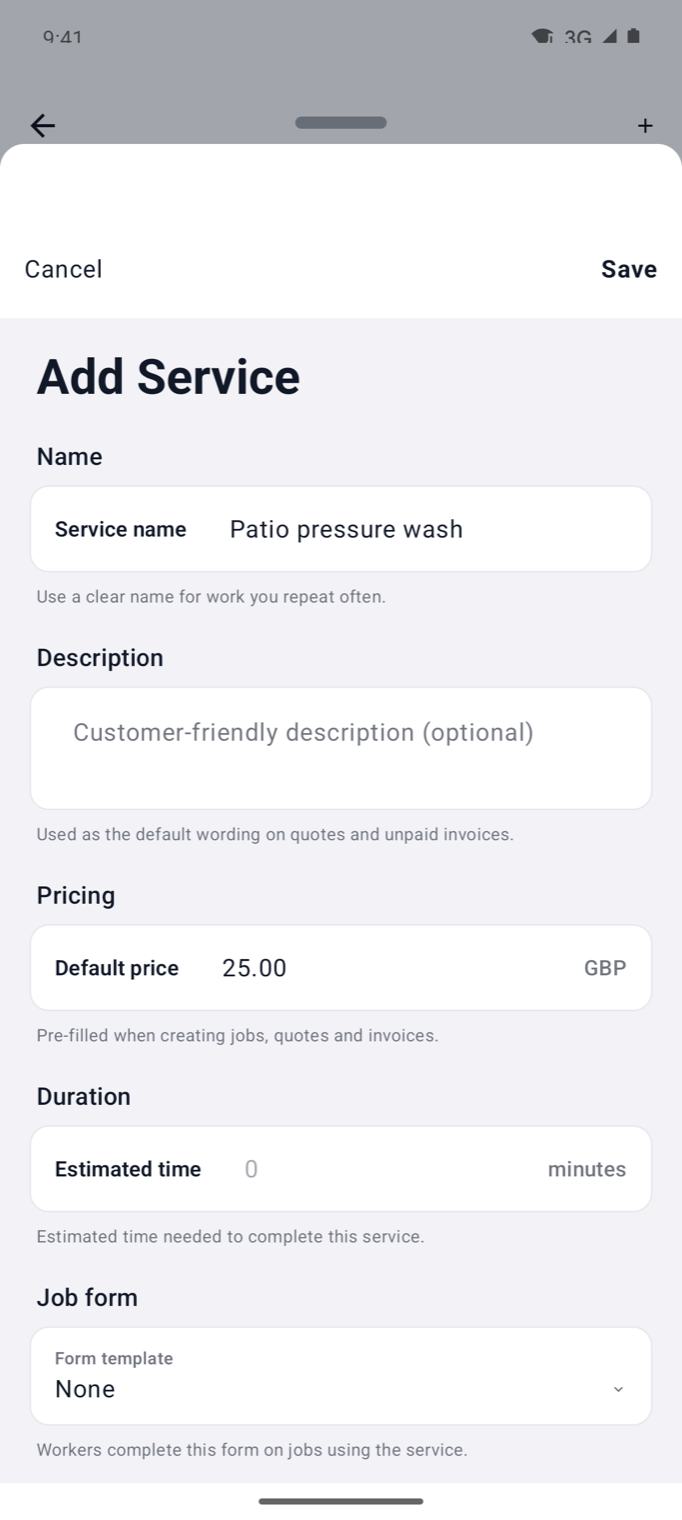
Example data: Android Add Service form with the Save button in the top app bar
Check workspace and invoice settings
In Workspace Settings, review the business details, currency, timezone and tax settings. Open Invoice Settings to check the payment terms, contact details and wording used on invoices.
Save only after checking the values. Existing invoices remain historical records and are not automatically rewritten when defaults change.
Choose useful defaults
Defaults should match the most common version of the work. Keep special access requirements, unusual prices and property-specific details on the customer or job rather than creating many nearly identical services.
Before sending customer-facing documents
Create a draft quote or invoice and check:
- Business name, address and contact details.
- Logo and branding.
- Currency and tax.
- Payment terms and due date.
- Service descriptions and prices.
Correct the settings before sending a document if anything is wrong.