Record business costs close to when they happen. Accurate dates, amounts, suppliers, categories and receipts make financial summaries more useful and reduce work later.
Instructions for your platform
Choose where you’re using Surehand. We’ll remember your selection for the next guide.
Add an expense on the web
- Open Expenses.
- Choose Add Expense.
- Enter the date, supplier, description and amount.
- Select the appropriate expense category.
- Add tax details and a receipt when relevant.
- Save the expense.
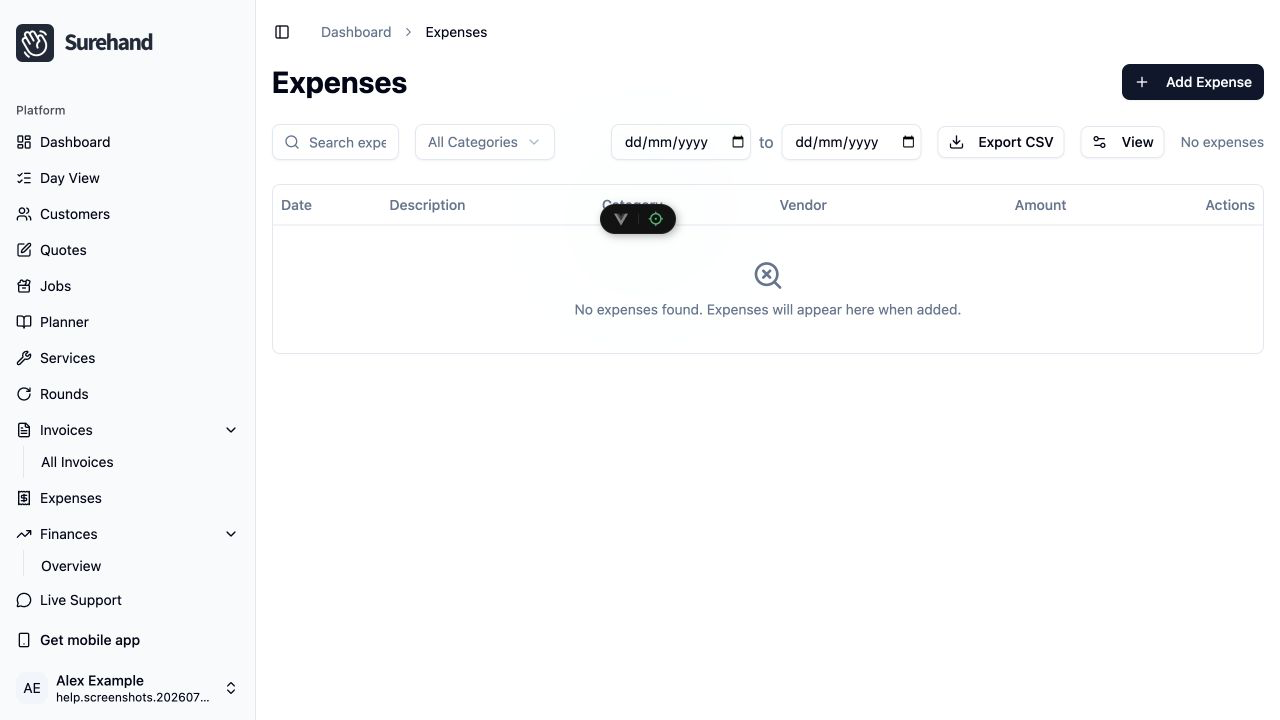
Open Finances to review income, expenses, unpaid invoices and the available summaries. Use filters and date ranges consistently when comparing figures.
Add an expense on iPhone or iPad
- Open More → Expenses.
- Use the + action.
- Enter the date, supplier, description and amount.
- Choose the expense category and tax treatment.
- Attach a receipt when relevant.
- Save the expense.
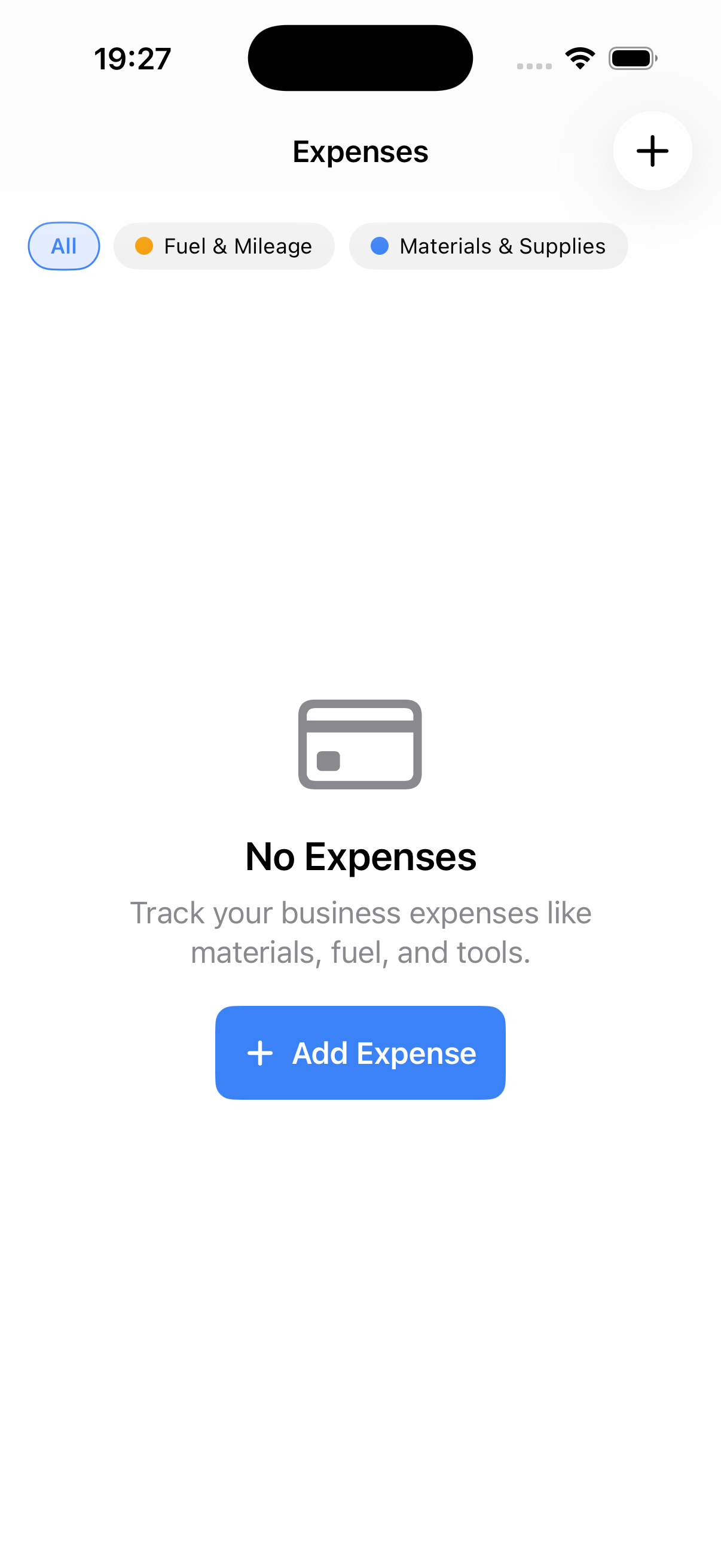
Open More → Finances to review income, costs and unpaid invoices. Use the same date range when comparing figures with another report.
Add an expense on Android
- Open More → Expenses.
- Use the + action.
- Enter the date, supplier, description and amount.
- Choose the expense category and tax treatment.
- Attach a receipt when relevant.
- Save the expense.
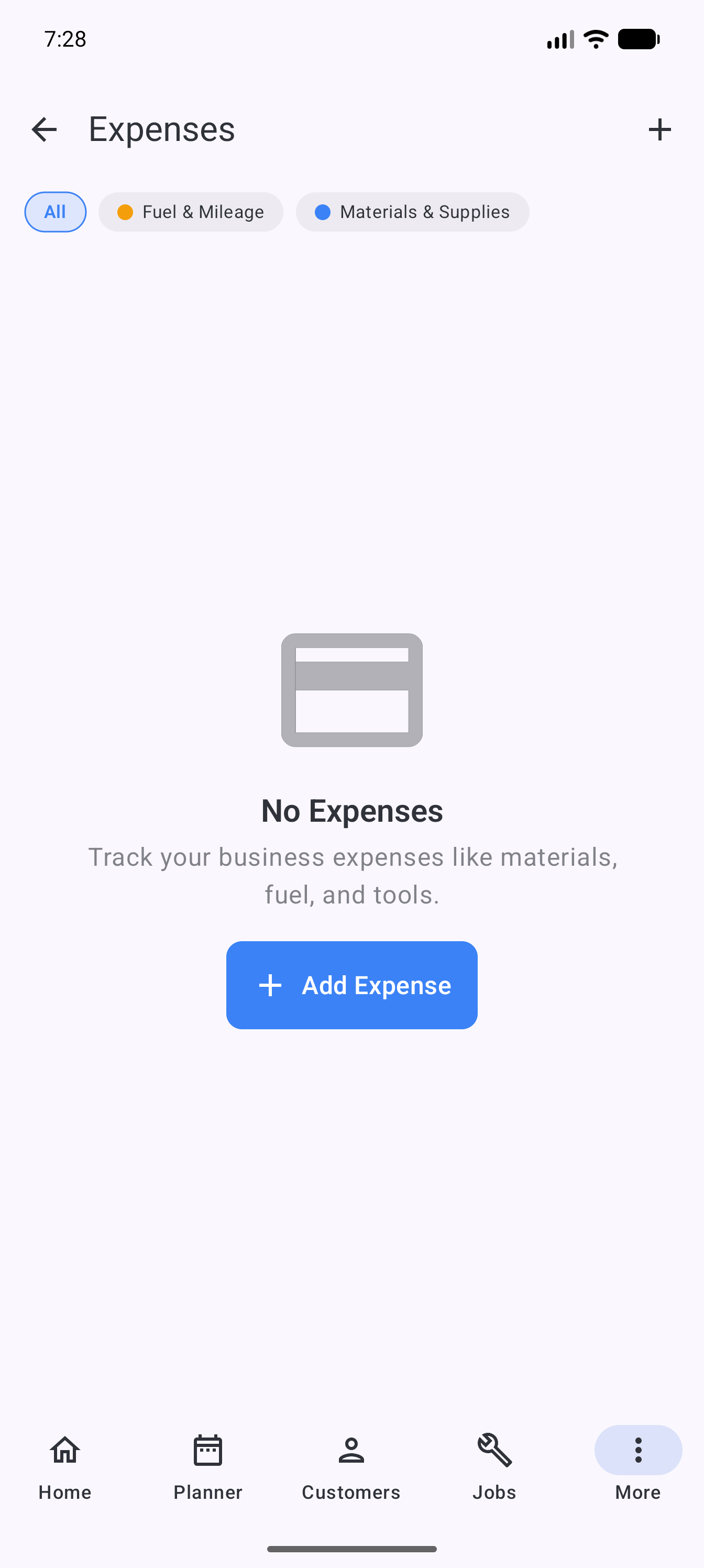
Open More → Finances to review income, costs and unpaid invoices. Use the same date range when comparing figures with another report.
Keep categories consistent
Use the same category for similar costs unless the nature of the expense genuinely differs. If a category is missing or unsuitable, review the workspace expense categories before creating near-duplicates.
Understand the figures
Financial summaries depend on the records and date range in Surehand. An unpaid invoice is not the same as received income, and a missing expense makes the apparent result too high.
Surehand helps organise operational records, but it does not replace advice from an accountant or tax professional. Check the requirements that apply to your business before relying on a figure for a filing or return.
Correct mistakes carefully
Edit an expense when its details are wrong. Delete it only when the record should not exist. Keep the receipt or supporting evidence that explains the final entry.