Use a separate account for every person. Roles control what someone can manage, while financial access protects invoices, expenses, payments and financial summaries.
Instructions for your platform
Choose where you’re using Surehand. We’ll remember your selection for the next guide.
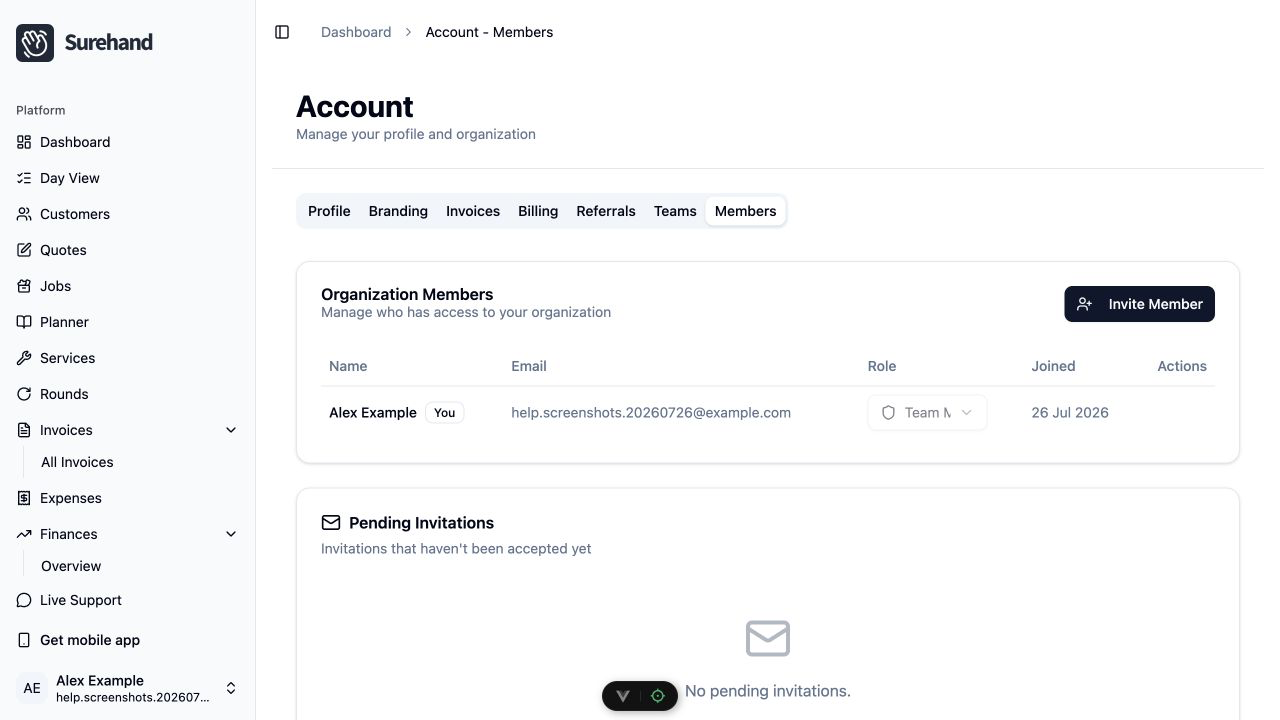
Review members on the web
- Open Account → Members.
- Find the person whose access you need to review.
- Check their role and current status.
- Change access only when their responsibilities require it.
- Save and ask the person to sign in again if the updated access is not immediately visible.
Choose the least powerful suitable role
- Use Admin for someone trusted to manage the organisation and its settings.
- Use Member for day-to-day work without full administrative control.
- Grant financial access only when the person needs invoices, expenses, payments or financial reporting.
The available controls can depend on your own role. If you cannot manage a member, ask an organisation manager or owner.
Why an area may be missing
Invoices, expenses, finances and some exports are hidden when the signed-in person does not have financial access. A feature can also be hidden when it is not included in the workspace plan.
Check role, financial access and plan entitlement before assuming records have disappeared.
Remove access promptly
When someone leaves:
- Reassign unfinished work where necessary.
- Remove them from teams.
- Revoke or deactivate their organisation access.
- Do not reuse their login for another person.
Keep a record of who approved sensitive access changes.