GoCardless lets a customer authorise Direct Debit securely. Surehand stores the resulting mandate status against the customer; it does not ask you to collect the customer’s bank details yourself.
GoCardless is a plan-controlled feature. If Surehand shows Upgrade to Pro instead of the connect action, the current subscription does not include it.
Before you begin
You need:
- Permission to manage the organisation’s integrations.
- A GoCardless account suitable for your business.
- A Surehand customer with accurate name and contact details.
Instructions for your platform
Choose where you’re using Surehand. We’ll remember your selection for the next guide.
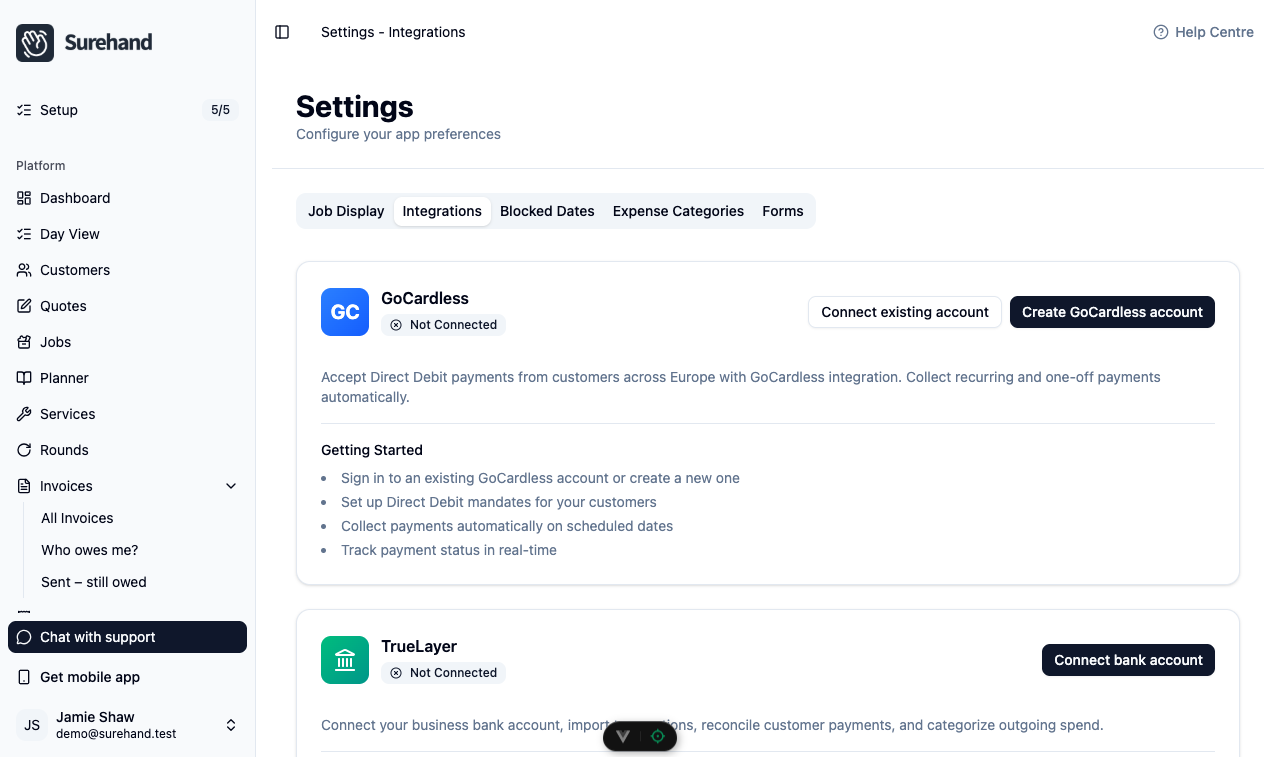
Connect GoCardless on the web
- Open Settings.
- Open Integrations.
- Find GoCardless.
- Choose Connect existing account if you already have GoCardless, or Create GoCardless account if you don't.
- Complete the GoCardless authorisation.
- Return to Surehand and check that the integration shows as connected and verified.
If your GoCardless account already contains mandates, Surehand may synchronise them or ask you to match mandates that could not be linked automatically. Choose Review mandates to see them.
Set up a customer
- Open the customer.
- On the Overview tab, find the Direct Debit panel.
- Choose Set up to create a secure GoCardless authorisation link.
- Share that link with the customer.
The customer follows the GoCardless flow and enters their details there. Do not ask them to send bank details by email or message.
Connect GoCardless on iPhone or iPad
- Open More → Workspace Settings.
- Find GoCardless under integrations.
- Choose Connect existing account if you already have GoCardless, or Create GoCardless account if you don't.
- Complete the authorisation and return to Surehand.
- Check that the connection is verified. If you see a pending imports row, tap it to match those mandates.
Set up a customer
Open the customer’s Payments area. In Direct Debit, choose Setup and create the secure authorisation link. Share the link with the customer so they can complete the GoCardless flow themselves.
<!-- screenshot: A customer's Payments screen on iPhone, Direct Debit section with no mandate and the Setup button (fictional example customer) -->Connect GoCardless on Android
- Open More → Workspace Settings.
- Scroll to Integrations and find GoCardless.
- Choose Connect existing account if you already have GoCardless, or Create GoCardless account if you don't.
- Complete the authorisation and return to Surehand.
- Check that the connection is verified. If you see a pending imports row, tap it to match those mandates.
Set up a customer
Open the customer’s Payments area. In Direct Debit, choose Setup and create the secure authorisation link. Share the link with the customer so they can complete the GoCardless flow themselves.
<!-- screenshot: A customer's Payments screen on Android, Direct Debit section with no mandate and the Setup button (fictional example customer) -->Wait for authorisation
Creating the link does not create an active mandate immediately. The mandate appears on the customer after they complete the GoCardless authorisation and Surehand receives the update.
Check the customer’s Direct Debit section for the current status.
Understand the connection status
Connected means Surehand has permission to use the merchant's GoCardless account. GoCardless must also verify that account before it can collect live payments.
- Verification required means the merchant still needs to complete information requested by GoCardless.
- In review means GoCardless is checking the submitted information.
- Verified means the connection is ready to create mandates and payments.
If Surehand asks you to reconnect, return to Settings → Integrations and complete the GoCardless connection again. Do not try to work around an expired connection by repeatedly submitting a payment.
Match existing mandates carefully
When existing GoCardless mandates cannot be matched automatically, open them from the GoCardless integration: choose Review mandates on the web, or tap the pending imports row on mobile. Then:
- Compare the GoCardless customer details with the Surehand customer.
- Select the correct customer.
- Confirm the match.
Skip an unmatched mandate only when it genuinely should not be linked. Skipping it in Surehand does not cancel it in GoCardless.
Taking payments
An active mandate gives permission to collect payment, but each collection still has its own status and processing timeline.
Check the amount, customer and invoice before starting a collection. Do not record a duplicate manual payment while a GoCardless payment is still processing.
You can collect eligible new invoices automatically or select invoices in a manual Direct Debit run. Read Automatically collect invoices with GoCardless before enabling automation for the organisation.
Cancelling or disconnecting
Cancelling one customer’s mandate is different from disconnecting the organisation’s GoCardless integration. Read the confirmation carefully before proceeding with either action.